Quick Start · Beginner · ~30 min
Beginner journey
Pick a fully mocked template, learn the canvas, run a Deterministic network locally, then deploy it to your Omni Gateway and chat with it. No LLM key needed.
Needs: Anypoint. Steps: 9. Open it in VS Code with Home → Quick Start → Beginner, or Octoloom: Quick Start in the Command Palette.
The journey at a glance
- Anypoint account
- Small Managed Omni Gateway
- Connected app Octoloom-CA
- Connect Octoloom to Agent Fabric
- A fully mocked template
- Learn the canvas
- Run it locally (Deterministic)
- Deploy to your Omni Gateway
- Chat and trace
Steps 1–4: the prerequisites
Every journey starts with the same four steps. Each is explained step by step, with videos, under Before you start:
1. Anypoint account
See Anypoint account.
2. Small Managed Omni Gateway
See Small Managed Omni Gateway.
3. Connected app Octoloom-CA
See Connected app Octoloom-CA.
4. Connect Octoloom to Agent Fabric
See Connect Octoloom to Agent Fabric.
5. A fully mocked template
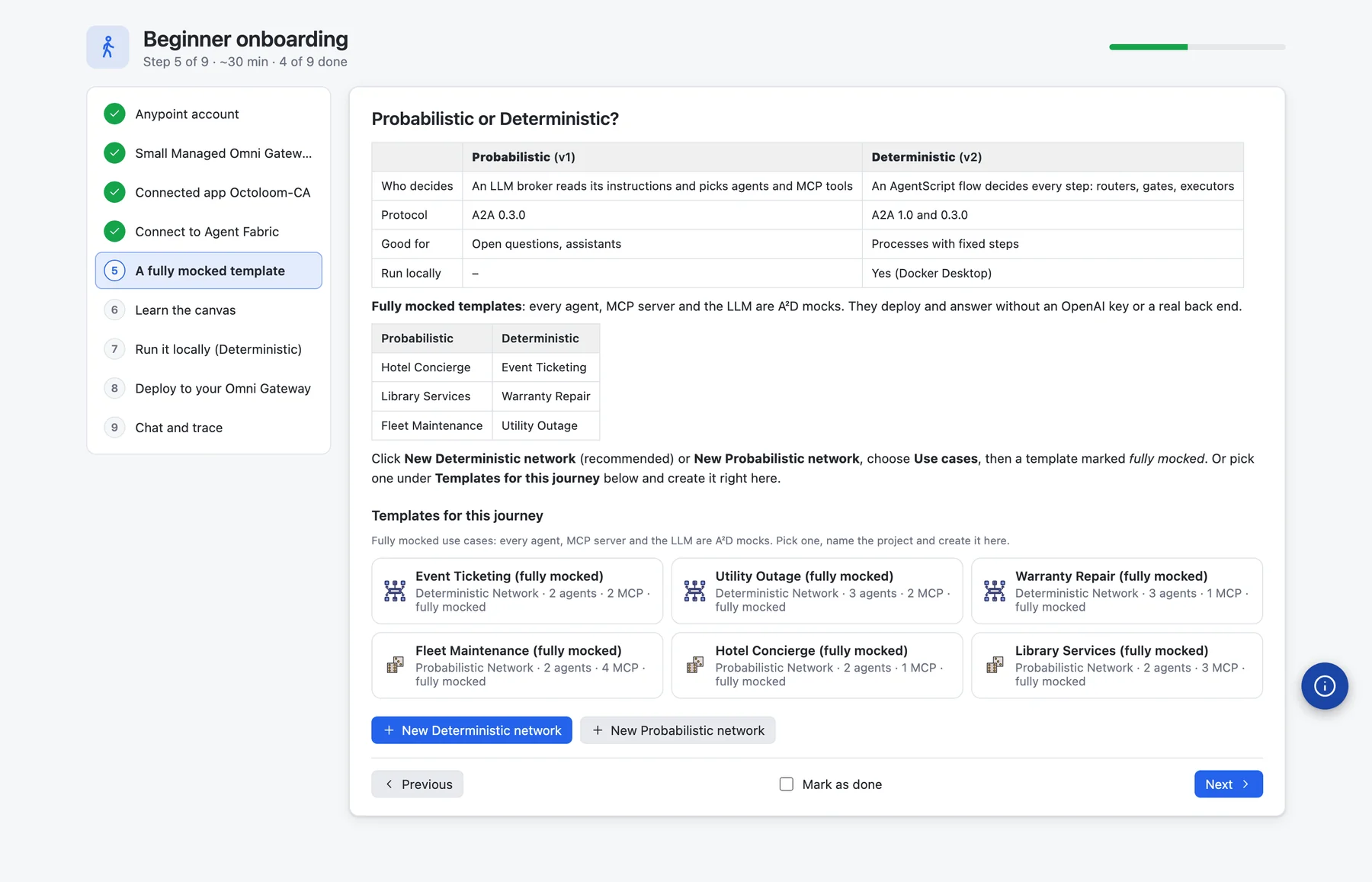
| Probabilistic (v1) | Deterministic (v2) | |
|---|---|---|
| Who decides | An LLM broker reads its instructions and picks agents and MCP tools | An AgentScript flow decides every step: routers, gates, executors |
| Protocol | A2A 0.3.0 | A2A 1.0 and 0.3.0 |
| Good for | Open questions, assistants | Processes with fixed steps |
| Run locally | – | Yes (Docker Desktop) |
Fully mocked templates: every agent, MCP server and the LLM are A²D mocks. They deploy and answer without an OpenAI key or a real back end.
| Probabilistic | Deterministic |
|---|---|
| Hotel Concierge | Event Ticketing |
| Library Services | Warranty Repair |
| Fleet Maintenance | Utility Outage |
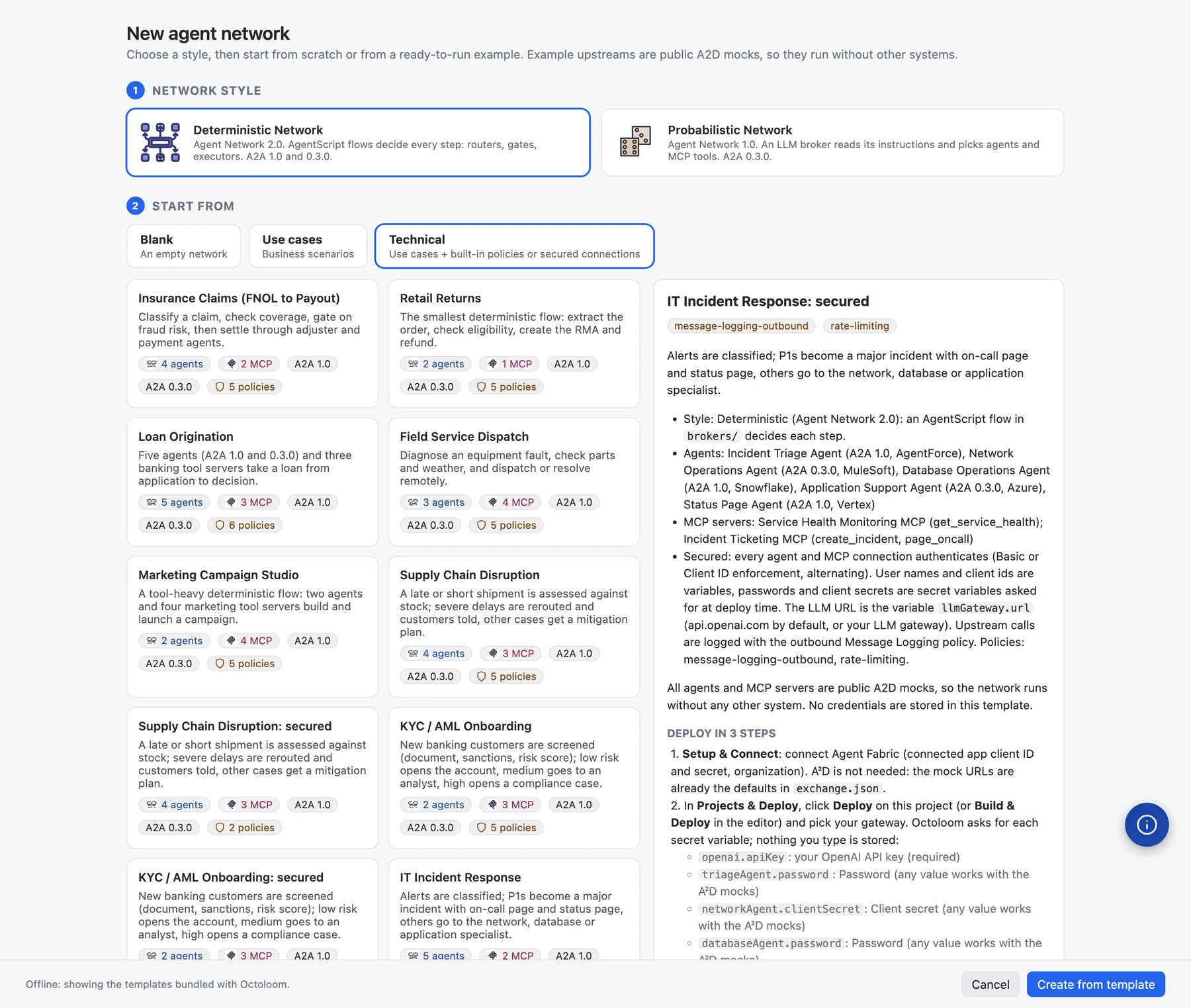
Click New Deterministic network (recommended) or New Probabilistic network, choose Use cases, then a template marked fully mocked. Or pick one under Templates for this journey in the tab (listed at the end of this page) and create it right here.
6. Learn the canvas
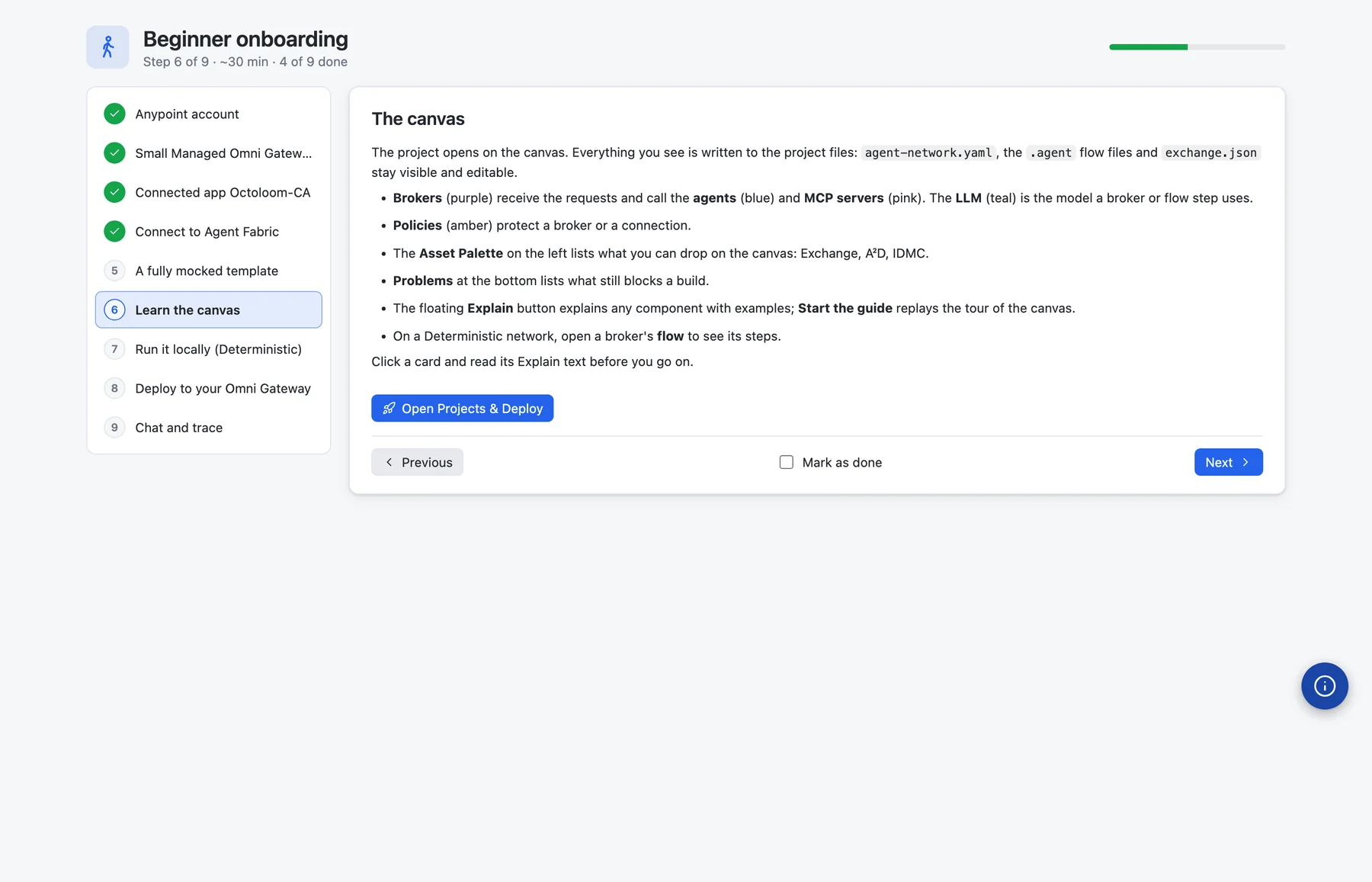
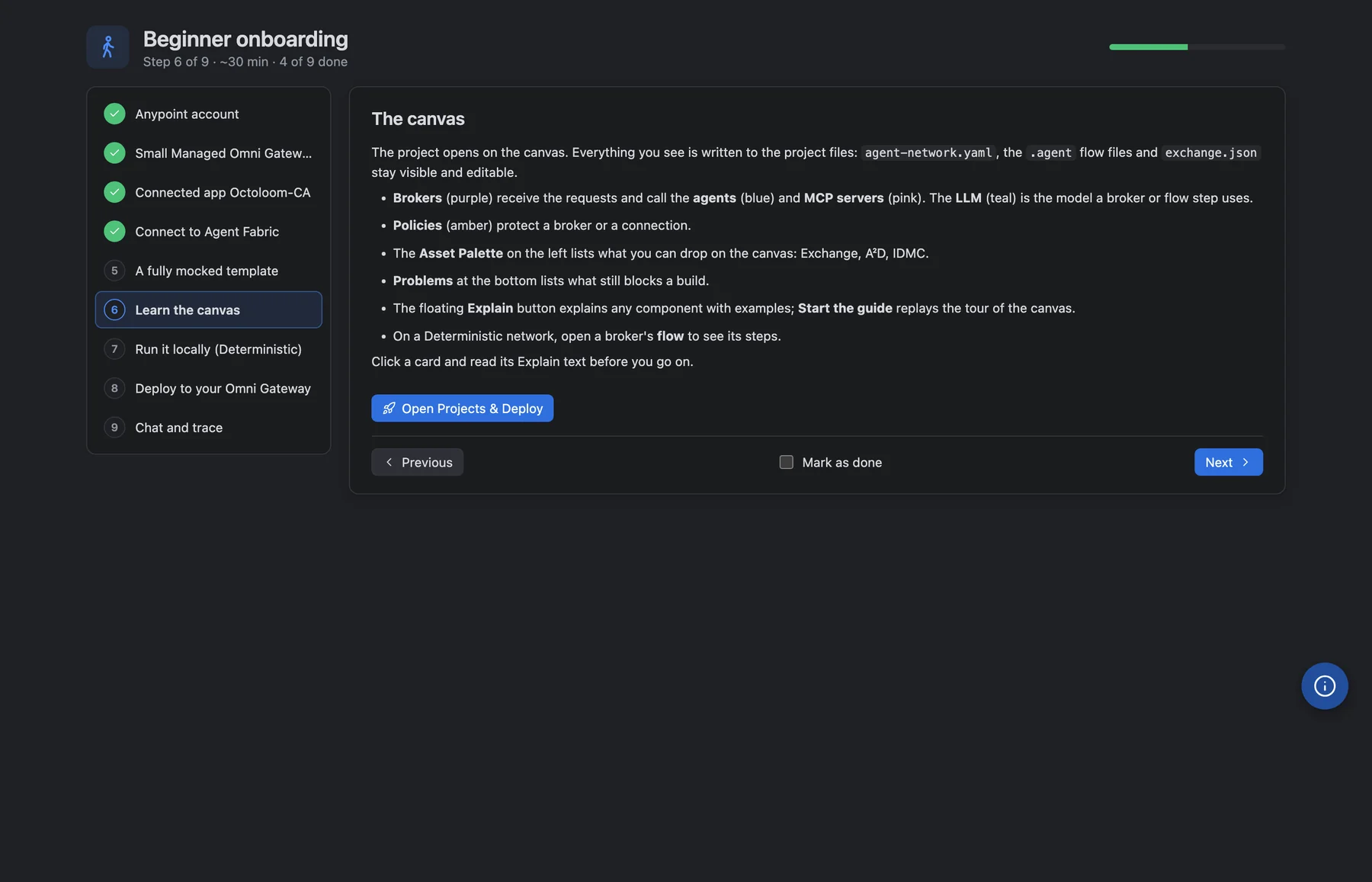
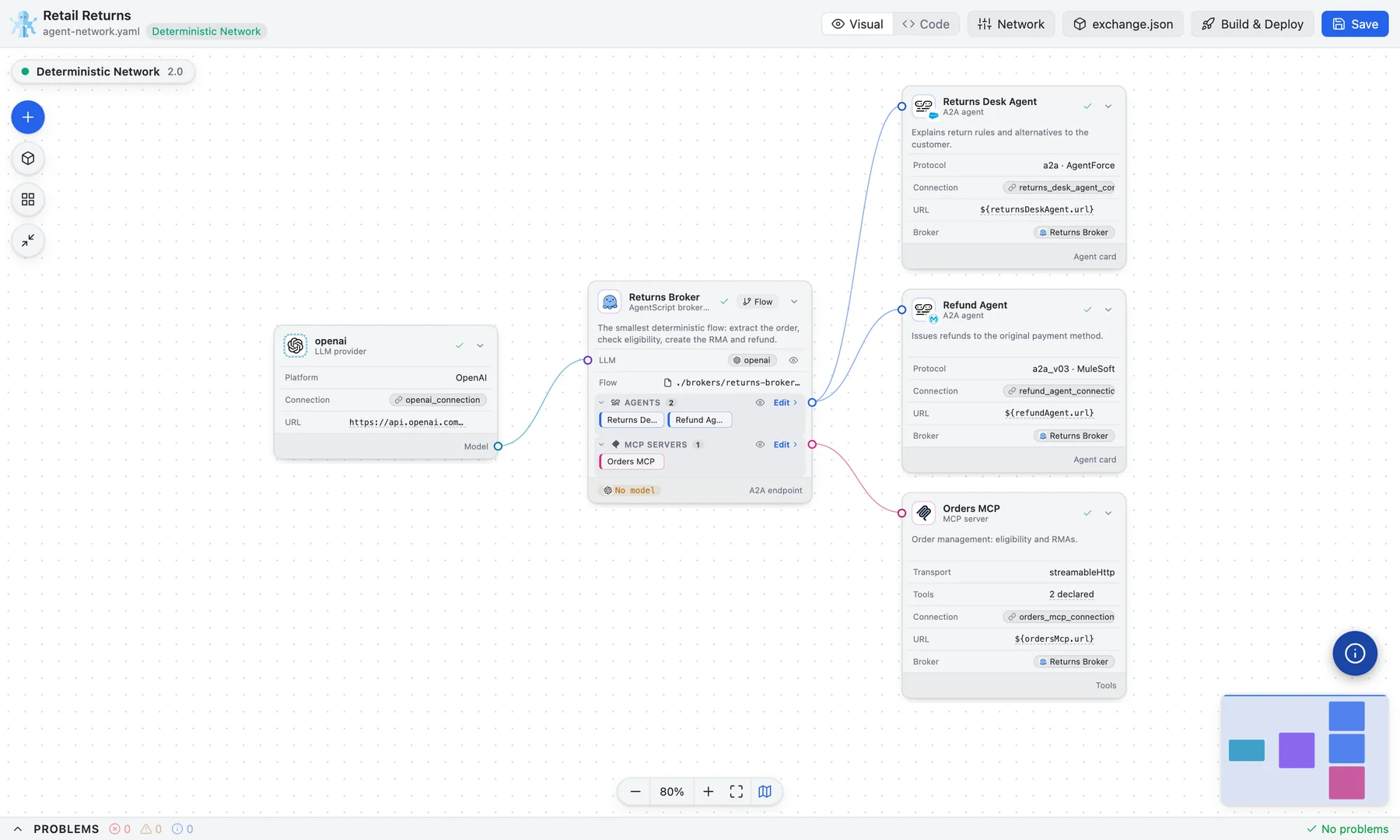
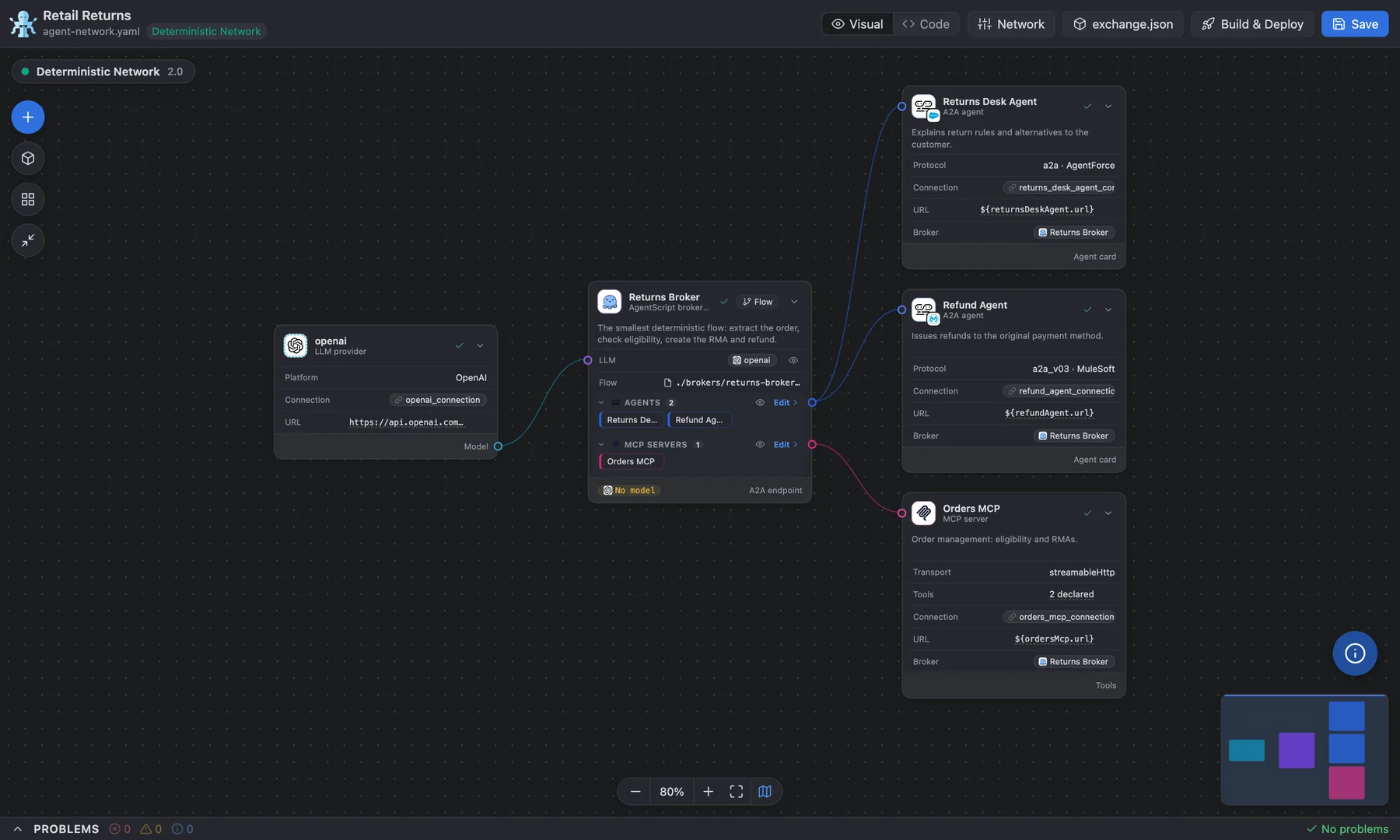
The project opens on the canvas. Everything you see is written to the project files: agent-network.yaml, the .agent flow files and exchange.json stay visible and editable.
- Brokers (purple) receive the requests and call the agents (blue) and MCP servers (pink). The LLM (teal) is the model a broker or flow step uses.
- Policies (amber) protect a broker or a connection.
- The Asset Palette on the left lists what you can drop on the canvas: Exchange, A²D, IDMC.
- Problems at the bottom lists what still blocks a build.
- The floating Explain button explains any component with examples; Start the guide replays the tour of the canvas.
- On a Deterministic network, open a broker's flow to see its steps.
Click a card and read its Explain text before you go on.
7. Run it locally (Deterministic)
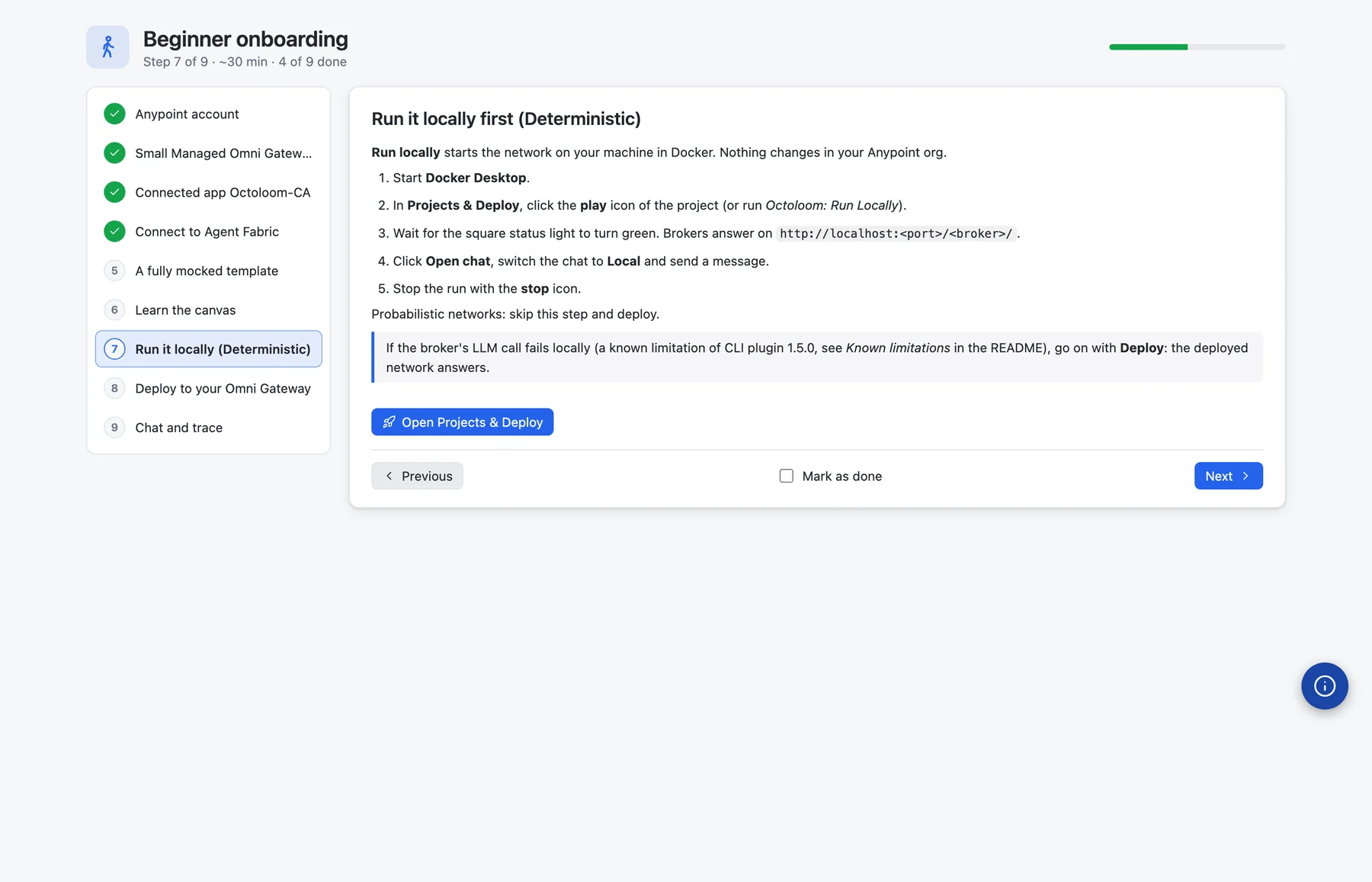
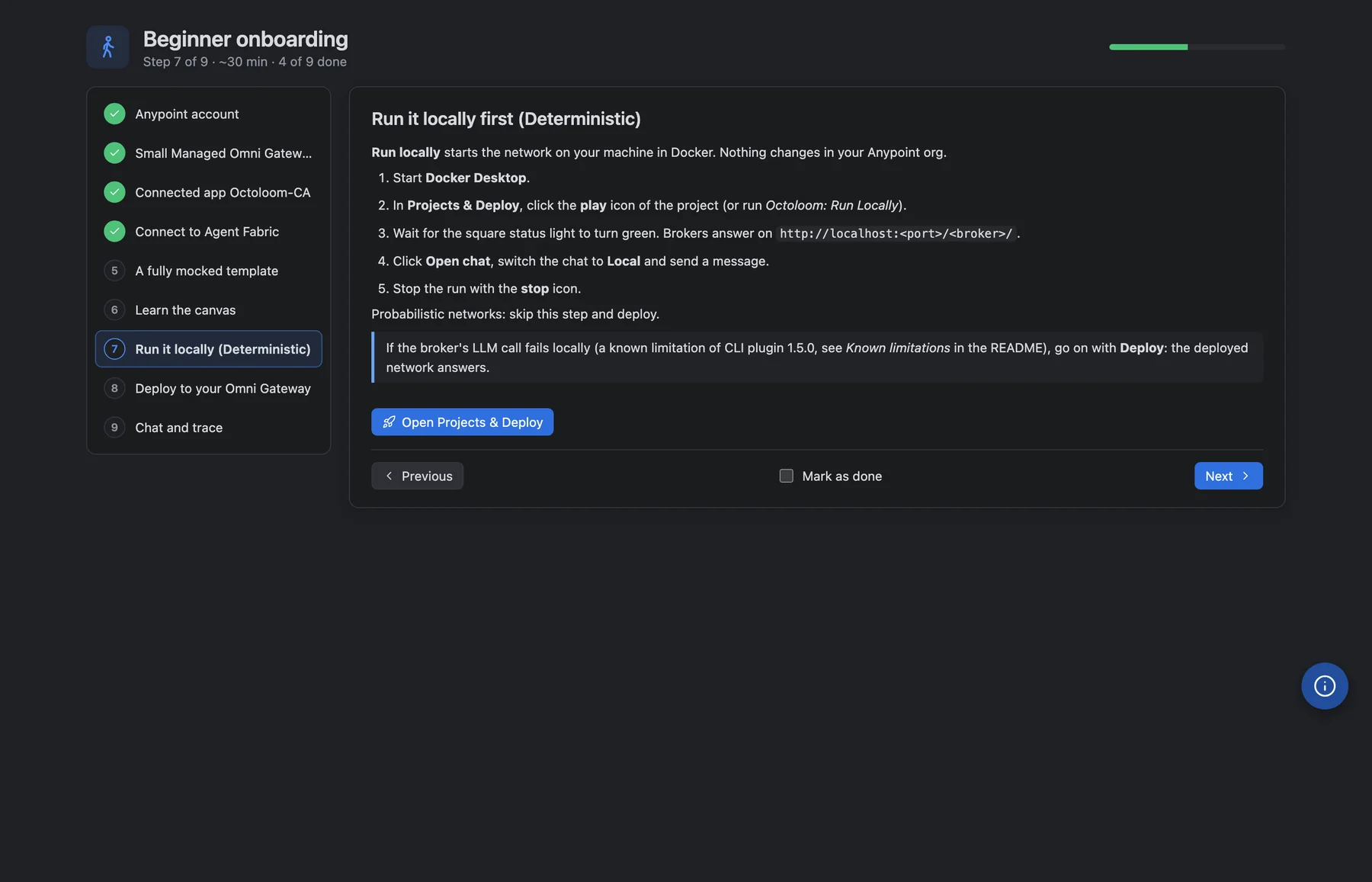
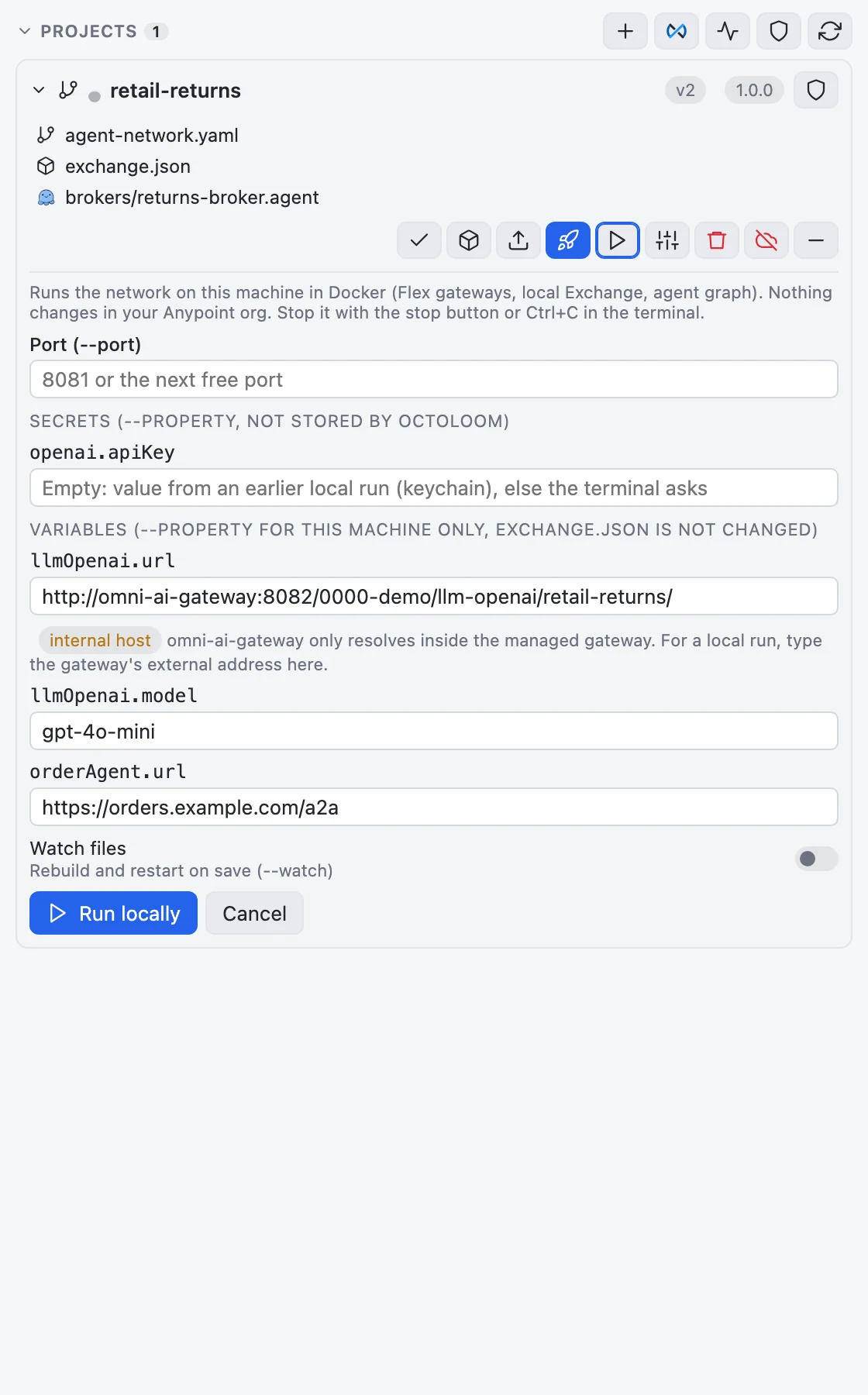
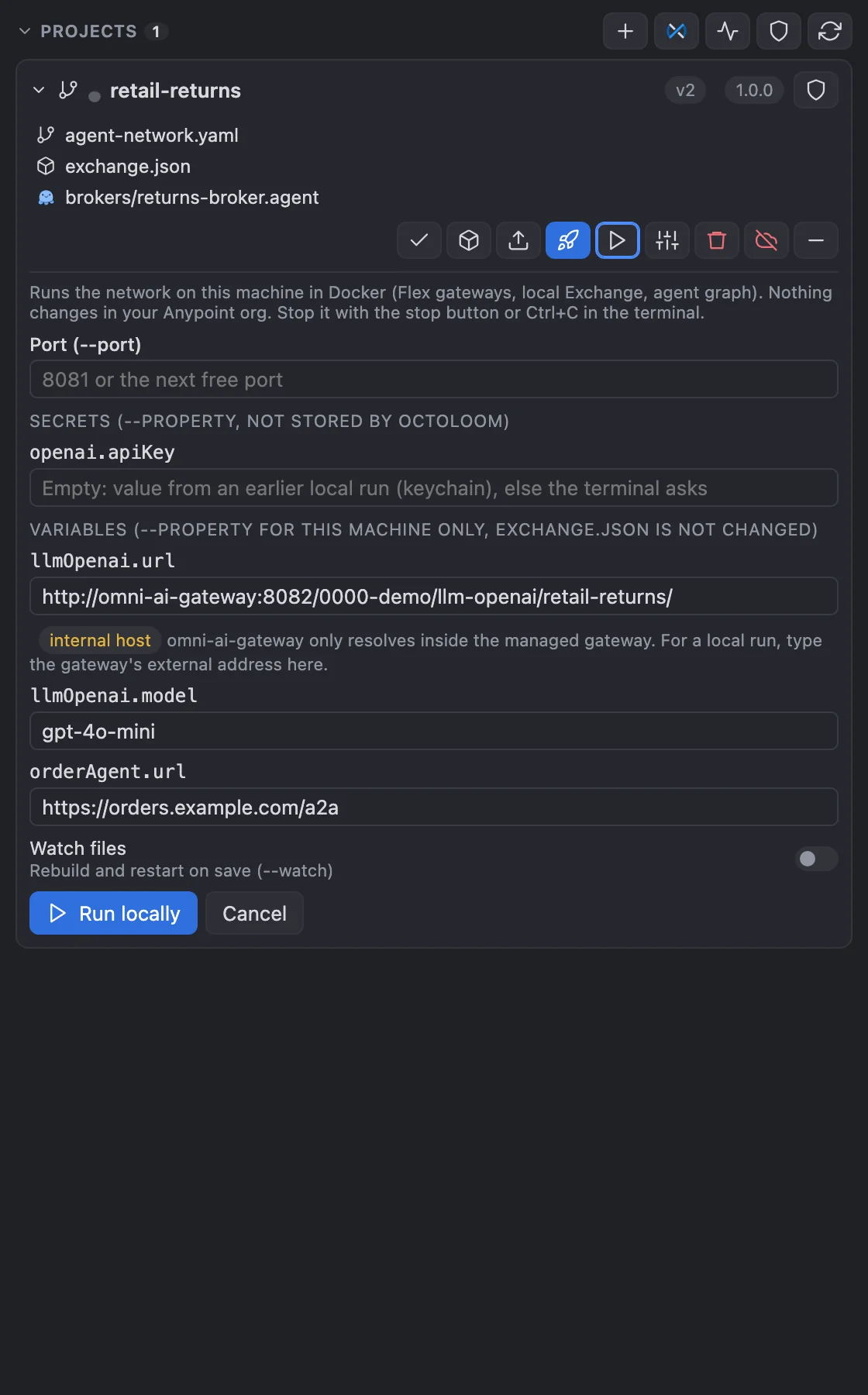
Run locally starts the network on your machine in Docker. Nothing changes in your Anypoint org.
- Start Docker Desktop.
- In Projects & Deploy, click the play icon of the project (or run Octoloom: Run Locally).
- Wait for the square status light to turn green. Brokers answer on
http://localhost:<port>/<broker>/. - Click Open chat, switch the chat to Local and send a message.
- Stop the run with the stop icon.
Probabilistic networks: skip this step and deploy.
If the broker's LLM call fails locally (a known limitation of CLI plugin 1.5.0, see Known limitations in the README), go on with Deploy: the deployed network answers.
8. Deploy to your Omni Gateway
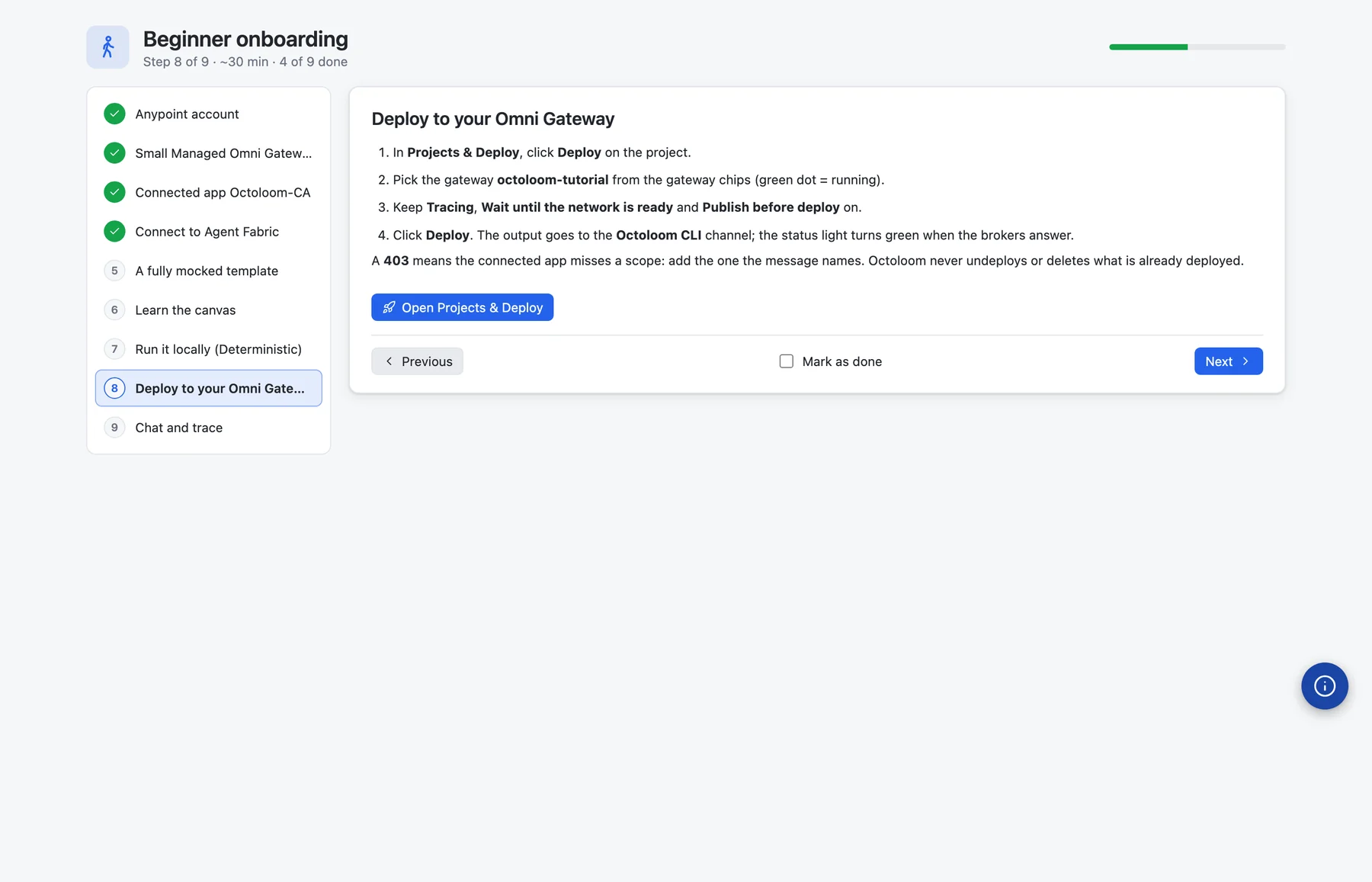
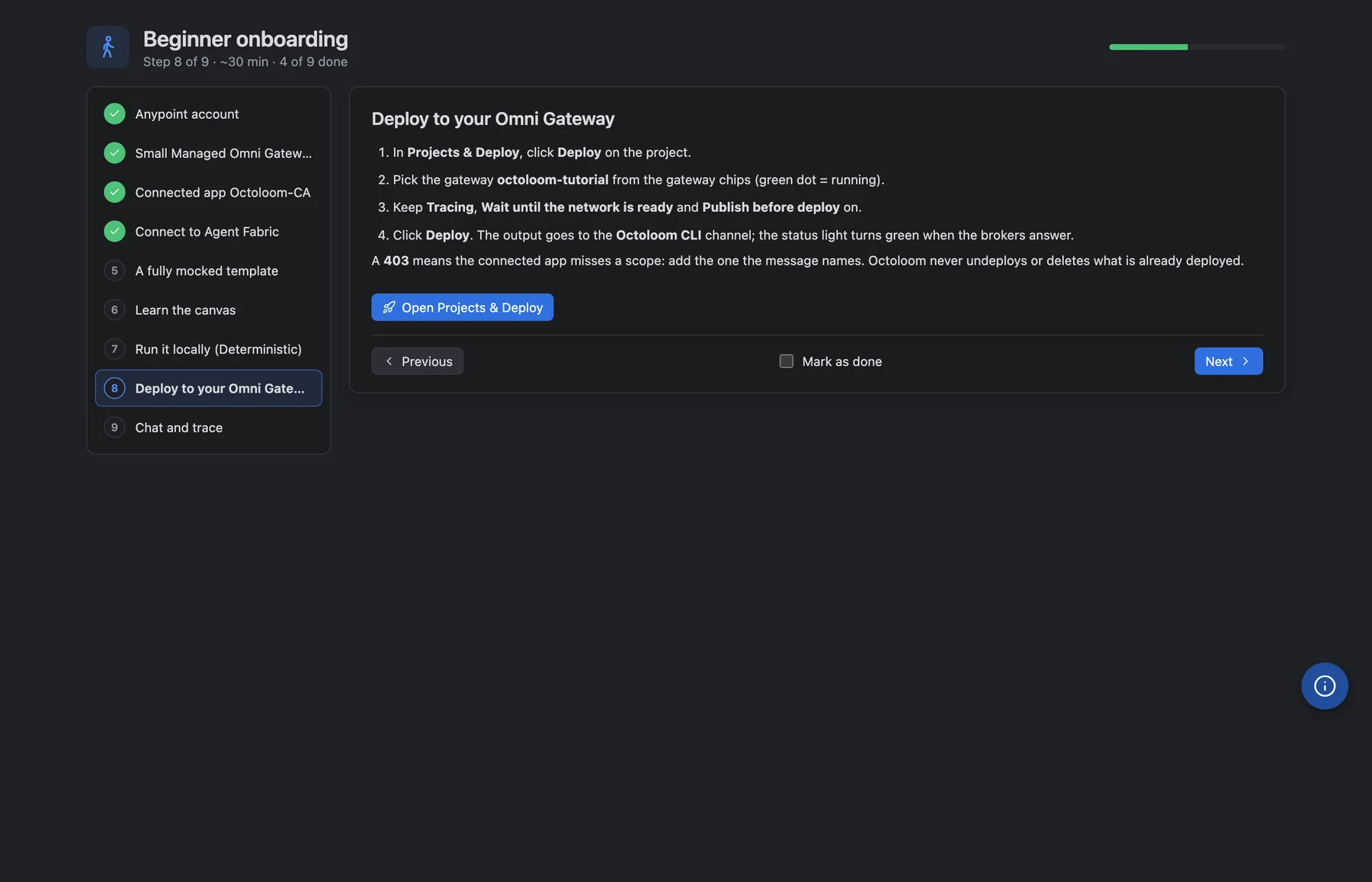
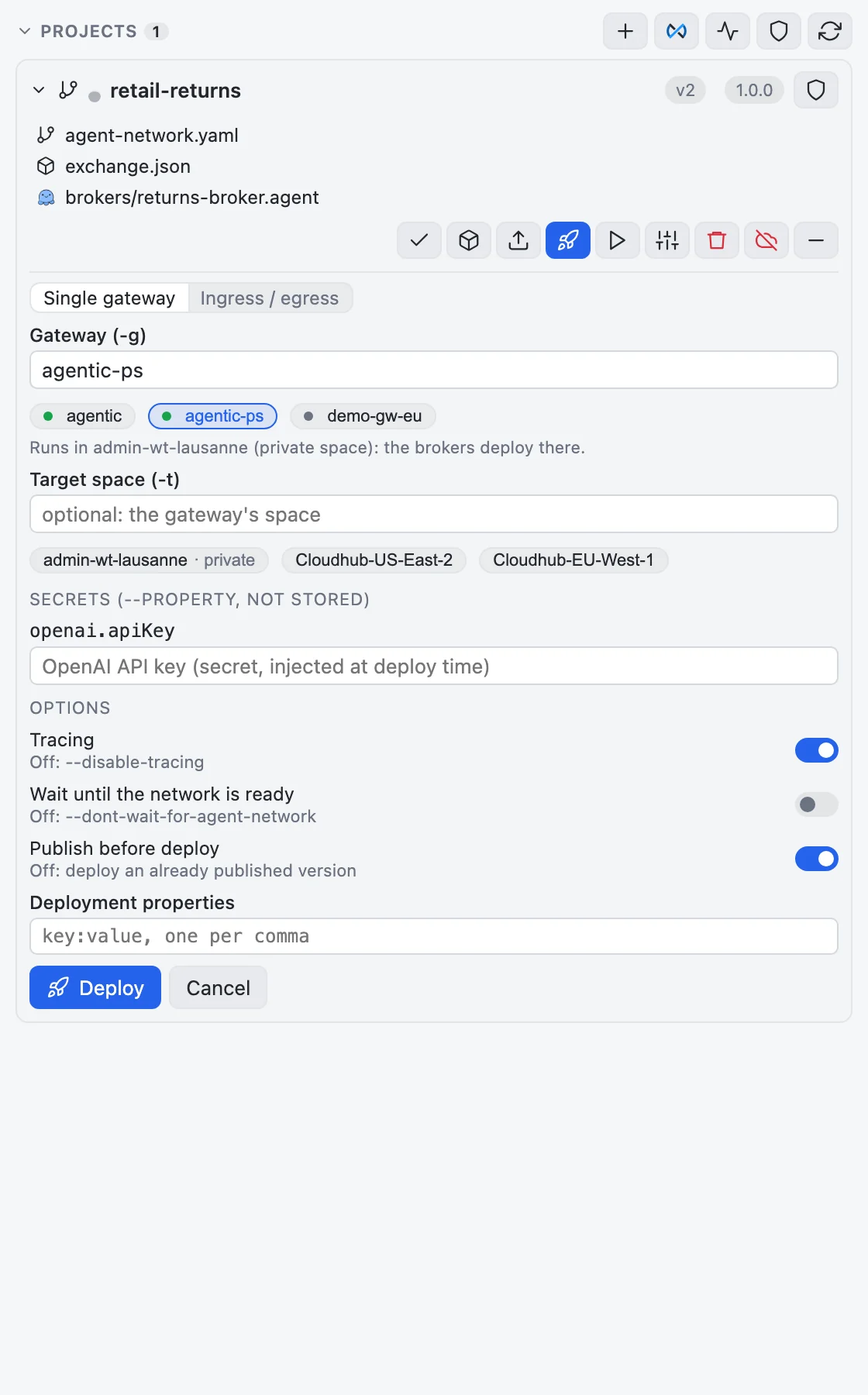
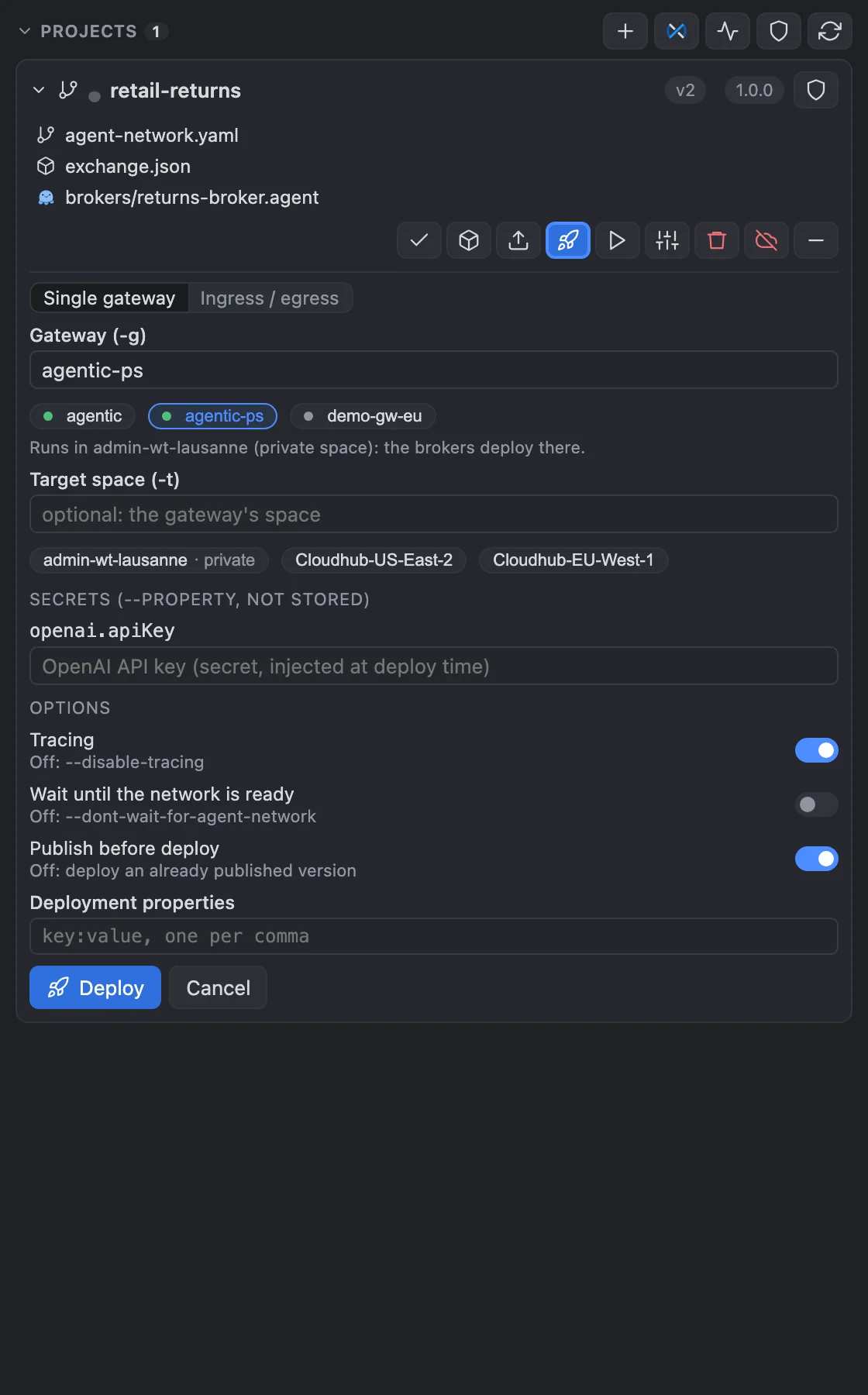
- In Projects & Deploy, click Deploy on the project.
- Pick the gateway octoloom-tutorial from the gateway chips (green dot = running).
- Keep Tracing, Wait until the network is ready and Publish before deploy on.
- Click Deploy. The output goes to the Octoloom CLI channel; the status light turns green when the brokers answer.
A 403 means the connected app misses a scope: add the one the message names. Octoloom never undeploys or deletes what is already deployed.
9. Chat and trace
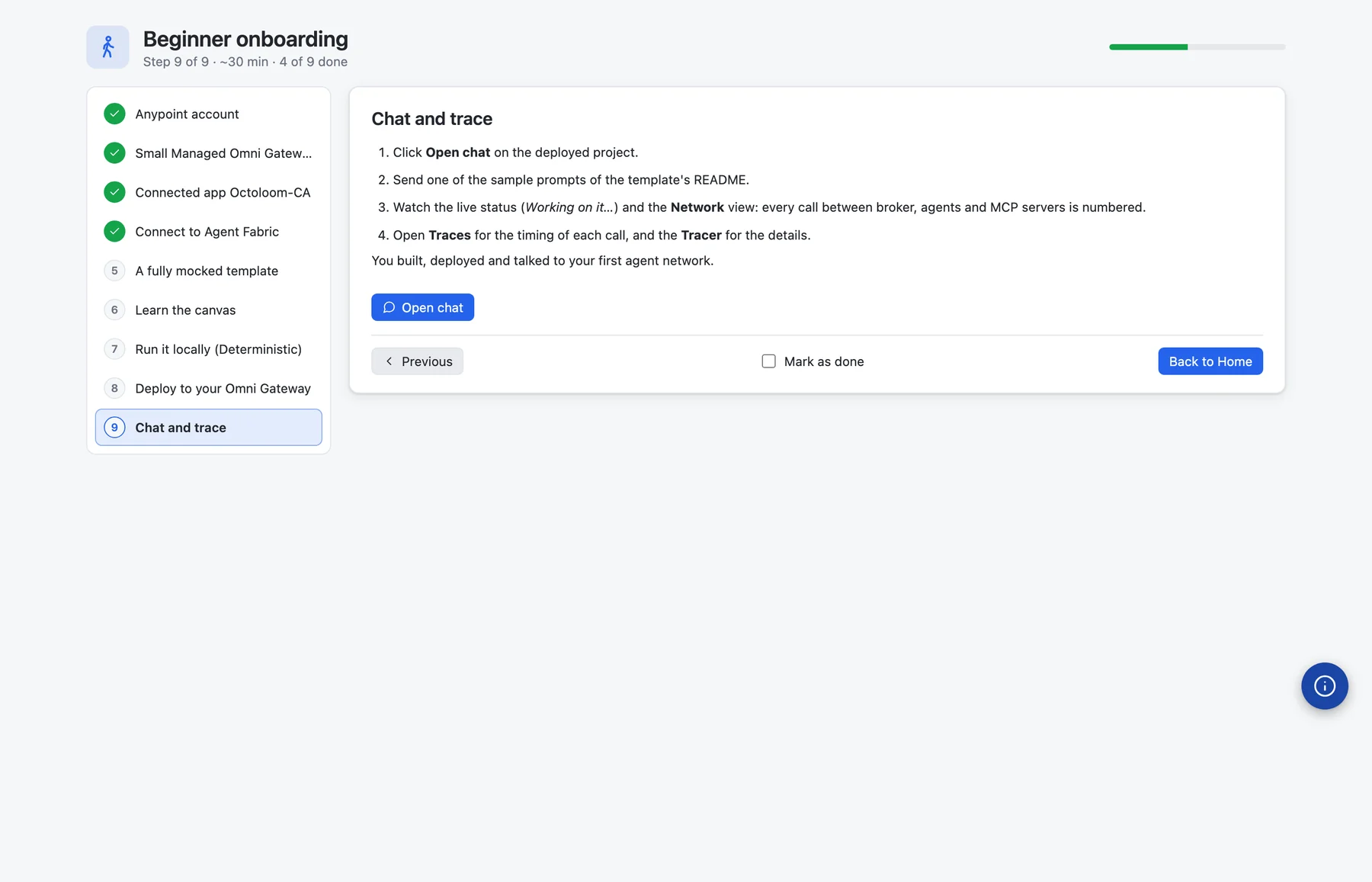
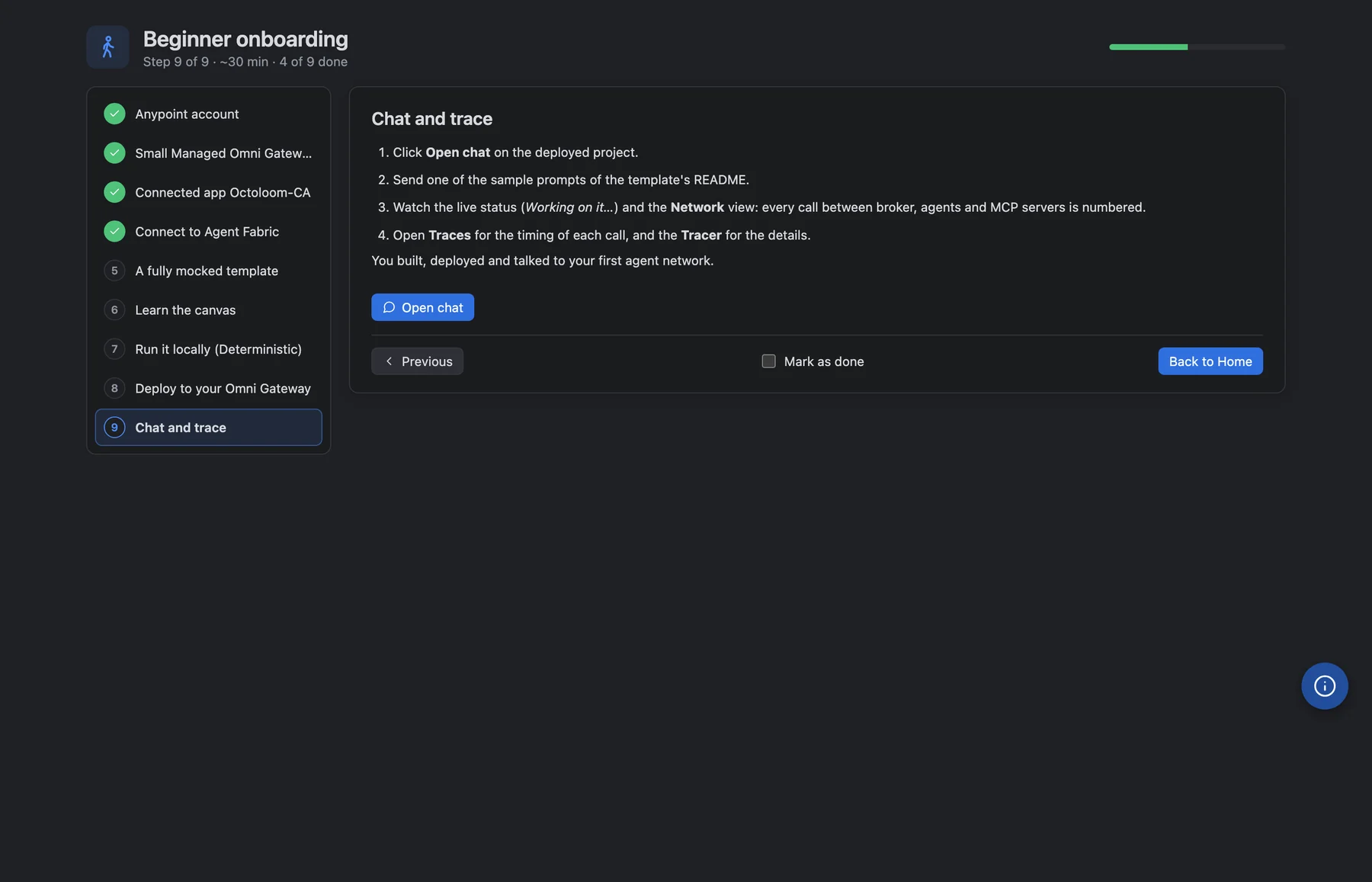
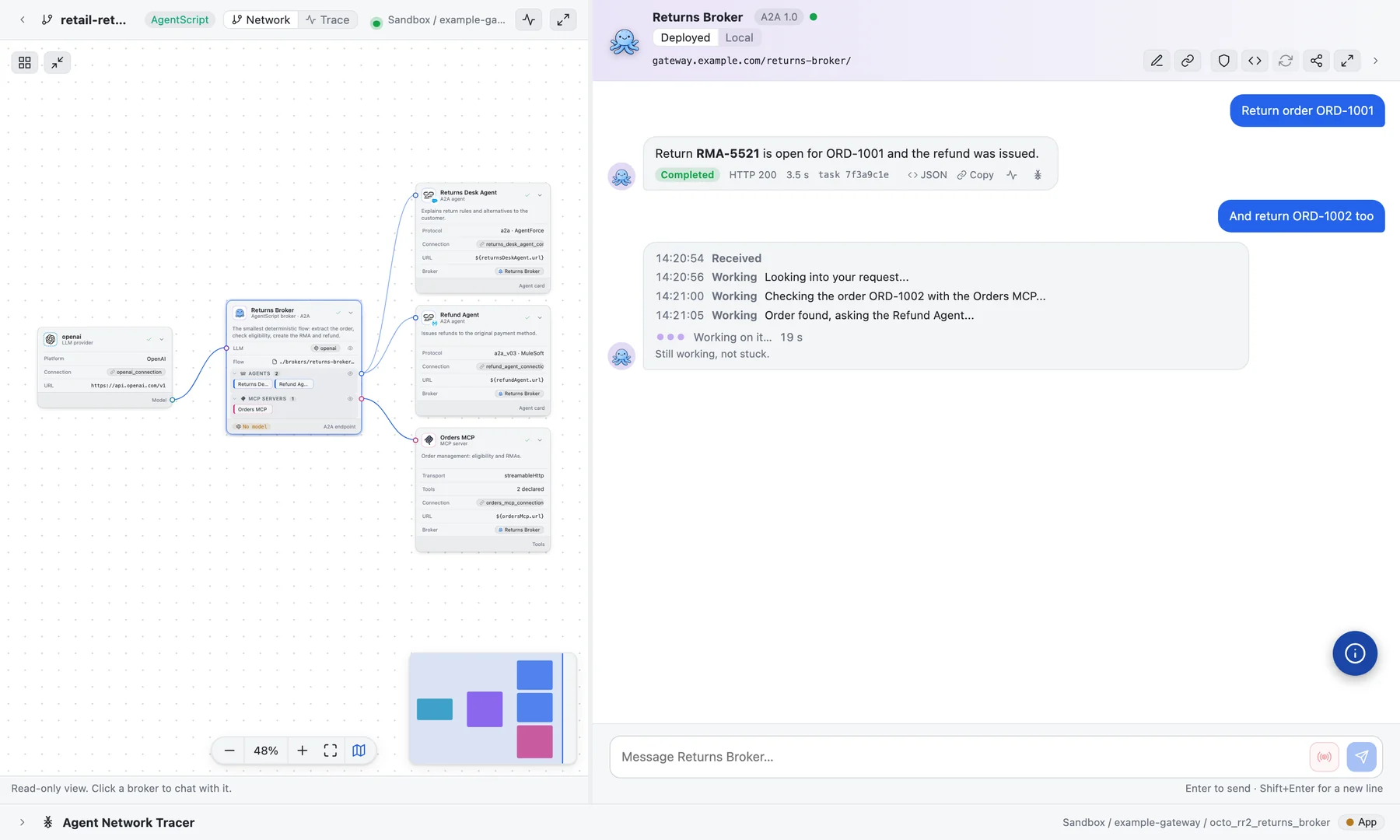
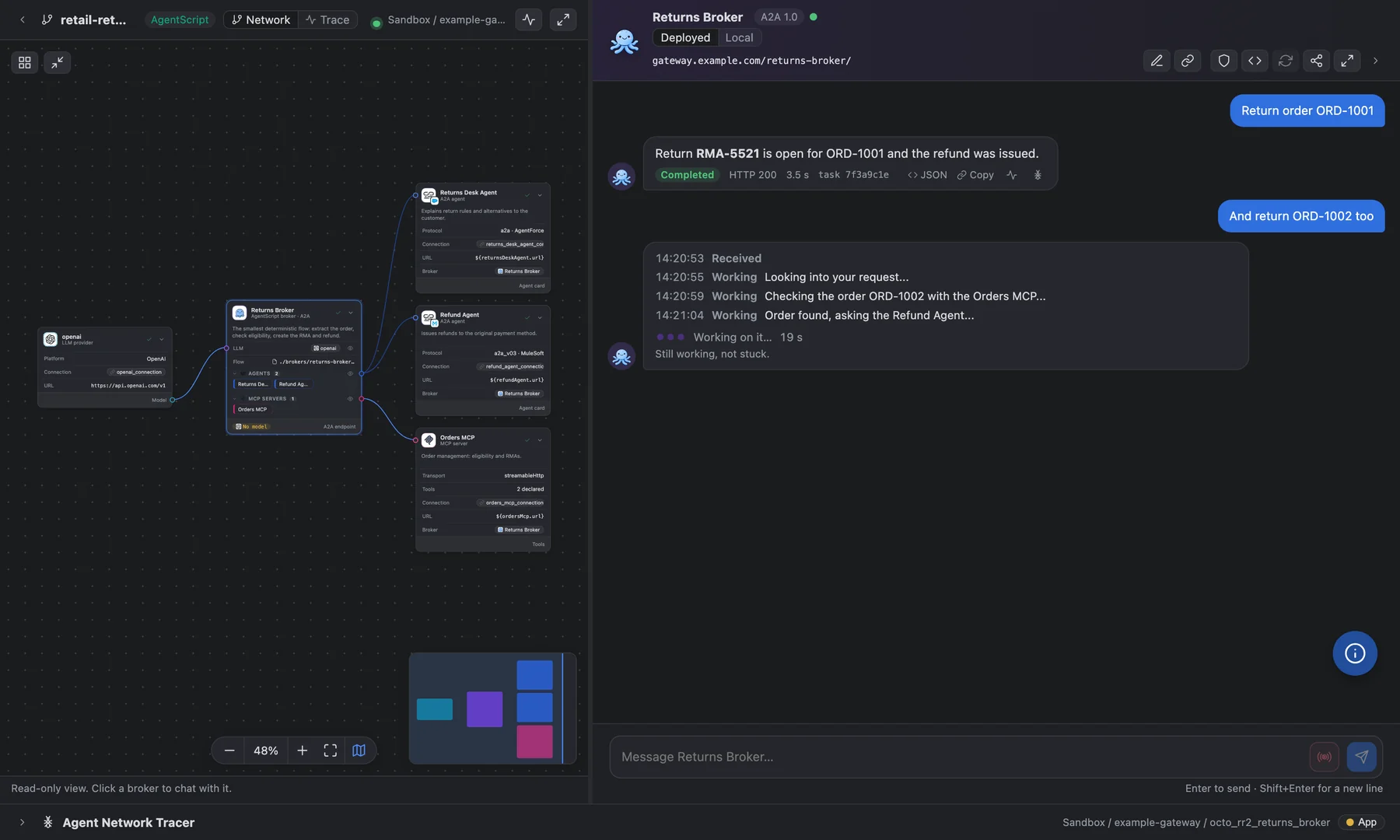
- Click Open chat on the deployed project.
- Send one of the sample prompts of the template's README.
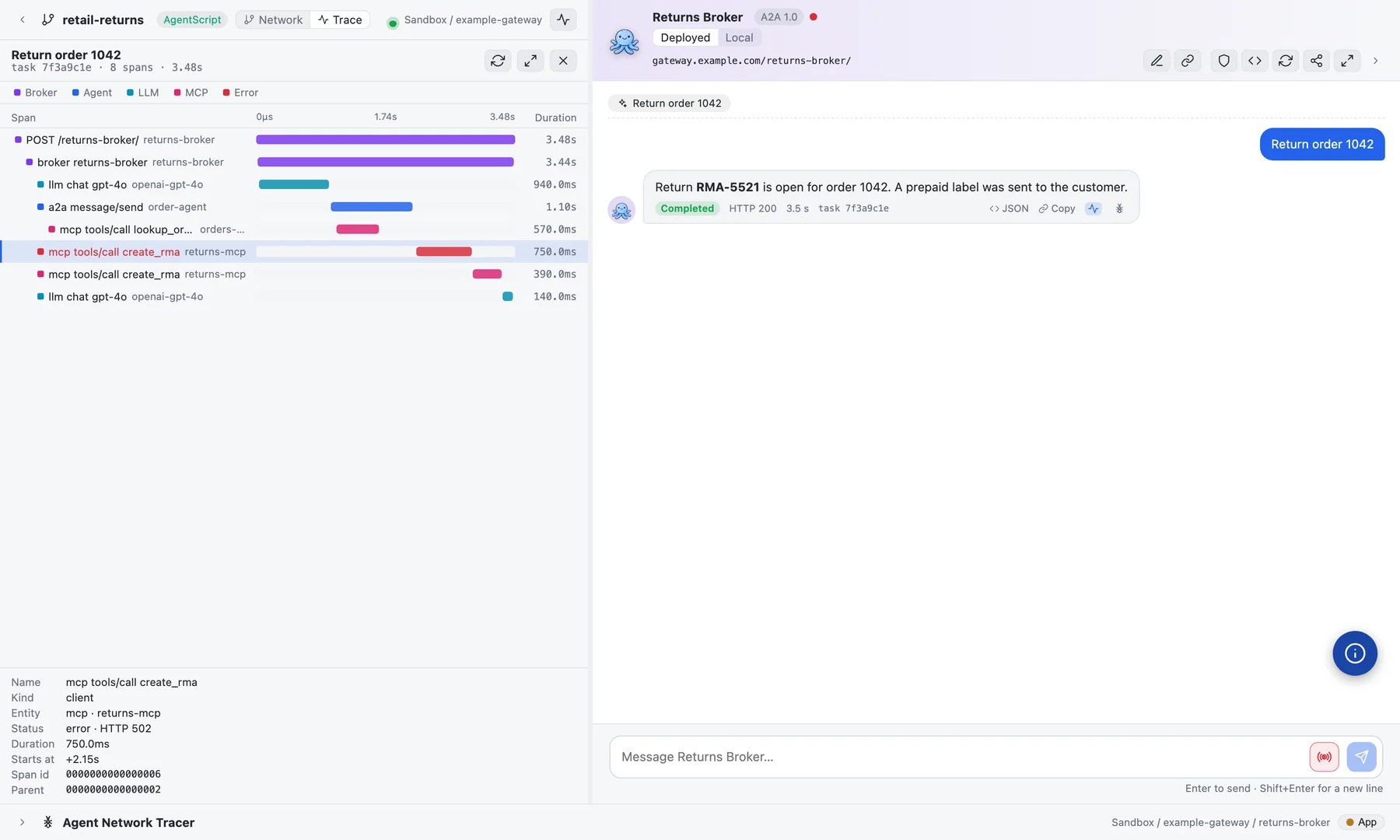
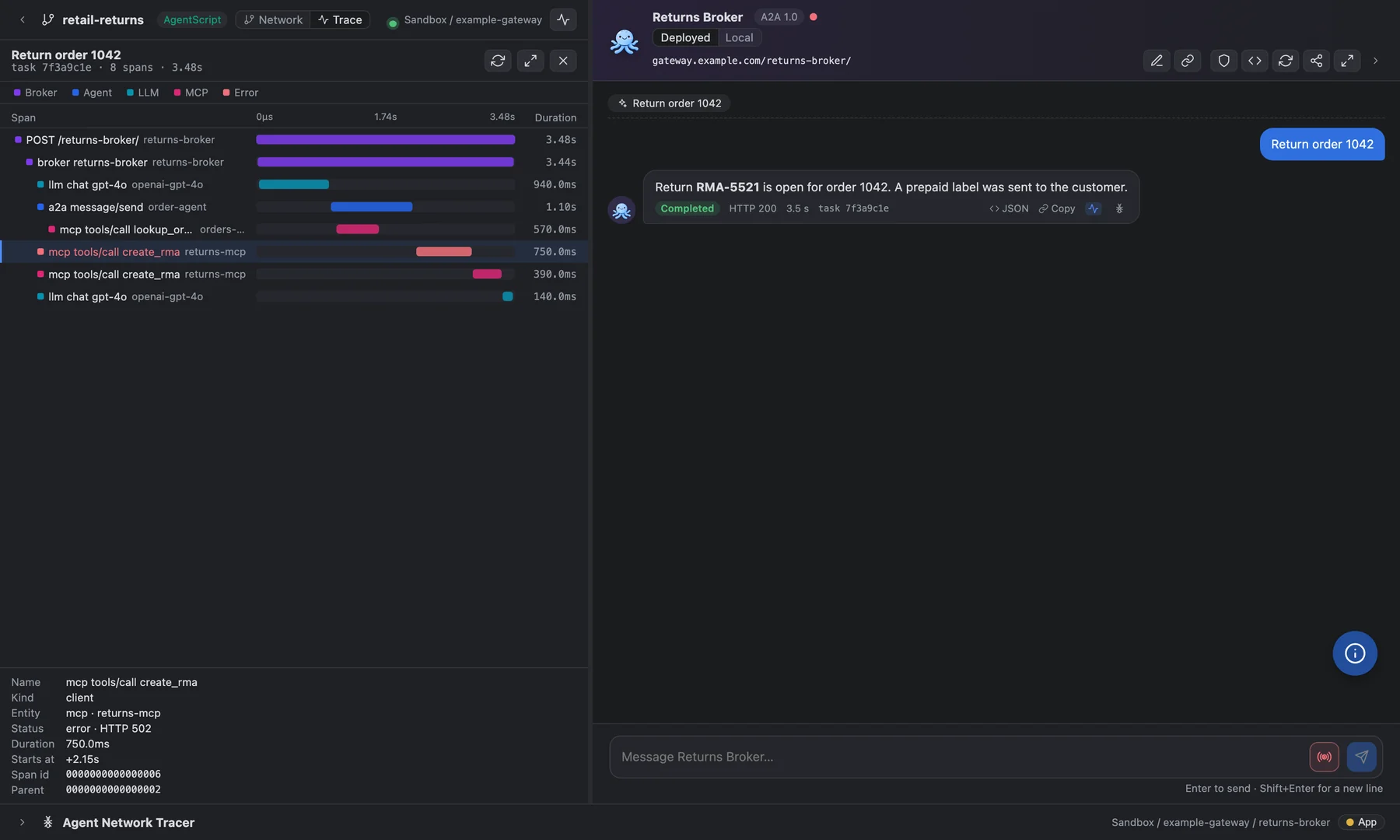
- Watch the live status (Working on it…) and the Network view: every call between broker, agents and MCP servers is numbered.
- Open Traces for the timing of each call, and the Tracer for the details.
You built, deployed and talked to your first agent network.
Templates for this journey
The Beginner tab lists these templates; click one to create the project right in the tab.
| Template | Style | Agents | MCP | Tutorial |
|---|---|---|---|---|
| Event Ticketing (fully mocked) | Deterministic | 2 | 2 | Tutorial |
| Utility Outage (fully mocked) | Deterministic | 3 | 2 | Tutorial |
| Warranty Repair (fully mocked) | Deterministic | 3 | 1 | Tutorial |
| Fleet Maintenance (fully mocked) | Probabilistic | 2 | 4 | Tutorial |
| Hotel Concierge (fully mocked) | Probabilistic | 2 | 1 | Tutorial |
| Library Services (fully mocked) | Probabilistic | 2 | 3 | Tutorial |
Next: the Advanced journey