Quick Start · Advanced · ~45 min
Advanced journey
Connect A²D, build a use-case network from A²D mock agents and MCP servers, deploy it, then chat, trace and share it in an A²D session.
Needs: Anypoint and A²D. Steps: 9. Open it in VS Code with Home → Quick Start → Advanced, or Octoloom: Quick Start in the Command Palette.
The journey at a glance
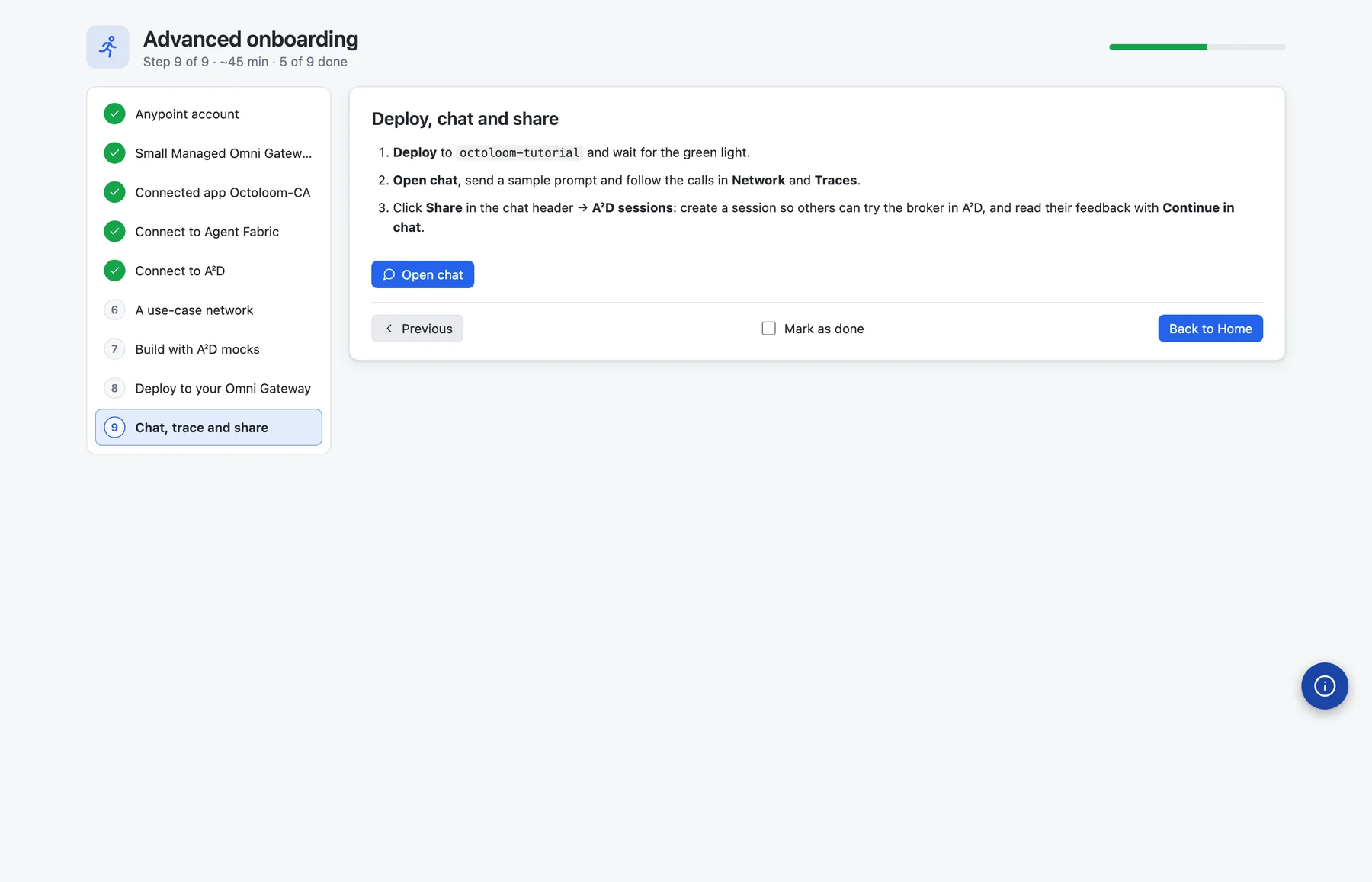
- Anypoint account
- Small Managed Omni Gateway
- Connected app Octoloom-CA
- Connect Octoloom to Agent Fabric
- Connect to A²D
- A use-case network
- Build with A²D mocks
- Deploy to your Omni Gateway
- Chat, trace and share
Steps 1–4: the prerequisites
Every journey starts with the same four steps. Each is explained step by step, with videos, under Before you start:
1. Anypoint account
See Anypoint account.
2. Small Managed Omni Gateway
See Small Managed Omni Gateway.
3. Connected app Octoloom-CA
See Connected app Octoloom-CA.
4. Connect Octoloom to Agent Fabric
See Connect Octoloom to Agent Fabric.
5. Connect to A²D
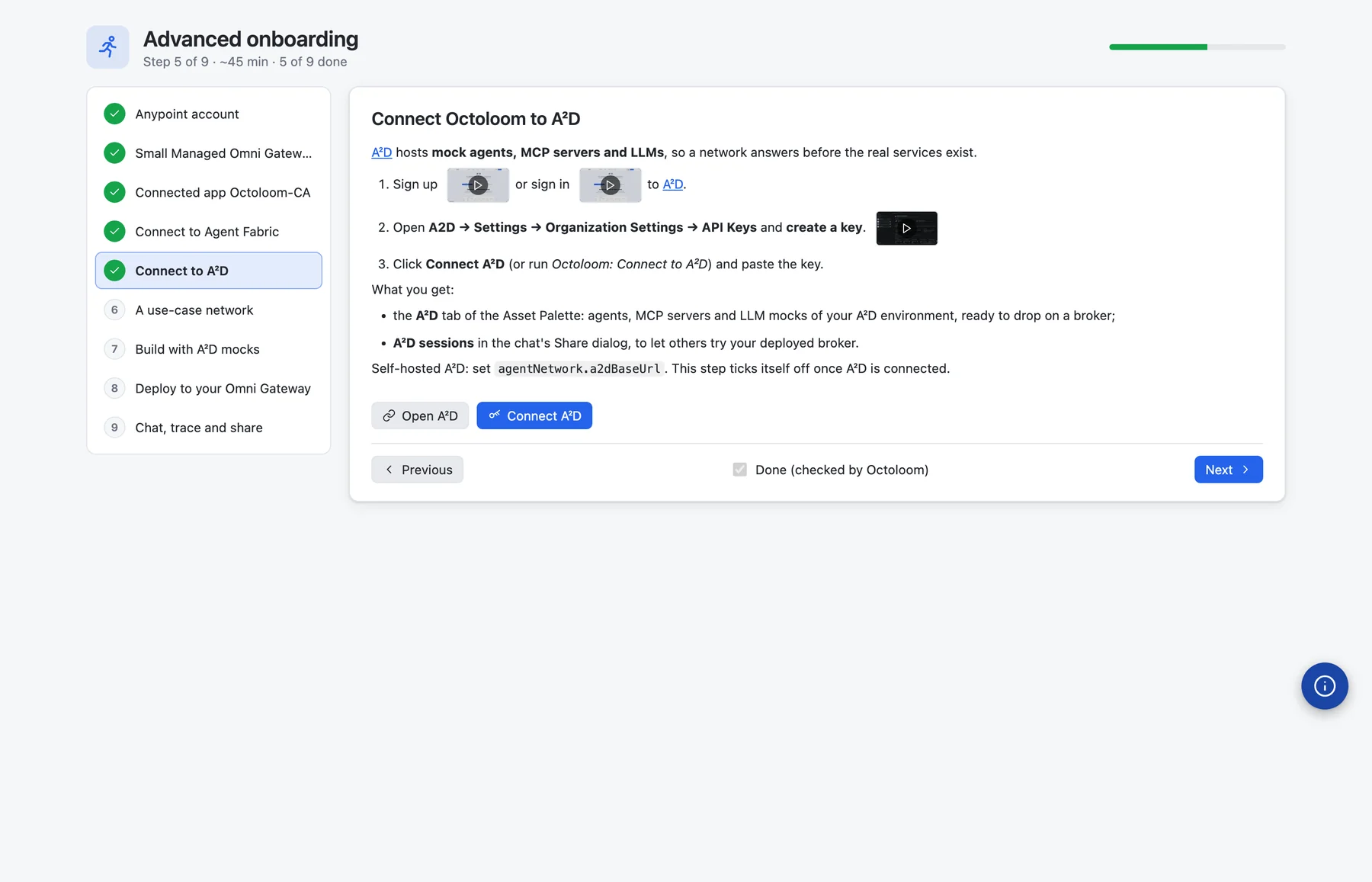
A²D hosts mock agents, MCP servers and LLMs, so a network answers before the real services exist.
- Sign up or sign in to A²D.
- Open A2D → Settings → Organization Settings → API Keys and create a key.
- Click Connect A²D (or run Octoloom: Connect to A²D) and paste the key.
What you get: - the A²D tab of the Asset Palette: agents, MCP servers and LLM mocks of your A²D environment, ready to drop on a broker; - A²D sessions in the chat's Share dialog, to let others try your deployed broker.
Self-hosted A²D: set agentNetwork.a2dBaseUrl.
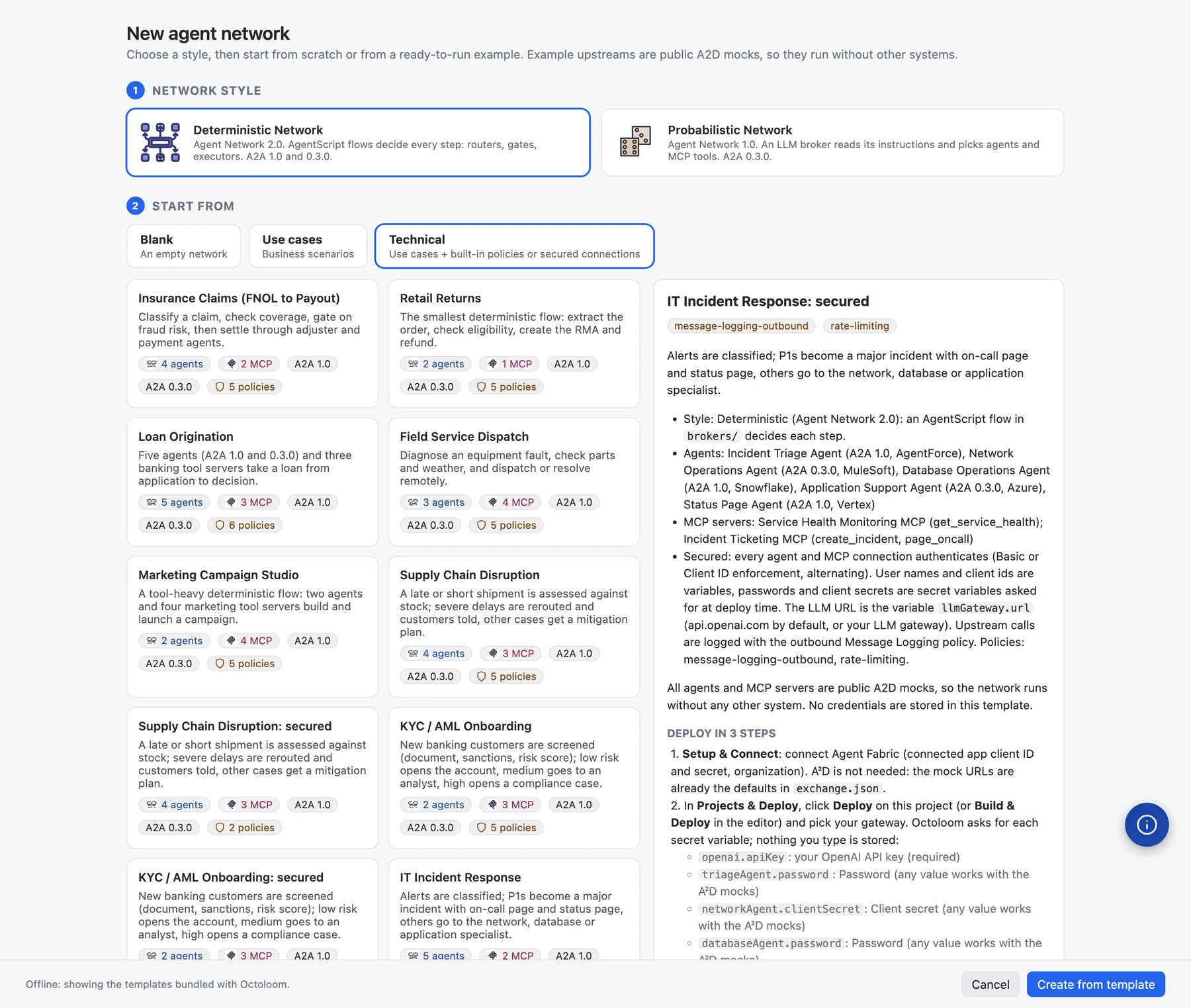
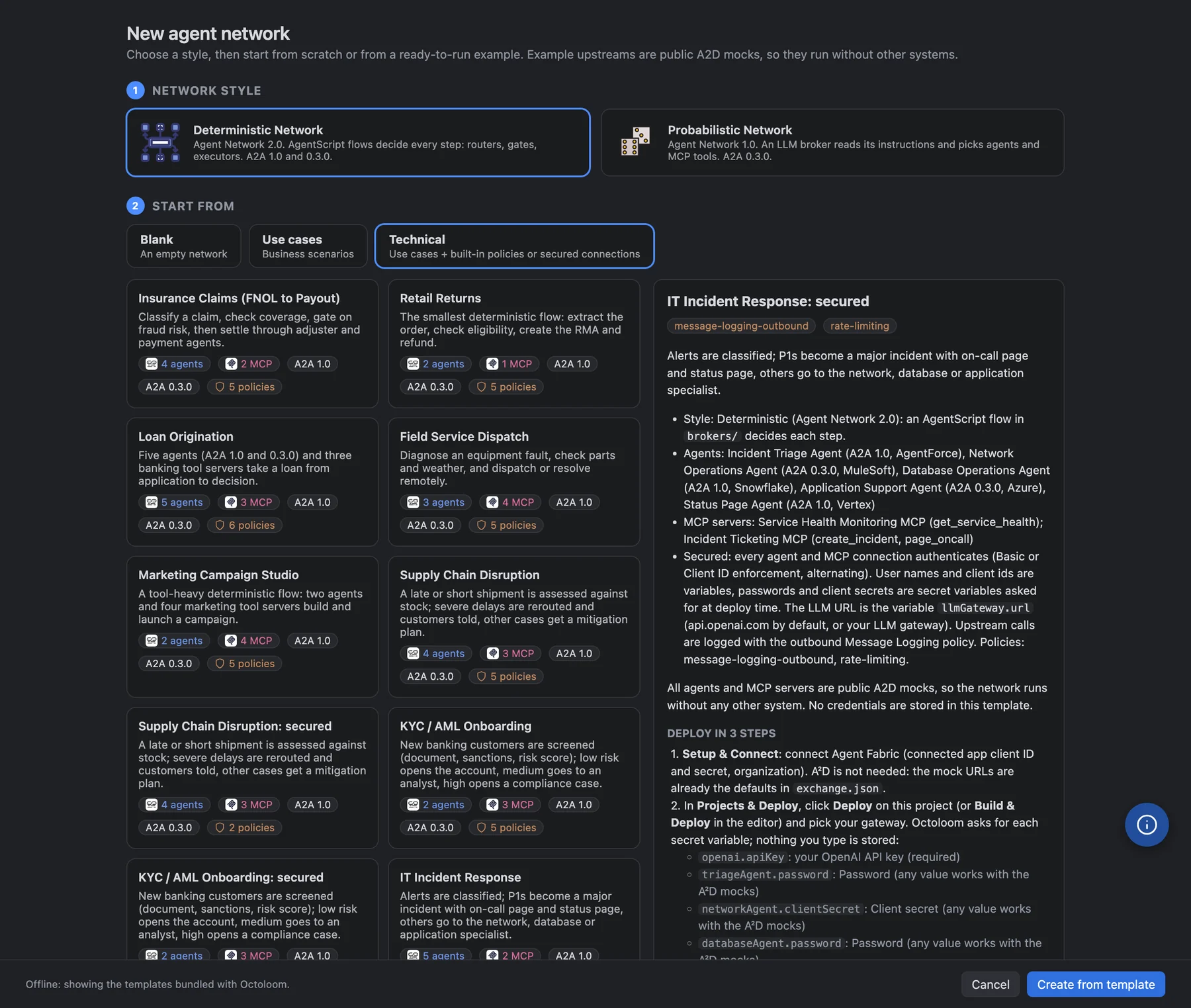
6. A use-case network
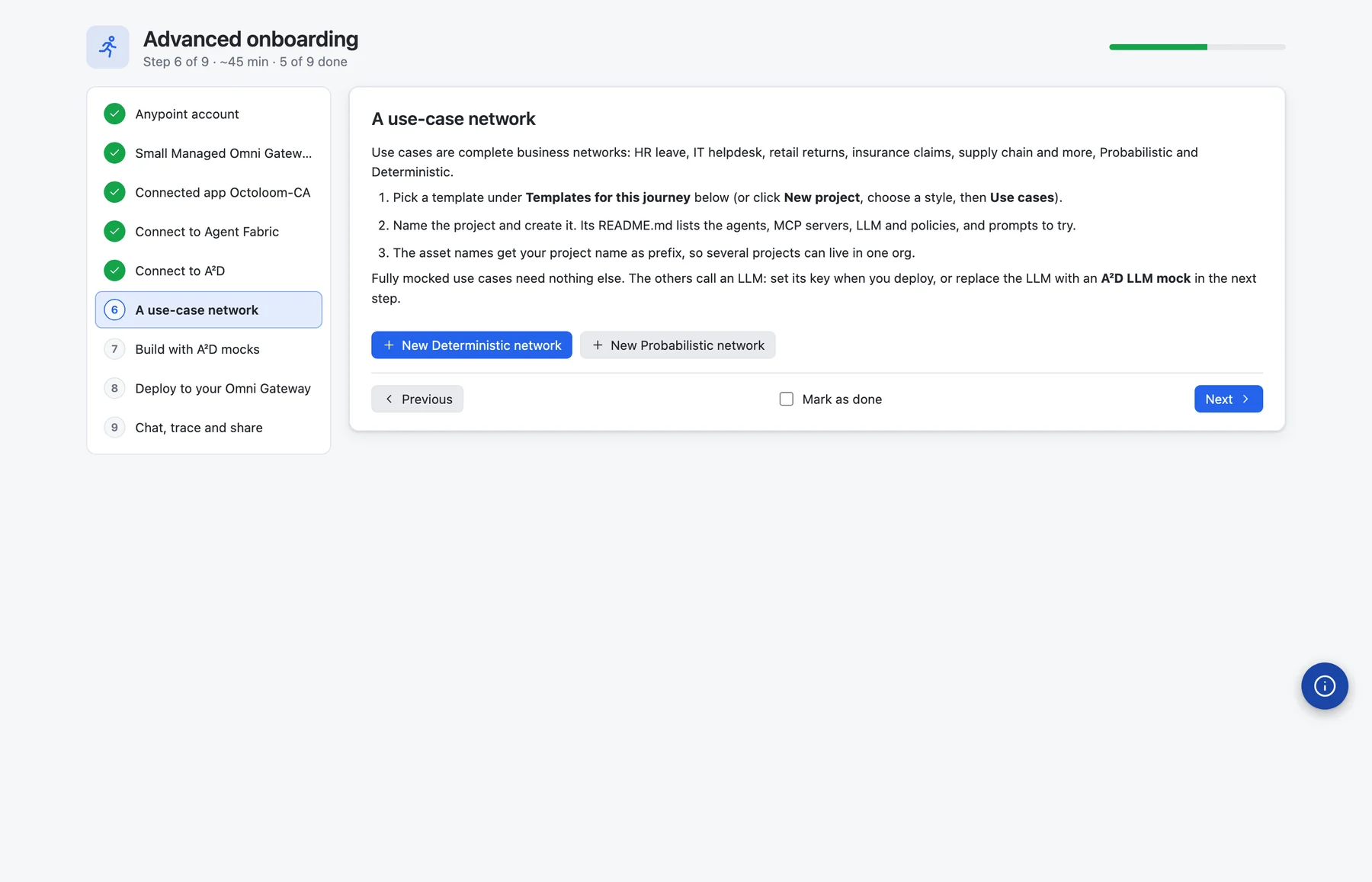
Use cases are complete business networks: HR leave, IT helpdesk, retail returns, insurance claims, supply chain and more, Probabilistic and Deterministic.
- Pick a template under Templates for this journey in the tab (listed at the end of this page) (or click New project, choose a style, then Use cases).
- Name the project and create it. Its README.md lists the agents, MCP servers, LLM and policies, and prompts to try.
- The asset names get your project name as prefix, so several projects can live in one org.
Fully mocked use cases need nothing else. The others call an LLM: set its key when you deploy, or replace the LLM with an A²D LLM mock in the next step.
7. Build with A²D mocks
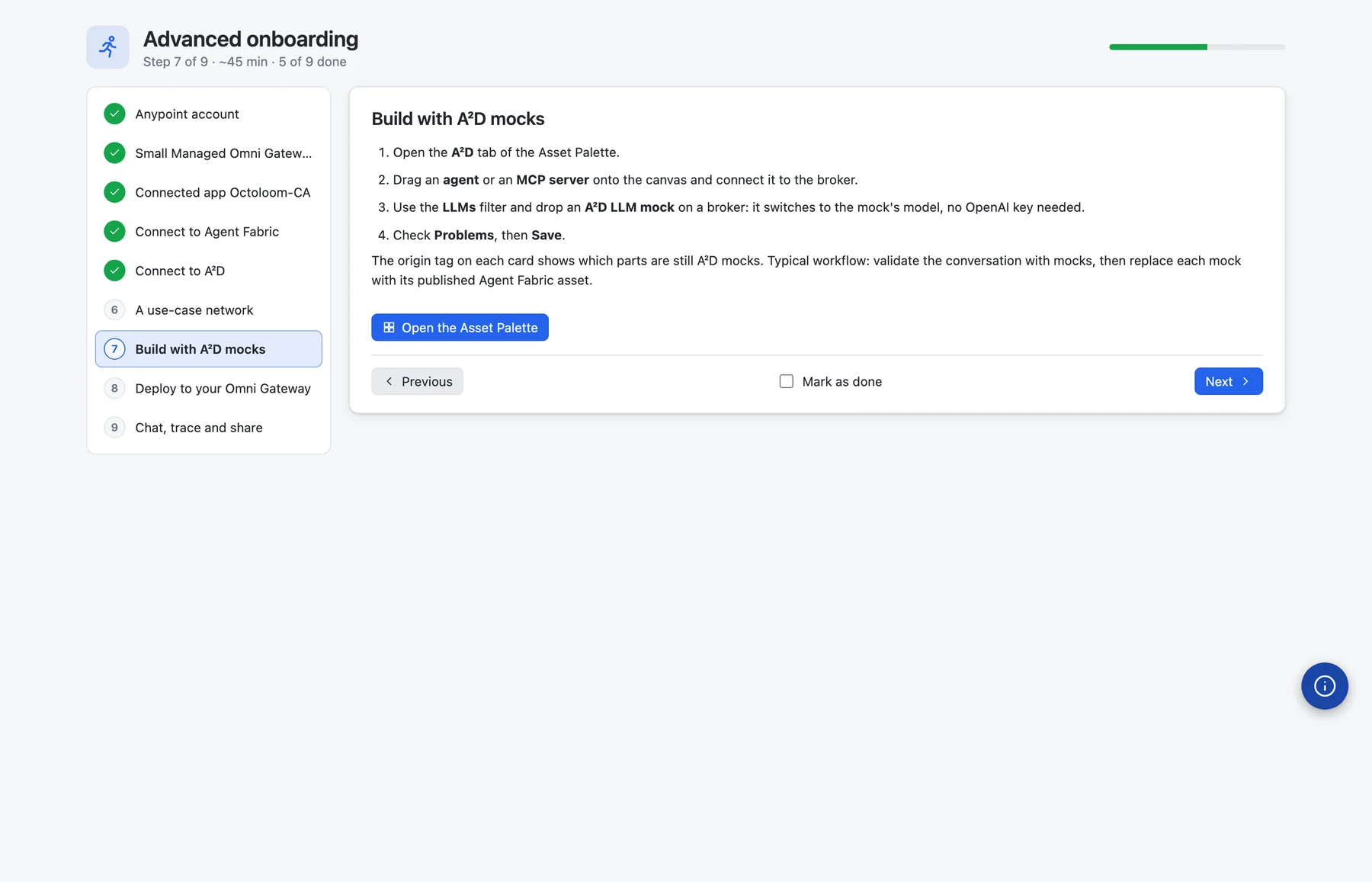
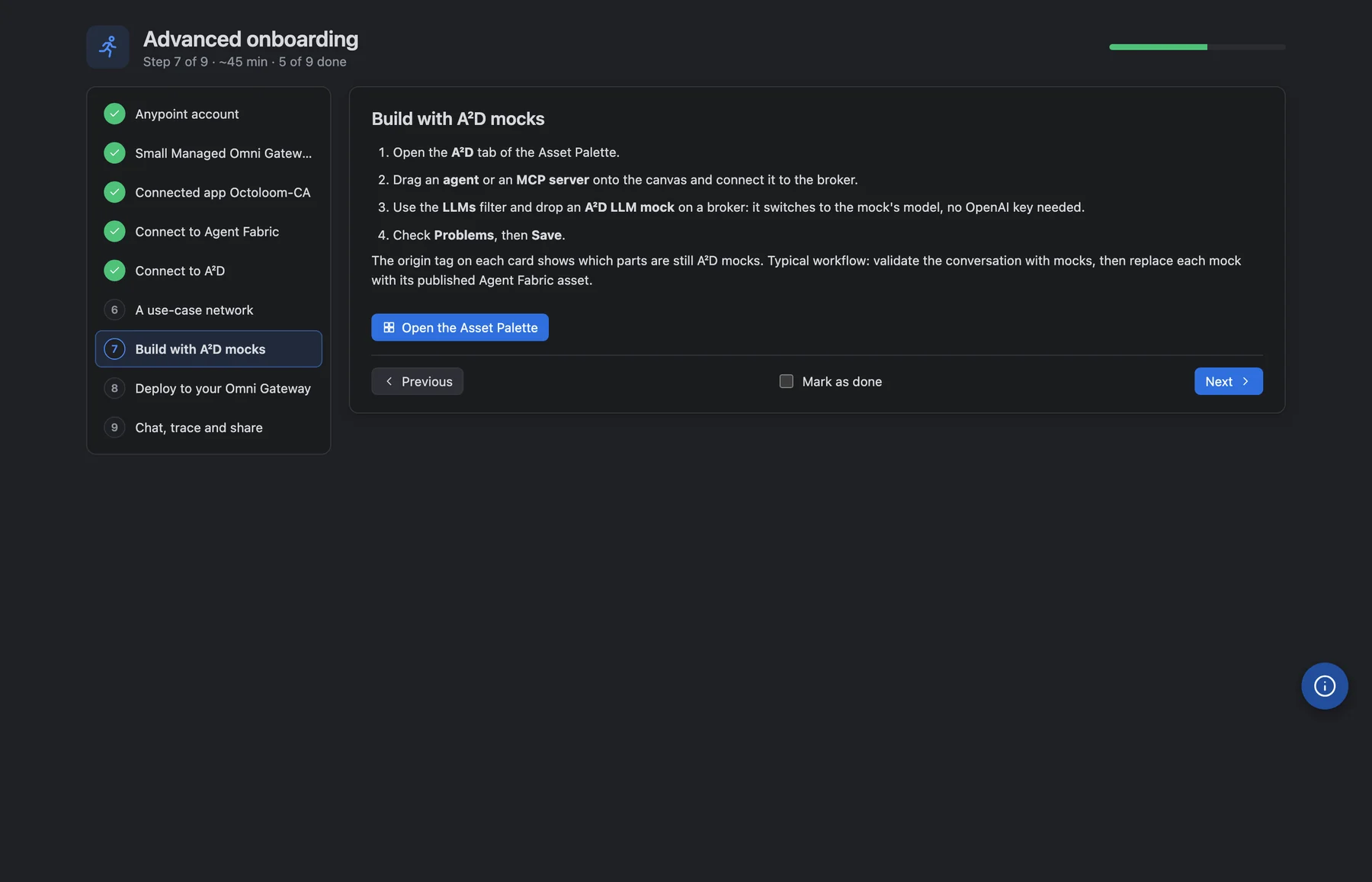
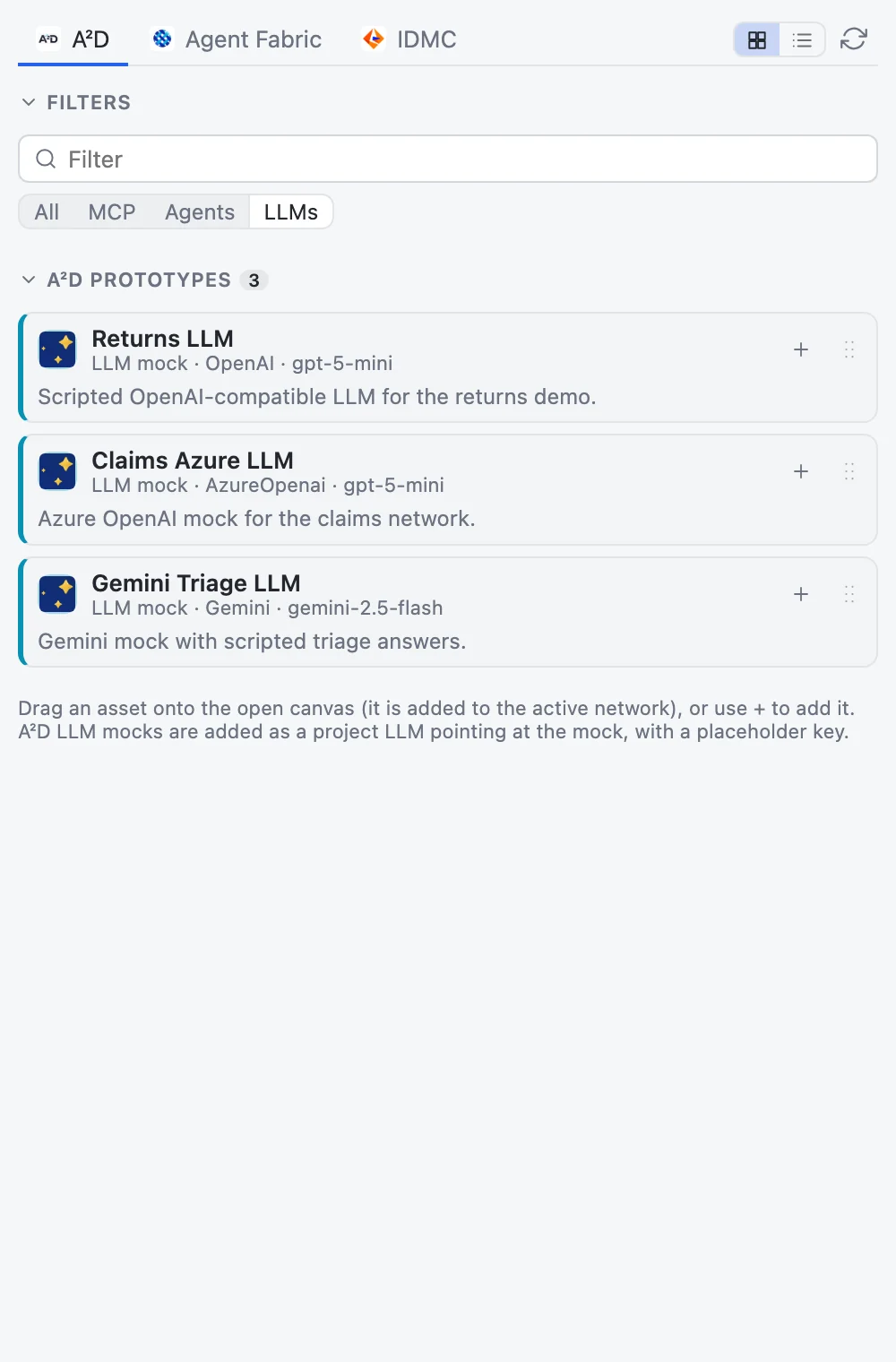
- Open the A²D tab of the Asset Palette.
- Drag an agent or an MCP server onto the canvas and connect it to the broker.
- Use the LLMs filter and drop an A²D LLM mock on a broker: it switches to the mock's model, no OpenAI key needed.
- Check Problems, then Save.
The origin tag on each card shows which parts are still A²D mocks. Typical workflow: validate the conversation with mocks, then replace each mock with its published Agent Fabric asset.
8. Deploy to your Omni Gateway
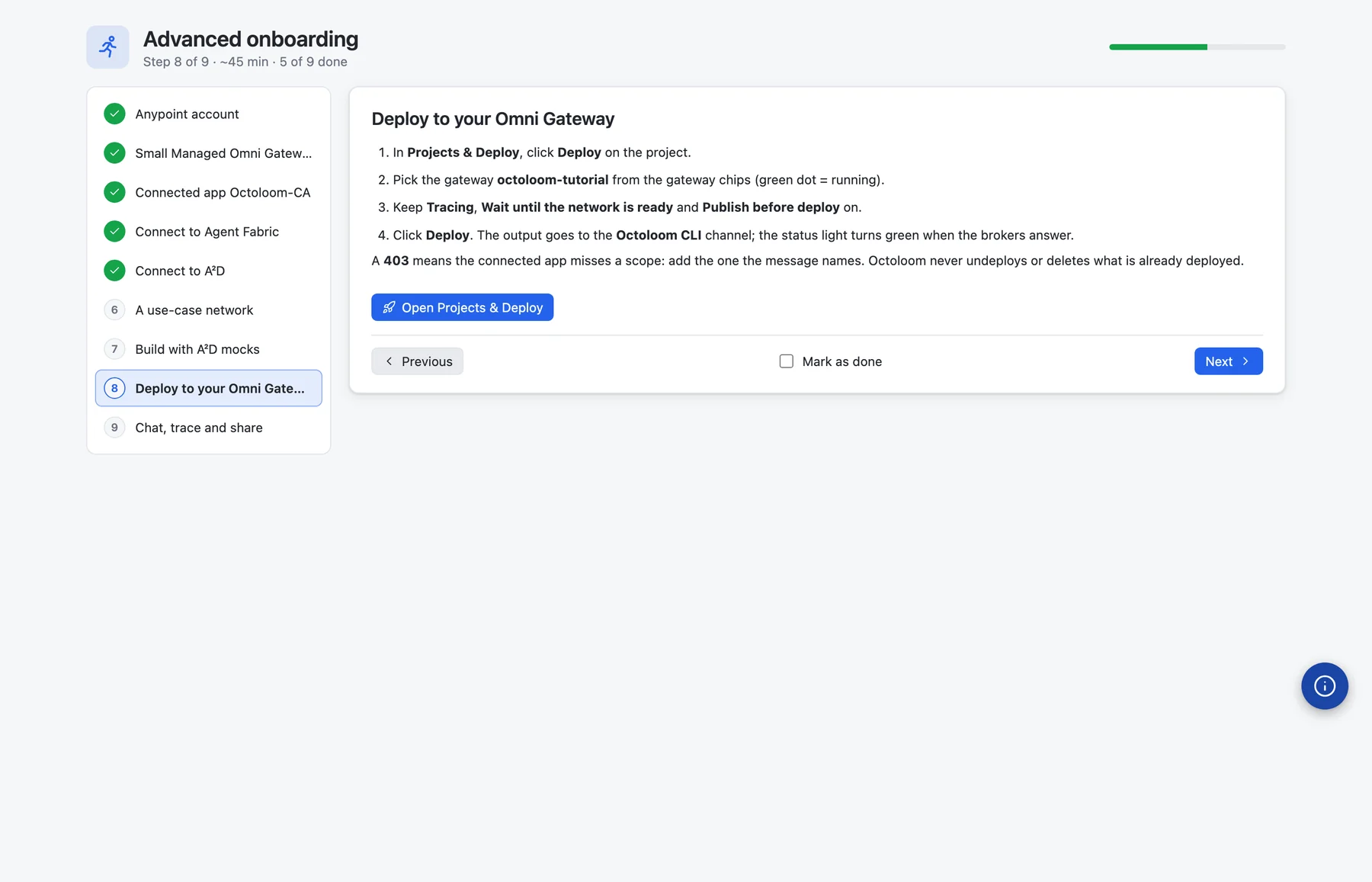
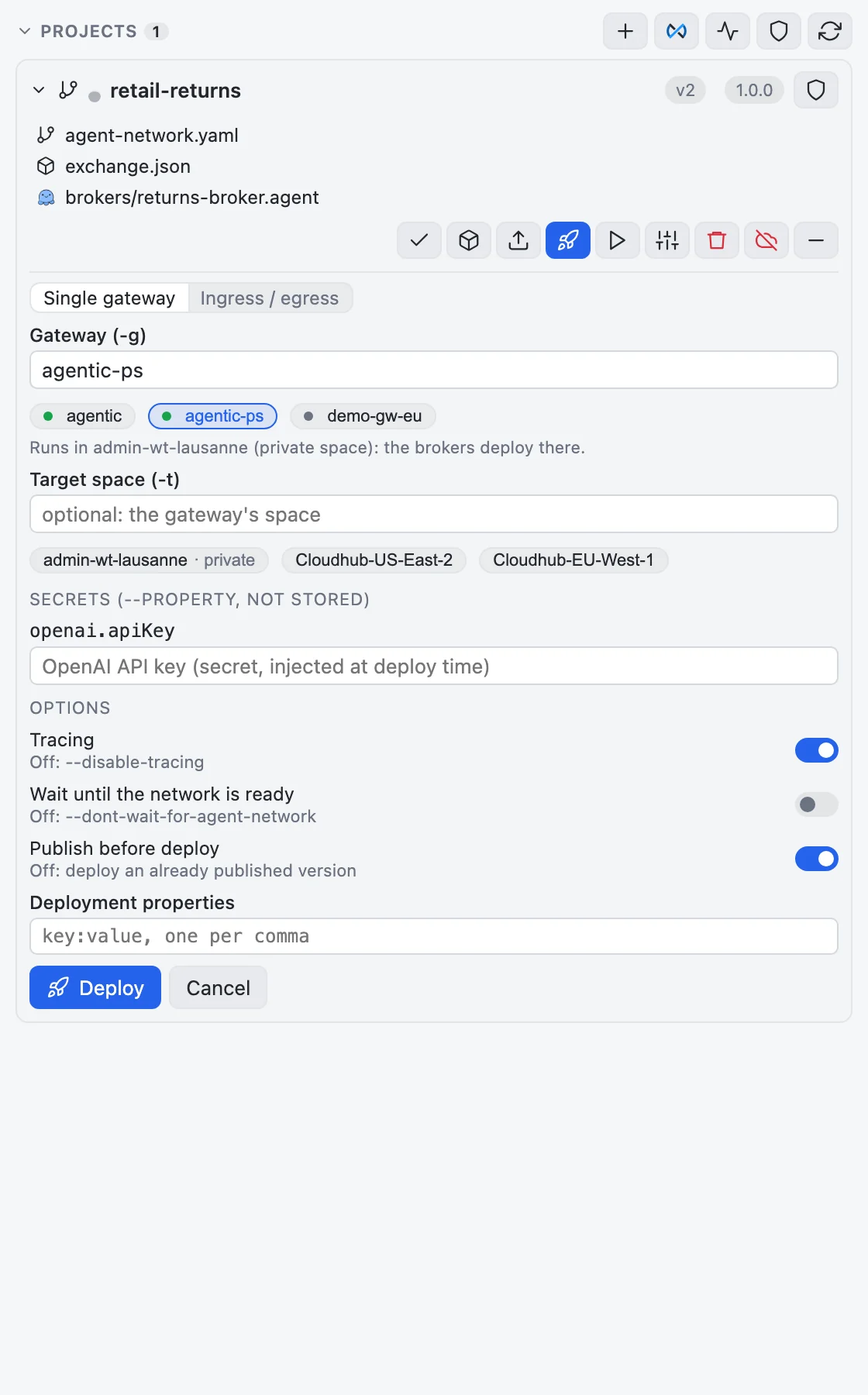
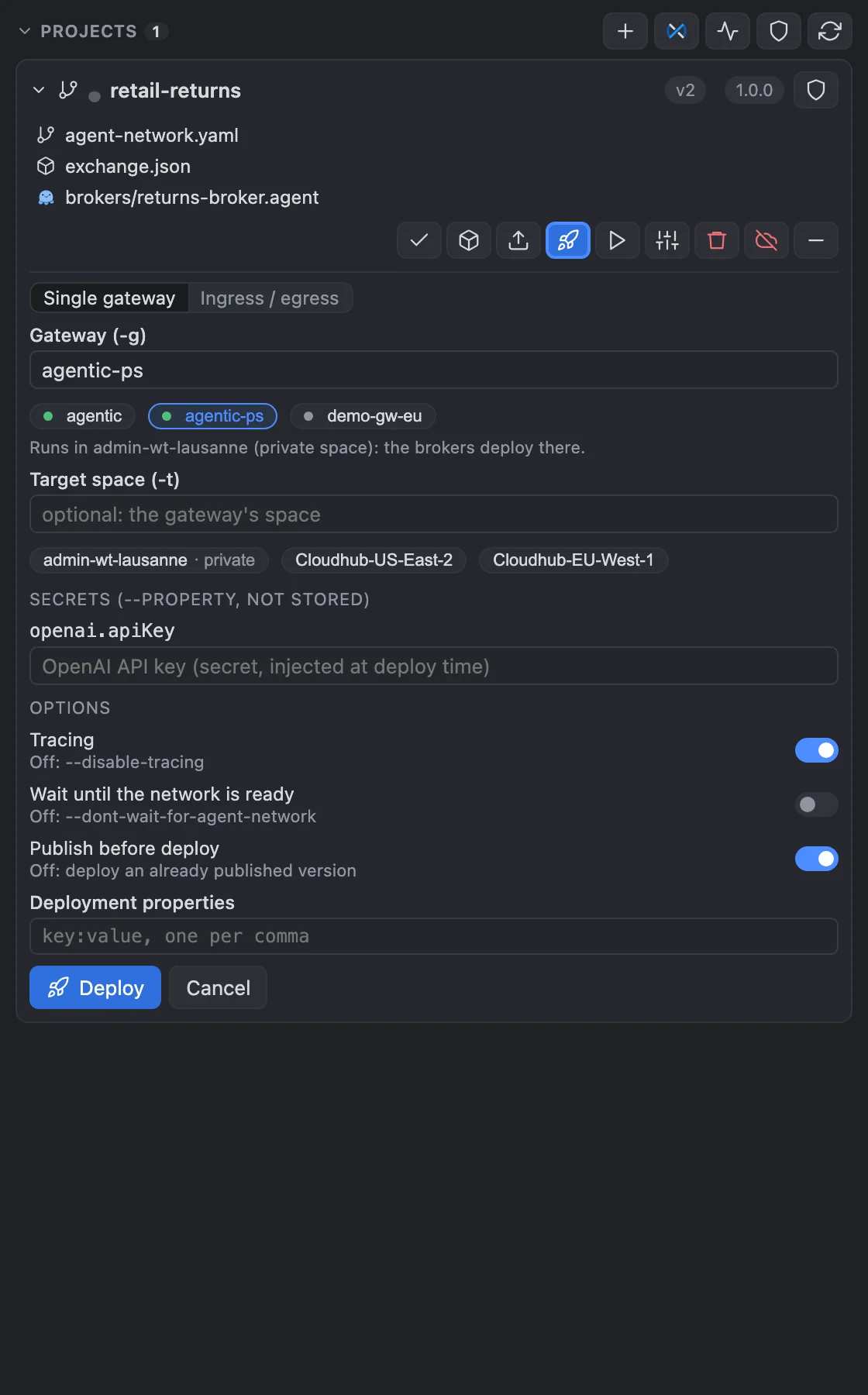
- In Projects & Deploy, click Deploy on the project.
- Pick the gateway octoloom-tutorial from the gateway chips (green dot = running).
- Keep Tracing, Wait until the network is ready and Publish before deploy on.
- Click Deploy. The output goes to the Octoloom CLI channel; the status light turns green when the brokers answer.
A 403 means the connected app misses a scope: add the one the message names. Octoloom never undeploys or deletes what is already deployed.
9. Chat, trace and share
- Deploy to
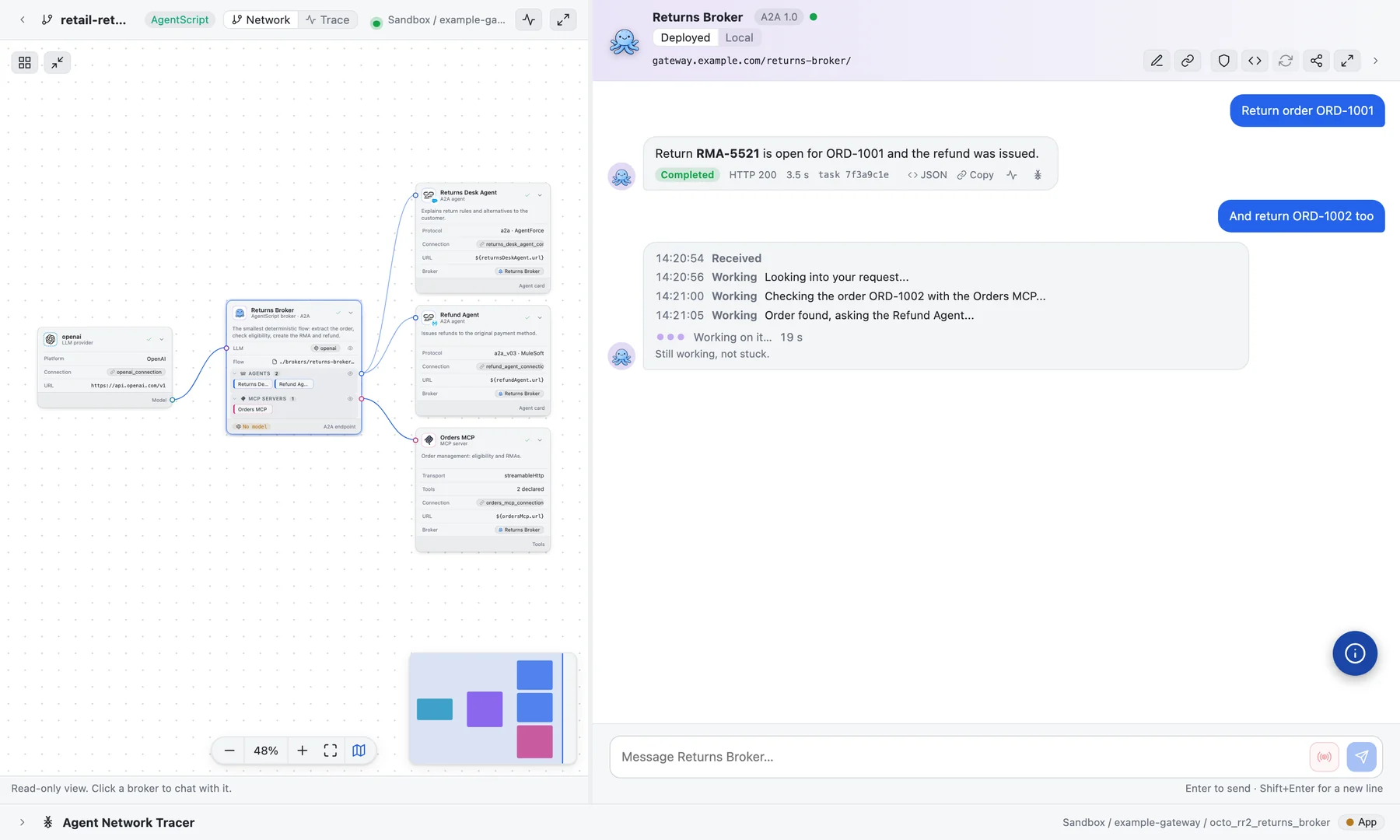
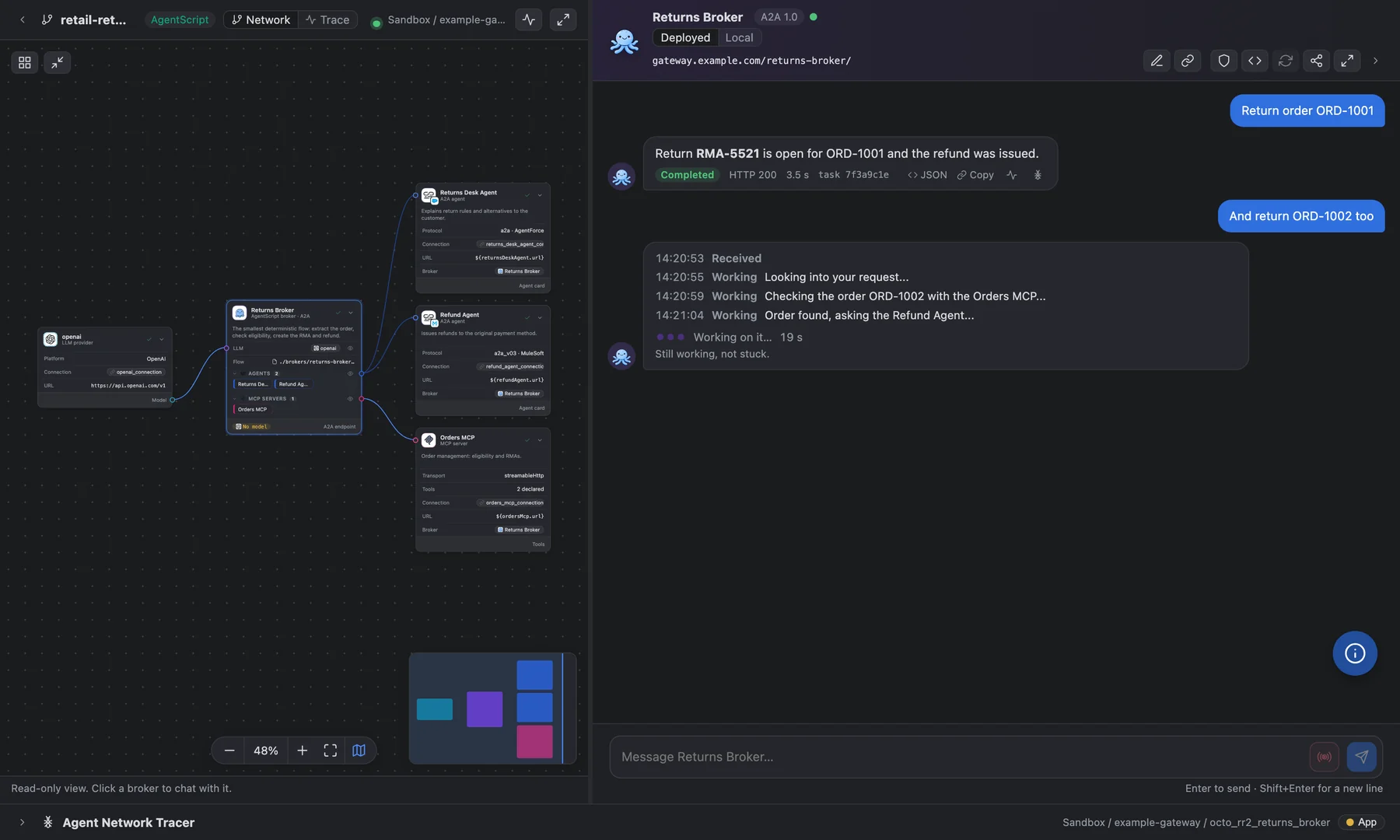
octoloom-tutorialand wait for the green light. - Open chat, send a sample prompt and follow the calls in Network and Traces.
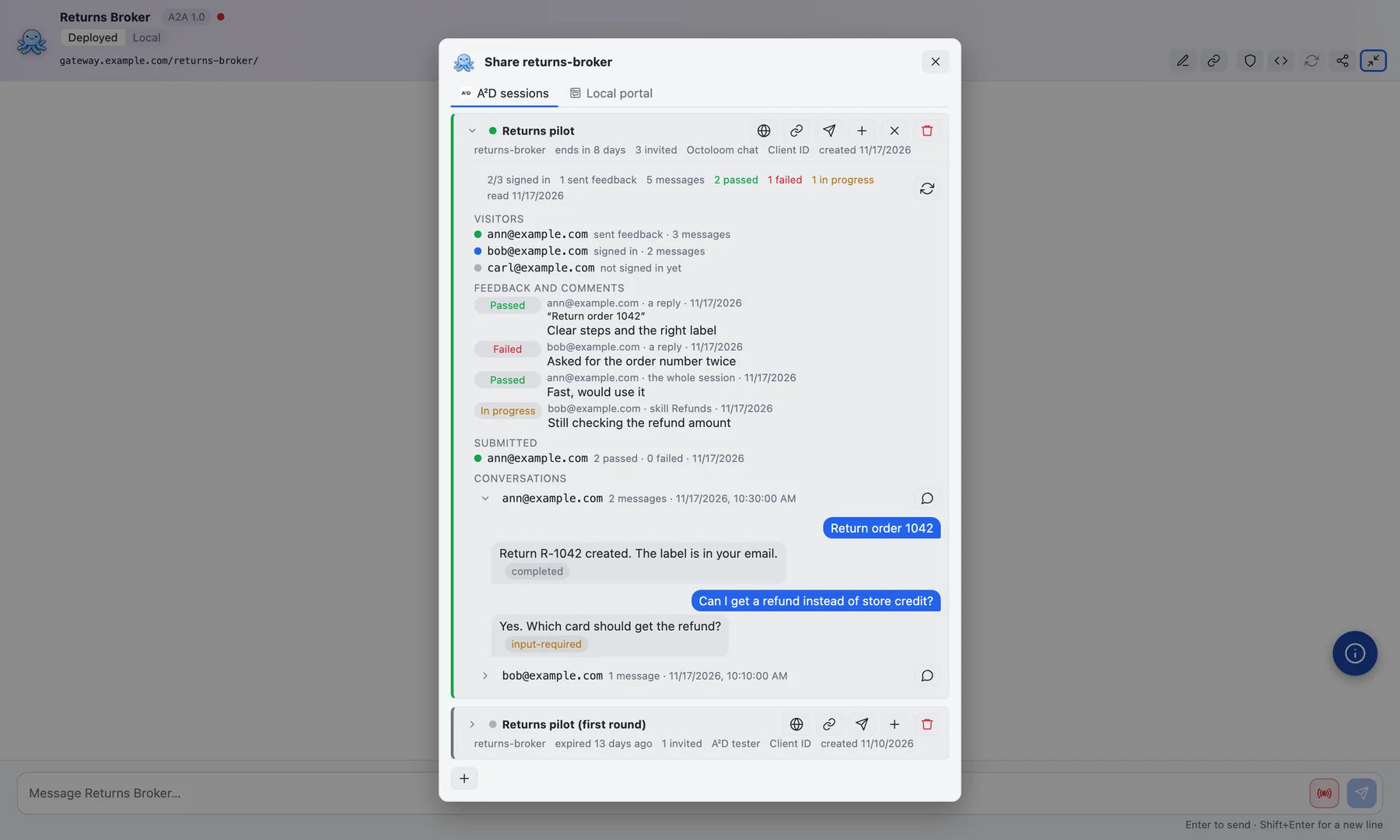
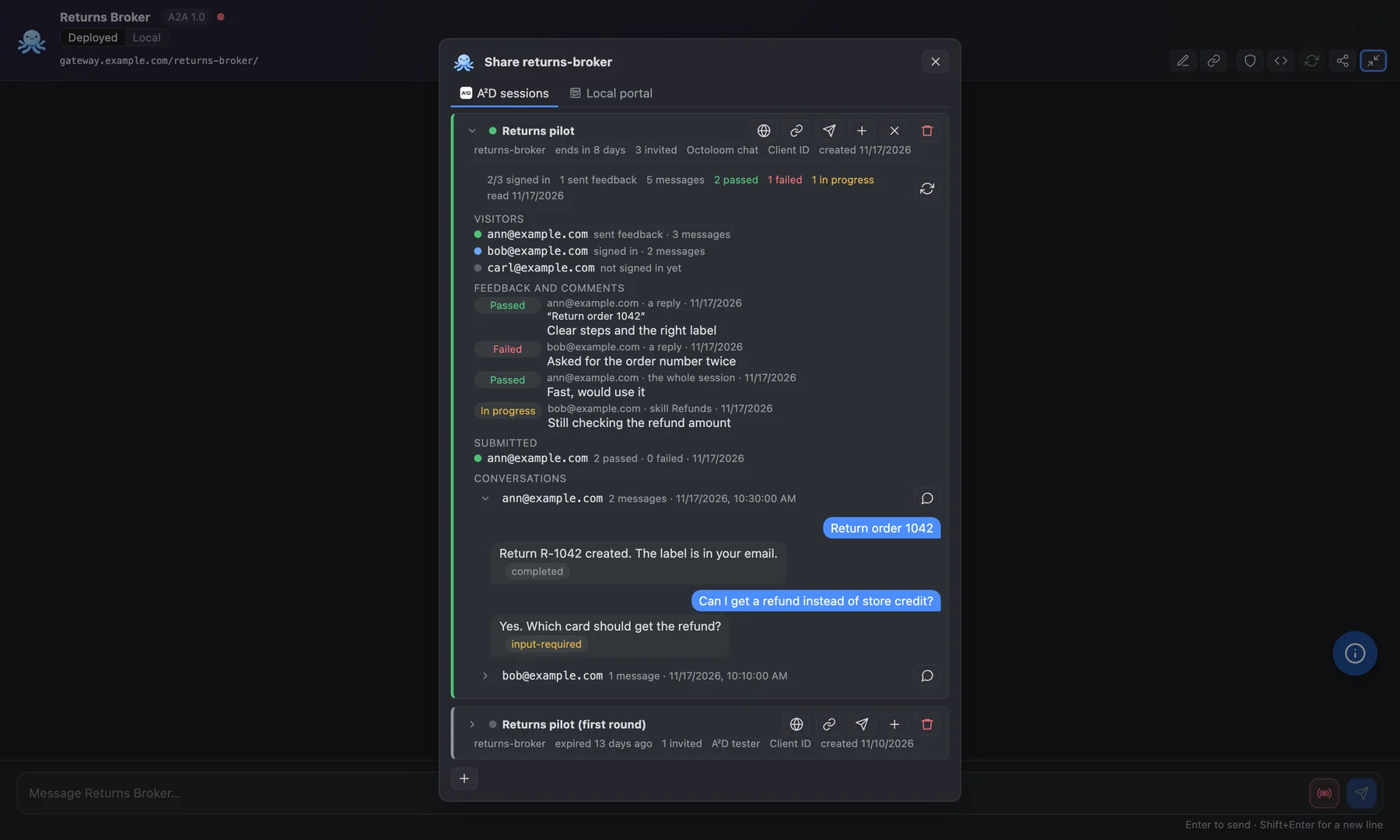
- Click Share in the chat header → A²D sessions: create a session so others can try the broker in A²D, and read their feedback with Continue in chat.
Templates for this journey
The Advanced tab lists these templates; click one to create the project right in the tab.
Next: the Expert journey