Governance: rulesets for brokers, agents and MCP servers
Open it from the shield button in a project's header in Projects (after the version; one project) or in the Projects header (workspace report), or run Governance: Validate Against Rulesets.
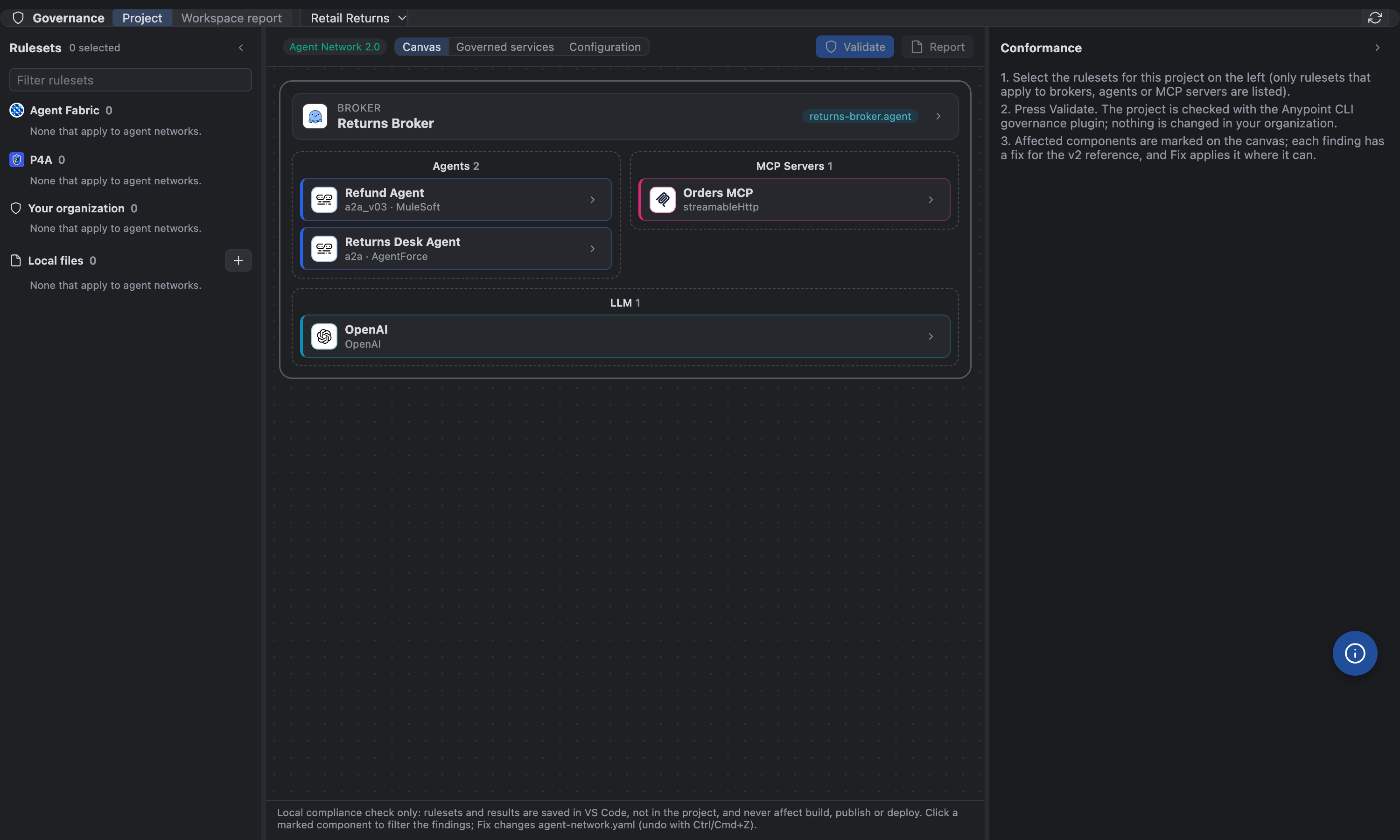
- Rulesets (per project): Agent Fabric (MuleSoft, e.g. Agent Network Best Practices), P4A community rulesets (e.g. MCP Server Safety, MCP Server Usability) and your own P4A rulesets (P4A token), rulesets published in your organization's Exchange, and local ruleset YAML files. Only rulesets that apply to agent networks are shown; chips tell which asset types a ruleset covers (A2A Broker, A2A, MCP).
- Validate runs
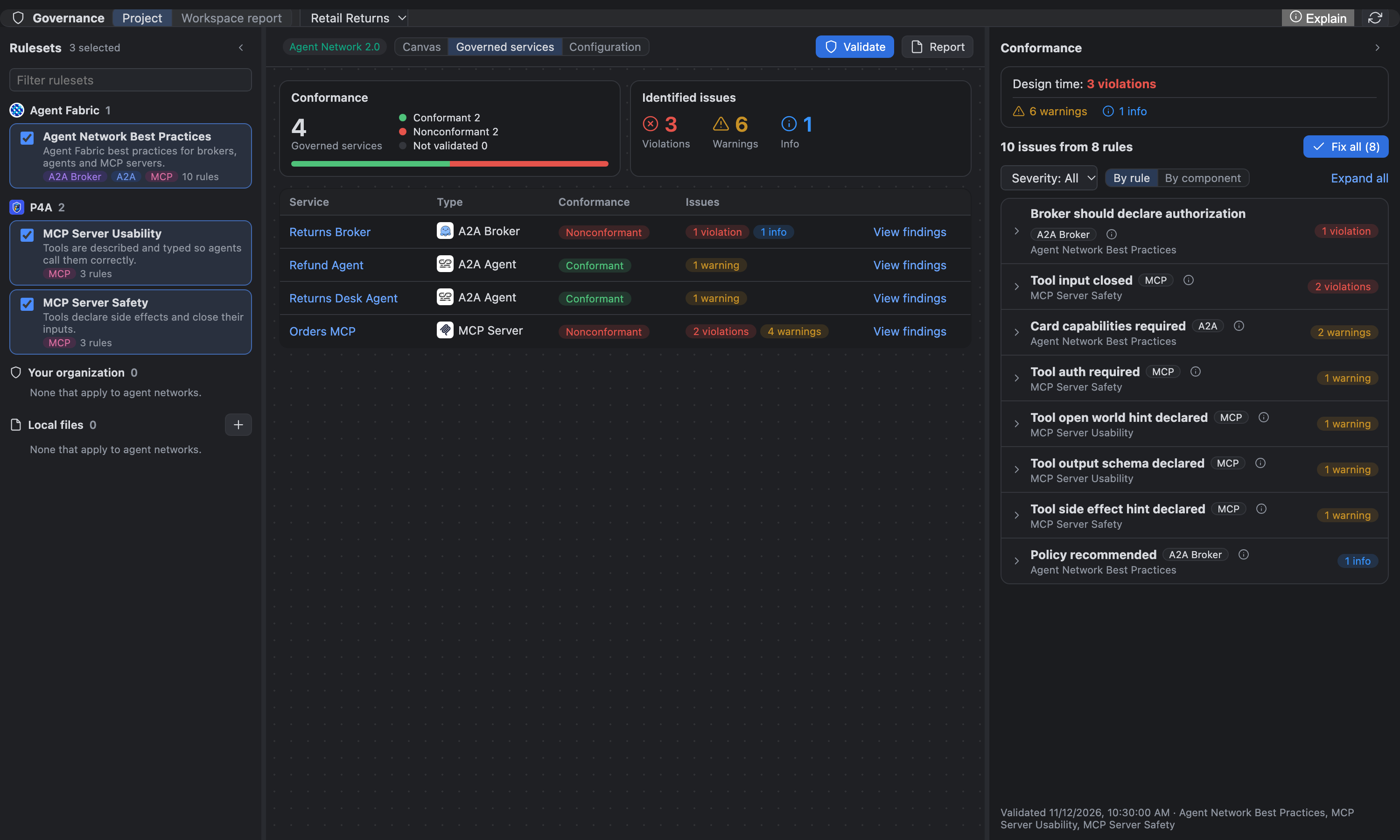
anypoint-cli-v4 governance api validateon the project. Components with findings get a shield badge (red violation, amber warning, blue info); click one to filter the findings. - Conformance (right) works like Anypoint API Governance: a design-time card with the violation, warning and info counts, then one row per rule (or per component) with its ruleset and a severity count. Expand a rule to see each finding, where it is in
agent-network.yaml(v1 or v2 path) and the fix. - Fix applies the fix to
agent-network.yamlwhere it can be done safely, using only keys from the v1 / v2 reference. Examples: card capabilities,protocolVersion, the card name, description or URL taken from the component and its connection,interfaces.a2a.authorization.allowAnonymousAccess: falseon a v2 broker, astreamableHttptransport, theallowedtools, and inline secrets moved to secretexchange.jsonvariables. Fix all applies every fix the ruleset can confirm, so its count is what it clears. It skips MCP tool rules written for MCP server specs (see Known limitations); each of those keeps its own Fix to write the reference keys anyway. The project is then saved and validated again; undo with Ctrl/Cmd+Z in the file. Findings that need a decision (which policy, provider or broker URL) keep a snippet to copy. - Governed services and Configuration (above the canvas) show conformance per broker, agent and MCP server, and the scope and rules of every selected ruleset.
- The Rulesets and Conformance columns can be resized by dragging their edges and hidden with the arrow buttons; the widths are remembered.
- The floating info button explains each part of the panel: rulesets, findings, governed services and the report.
- Local compliance check only: the selection and the results are kept in VS Code workspace storage, not in the project. Build, publish and deploy never read them, and nothing is created or published in your org or in P4A. The only change to the project is a fix you apply.
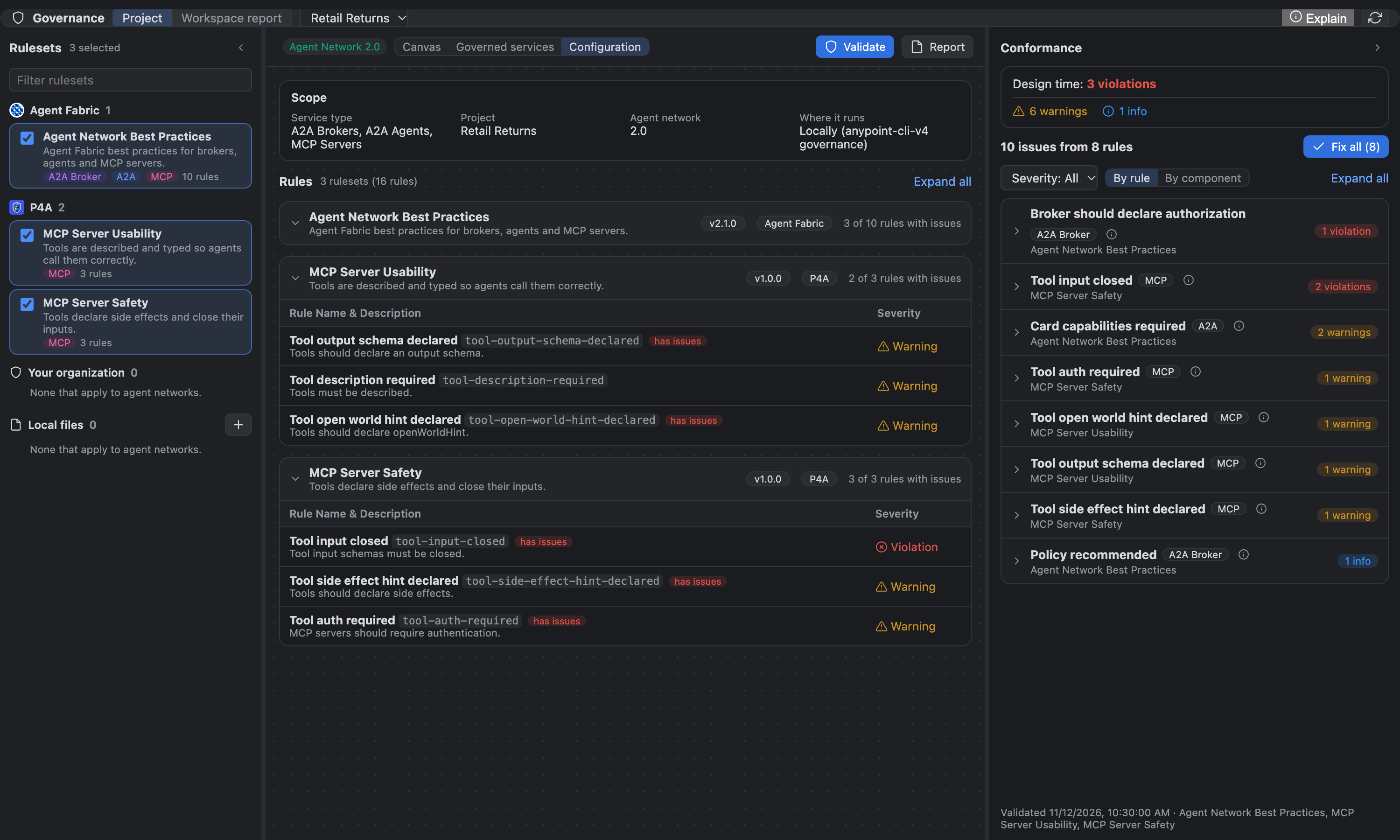
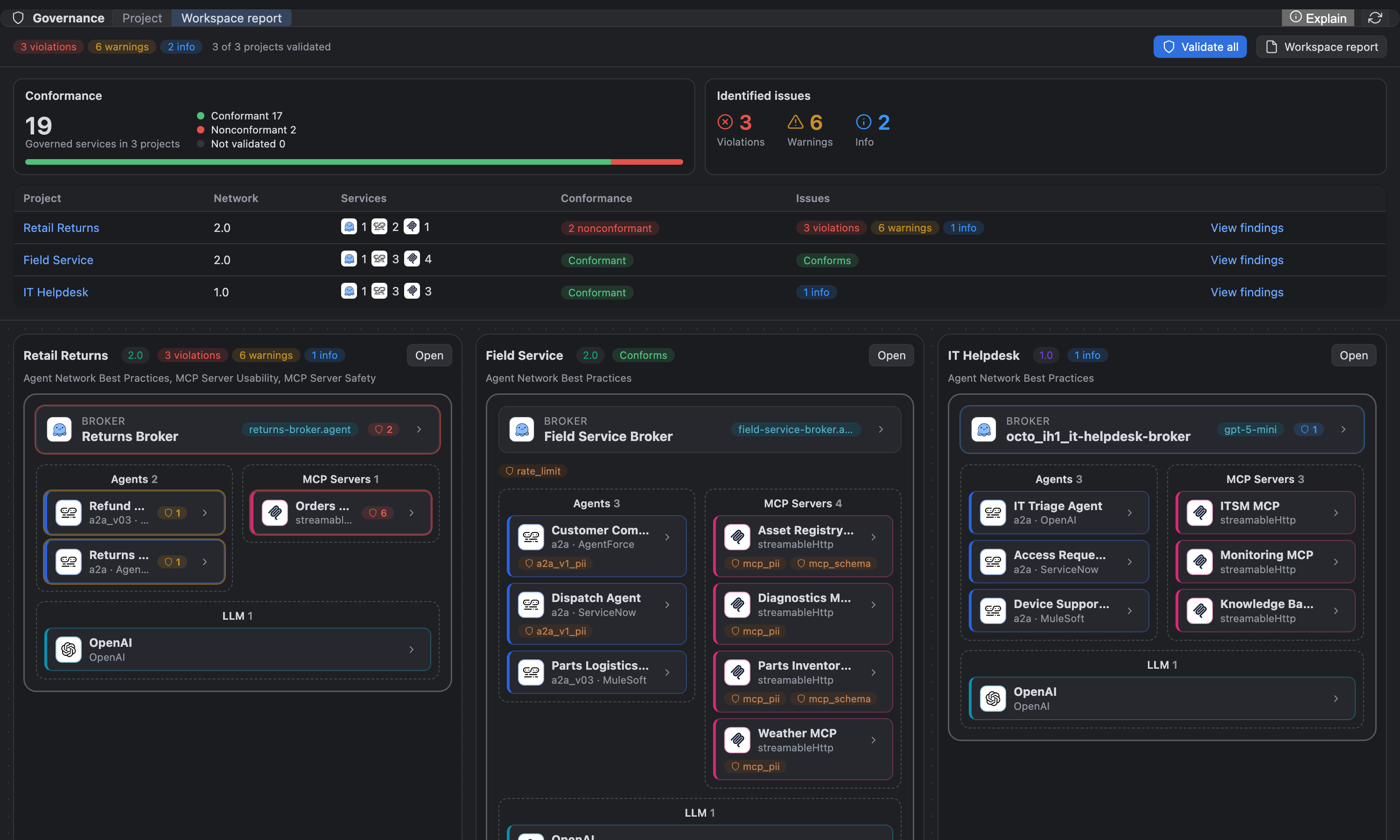
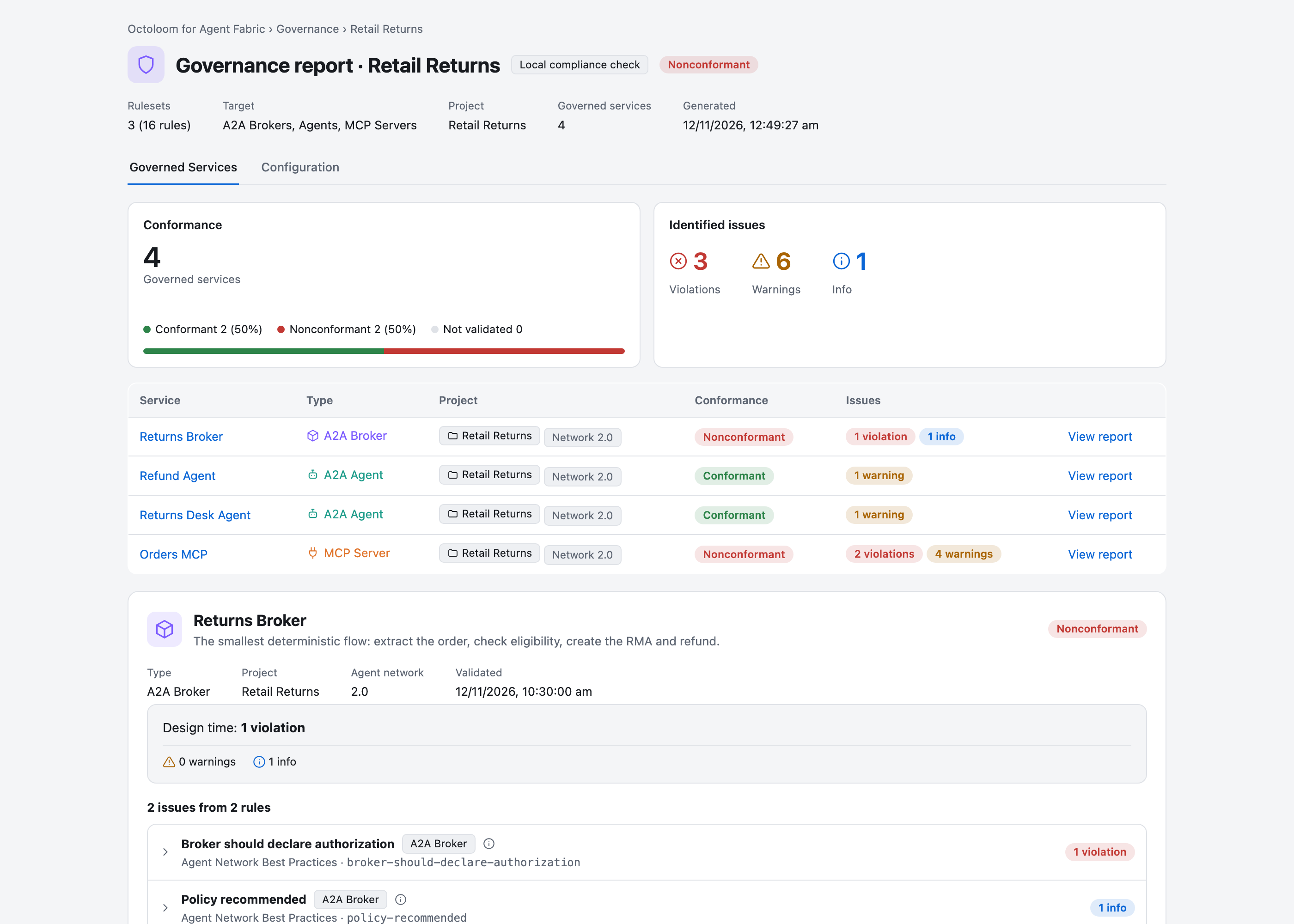
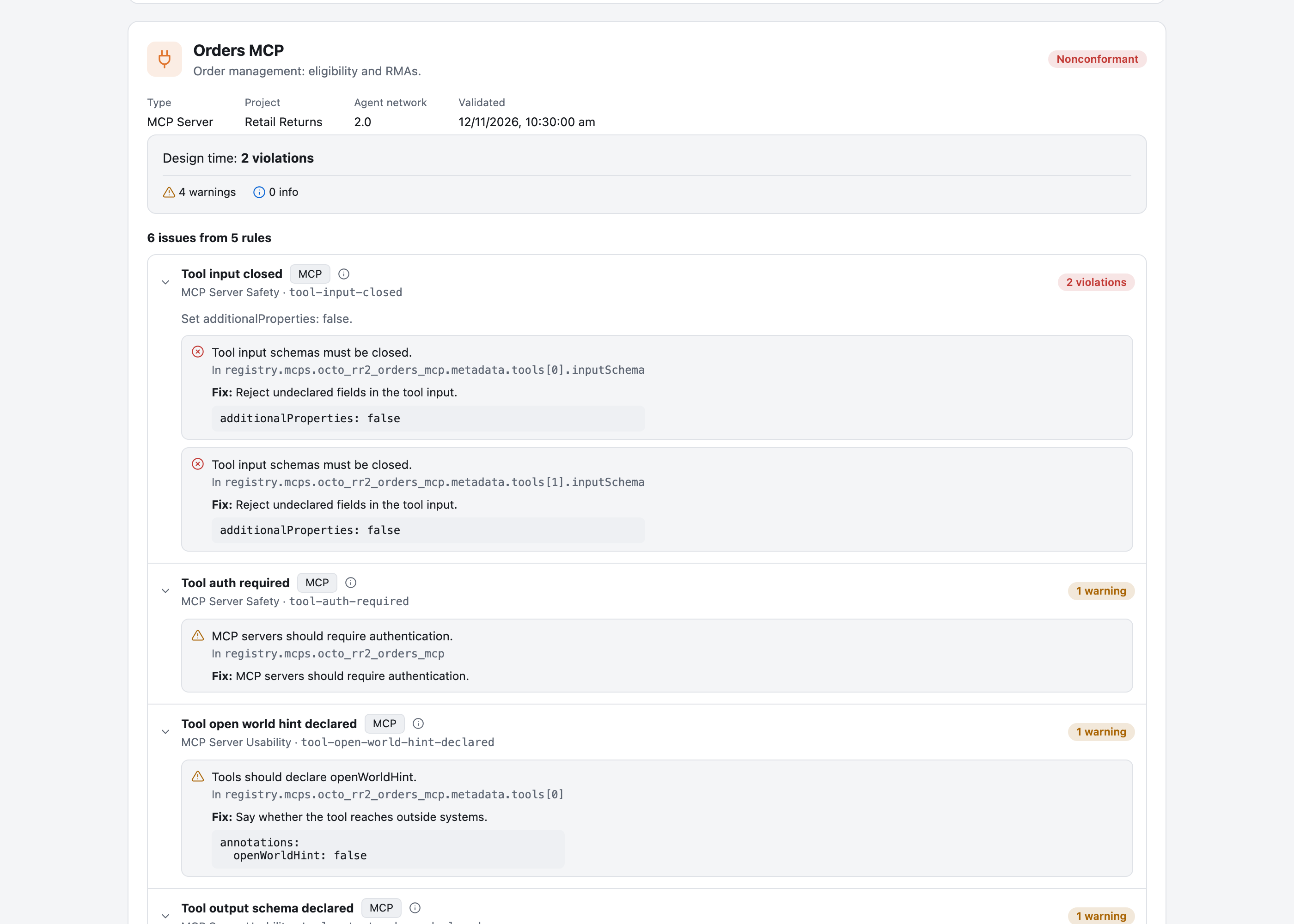
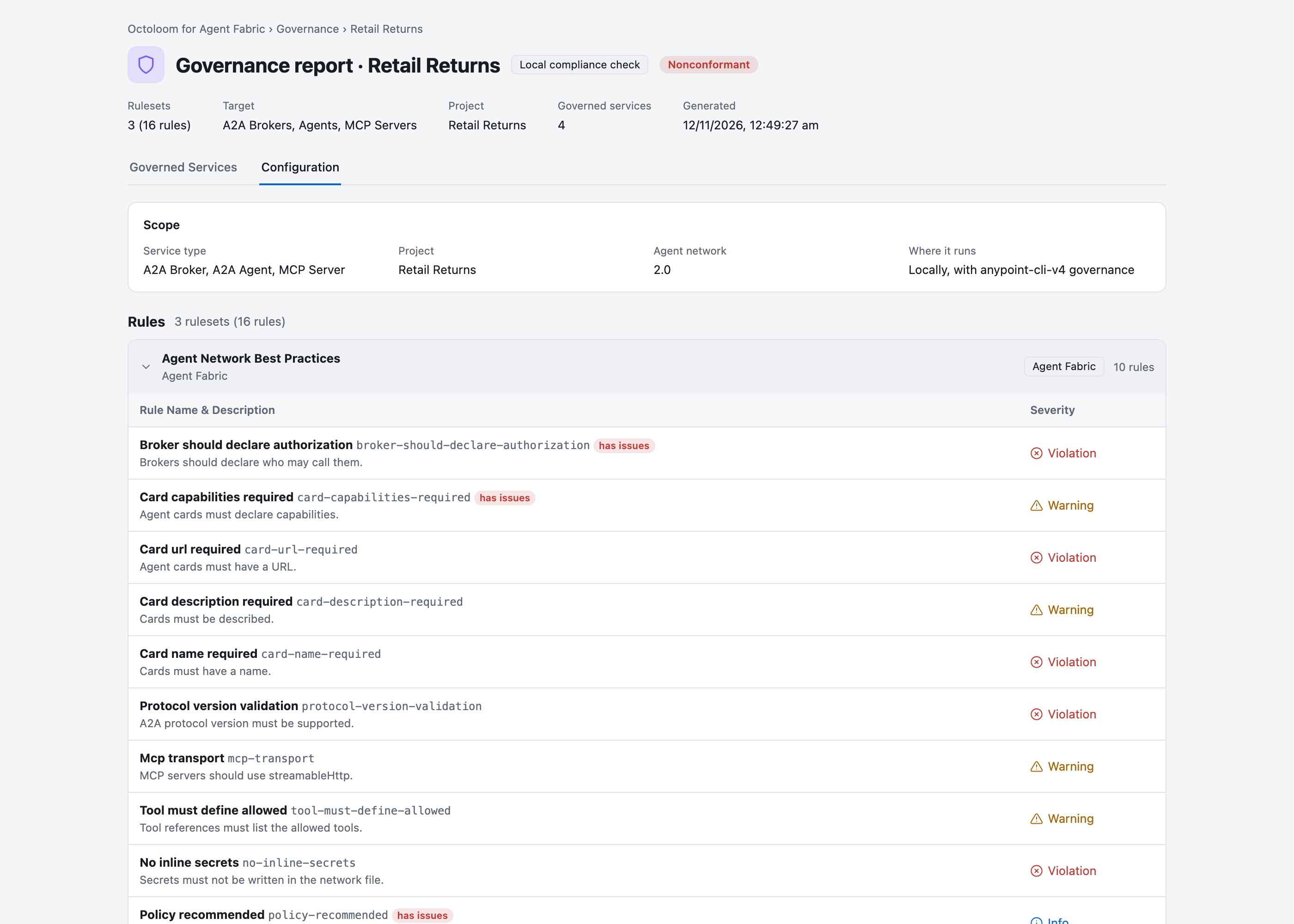
Workspace report shows conformance and issues across every project, then each canvas with its marked components; Validate all checks every project that has rulesets. Report saves a stand-alone HTML file for one project or the workspace, by default in Octoloom's storage, outside your projects. It has an overview with the conformance and issues cards and a governed services table, a section per service with expandable rules, and a Configuration tab with every rule and its severity:
Buttons and components
The same text as the in-app Explain button (click the floating info button, then the item).
Governance
Checks a project against governance rulesets with the Anypoint CLI (anypoint-cli-v4 governance api validate). Results are shown on a read-only canvas: brokers, agents and MCP servers with findings get a shield badge (red = violation, amber = warning, blue = info), and every finding has a fix based on the v1 or v2 reference. A local compliance check only: the selection and results are saved in VS Code (workspace storage), never in the project, and build, publish and deploy ignore them. Nothing is created or published in your organization or in P4A.
When to use it: Before you publish or deploy, or to check a project against your company standards.
Examples:
- Select "Agent Network Best Practices" (Agent Fabric) and press Validate
- Click a marked component to see only its findings, then Open on canvas to edit it
- Fix (per finding) or Fix all: Octoloom changes agent-network.yaml with keys from the v1 / v2 reference (for example capabilities on a card, interfaces.a2a.authorization.allowAnonymousAccess: false on a v2 broker, a streamableHttp transport, the allowed tools, secrets moved to exchange.json variables), saves it and validates again. Undo with Ctrl/Cmd+Z in the file
- MCP tool rules written for MCP server specs (tool hints, closed input, output schema) are reported for every tool in agent-network.yaml, whatever it declares. Fix all skips them, so its count is what it can clear; each one keeps its own Fix to write the reference keys anyway
- Findings that need a decision (which policy, provider or URL) keep the snippet to copy; v1 brokers have no authorization block, so those findings suggest a policy instead
- Drag the edges of the Rulesets and Conformance columns to resize them; the arrow buttons hide or show them
- Governed services and Configuration (above the canvas) show conformance per service and the rules of each selected ruleset
- The selection is saved per project; validate again after a change
Rulesets
A ruleset is a governance profile (YAML) of rules with a severity. Octoloom lists only rulesets that apply to agent networks: A2A Broker (agents.Broker), A2A agents (agent cards, tools) and MCP servers (mcp.*). Sources: Agent Fabric (MuleSoft, from Exchange), P4A community rulesets and your own P4A rulesets (P4A token), rulesets published in your organization (downloaded read-only from Exchange) and local YAML files.
When to use it: Choose the rulesets that match the standards of the project. Combine several: findings name the rule and the ruleset.
Examples:
- Agent Network Best Practices: agent card fields, broker authorization, MCP transport, inline secrets
- P4A MCP Server Safety: tool side-effect hints, closed input schemas, declared auth
- Your organization: custom rulesets your team published to Exchange
- Local file: a ruleset YAML you are writing (+ in Local files)
Governance report
The workspace report lists every agent network project in the workspace: conformance and identified issues across all governed services, one row per project, then each canvas with its marked components. Validate all checks every project that has rulesets selected. Report / Workspace report saves a stand-alone HTML file: an overview (conformance, issues, governed services table), a section per service with its rules (expand a rule to see each finding and its fix) and a Configuration tab with the scope and every rule of the selected rulesets (light and dark, no scripts). Reports are saved outside your projects by default (Octoloom storage), so they are never published or deployed.
When to use it: Reviews, audits, or sharing the state of all projects with your team.
Examples:
- Workspace report → Validate all → Workspace report (HTML)
- Project → Report: one project only
- Open a project from the report to fix its findings