Setup & Connect
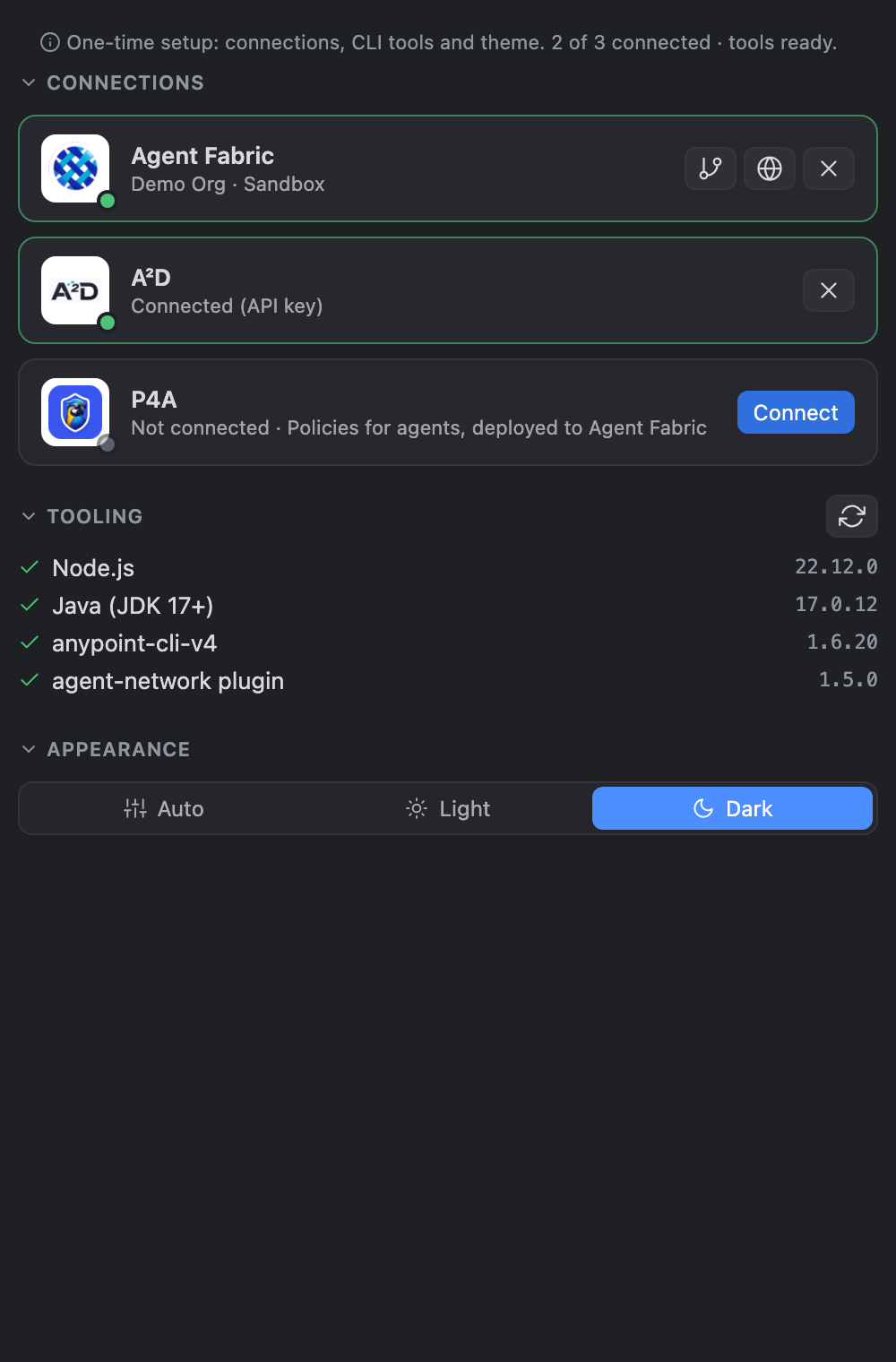
The first view in the Octoloom side bar, above Projects & Deploy and Asset Palette. It holds one-time setup, most important first. The line on top shows what is left, for example 2 of 3 connected · tools ready:
- Connections: Agent Fabric (business group and environment pickers), A²D and P4A. Connect or disconnect with one click.
- Tooling: Node.js, Java, anypoint-cli-v4 and the agent-network plugin, with one-click install or repair. The Octoloom row shows the installed version and
It is collapsed by default. It opens by itself when the window has no folder or the workspace has no agent network project yet. VS Code remembers when you open or close it yourself.
Buttons and components
The same text as the in-app Explain button (click the floating info button, then the item).
Setup & Connect
One-time setup in the Octoloom side bar, most important first: Connections to Agent Fabric (business group and environment), A²D, P4A and Headless IDMC (Informatica), Tooling (Node.js, Java, anypoint-cli-v4, the agent-network plugin and Octoloom itself with a new-version notice, with install or repair), and Appearance (auto, light or dark). The line on top says how many connections are set up and whether the tools are ready. Projects & Deploy below it is for daily project work.
When to use it: The first time you use Octoloom, when a connection expires, or when a build says a tool is missing. It is collapsed by default and opens by itself when the workspace has no folder or no agent network project yet.
Examples:
- Appearance: Auto follows the VS Code theme; Light or Dark forces Octoloom's own palette. When the forced mode doesn't match VS Code, a hint says so with Follow VS Code
- Connect Agent Fabric, then pick the environment with the globe button
- Publish and deploy into a sub business group: pick it with the branch button next to the globe (the connected app needs scopes in that group, otherwise only the root organization is listed)
- Connect A²D with an API key to drag designed agents and MCP servers from the Asset Palette
- Connect Headless IDMC: pick the pod of your org (for example North America, dm-us), then log in with your IDMC user. The IDMC tab of the Asset Palette lists the shared and composite Informatica MCP servers
- Install missing tools after a fresh machine setup; the refresh button checks again
- Switch all Octoloom views to light or dark, independent of the VS Code theme