Tutorial: IDMC Customer Data Steward (needs Informatica IDMC)
All tutorials · Getting started · Probabilistic network (Agent Network 1.0, LLM broker) · Technical · IDMC
One LLM broker over four Informatica shared MCP servers: verify addresses, search the data catalog (CDGC), read data quality scores and look up MDM master records. Needs your own Informatica IDMC org and an IDMC MCP client (OAuth 2.0 client credentials).
| Agents | MCP servers | A2A | Policies | Template id |
|---|---|---|---|---|
| 0 | 4 | 0.3.0 | 0 | v1-idmc-customer-steward |
There are three ways to use this template:
- Just use it: create the project, deploy it and chat with it in about 10 minutes.
- Learn step by step: the same steps, with what each part of the network does and how Octoloom shows it.
- Build it from scratch: start from a blank project and build the same network yourself, no code, one screenshot per step.
Before you start
- VS Code with Octoloom for Agent Fabric installed (Marketplace), version 0.9.25 or later.
- An Anypoint organization with Agent Fabric, a connected app (client ID and secret), an environment and a Flex gateway.
- An OpenAI API key (or an OpenAI-compatible LLM gateway).
- An Informatica IDMC org with the four shared MCP services and an IDMC MCP client (see the template README, IDMC setup).
- Nothing else: the IDMC MCP servers are called with OAuth 2.0 client credentials.
Path 1: Just use it
- Home → Start → New Probabilistic Network. In the dialog pick Technical, then the card IDMC Customer Data Steward (needs Informatica IDMC). Choose a folder and click Create.
- Deploy. In
exchange.json, fill iningressgw.url(ingress gateway base url). Check the pod in the four URL variables andidmc.tokenUrl. In Projects & Deploy, click Deploy on this project (or Build & Deploy in the editor) and pick your gateway. Octoloom asks for each secret variable; nothing you type is stored: openai.apiKey: OpenAI API key (secret, injected at deploy time)idmc.clientId: IDMC MCP client: Client ID (OAuth 2.0 client credentials)idmc.clientSecret: IDMC MCP client: Client Secret- Chat. When the status light is green, click Open chat and paste:
Verify and standardize the address 2100 Seaport Blvd, Redwood City, CA 94063, USAWhich catalog assets hold customer data, and what is their data quality score?Check the address 2100 Seaport Blvd, Redwood City, CA 94063 and tell me which catalog assets hold customer address or contact dataFind the customer John Smith, address 2100 Seaport Blvd, Redwood City, CA 94063
Done. The rest of this page explains what you just ran.
Path 2: Learn step by step
Step 1. Connect Octoloom
Open Setup & Connect (Octoloom side bar) and connect Agent Fabric: the connected app client ID and secret and the organization. Pick the environment. Also connect IDMC (Headless IDMC) if you want the IDMC palette tab. The Tooling list shows Node.js, Java and anypoint-cli-v4 with its agent-network plugin. Use Install or Repair on any red row.
Step 2. Create the project from the template
On Home, click New Probabilistic Network. In 2 Start from, choose Technical and click IDMC Customer Data Steward (needs Informatica IDMC). The right side shows the template README: what it contains, Deploy in 3 steps and Try it. Keep the suggested name idmc-customer-steward or type your own, pick the folder and click Create.
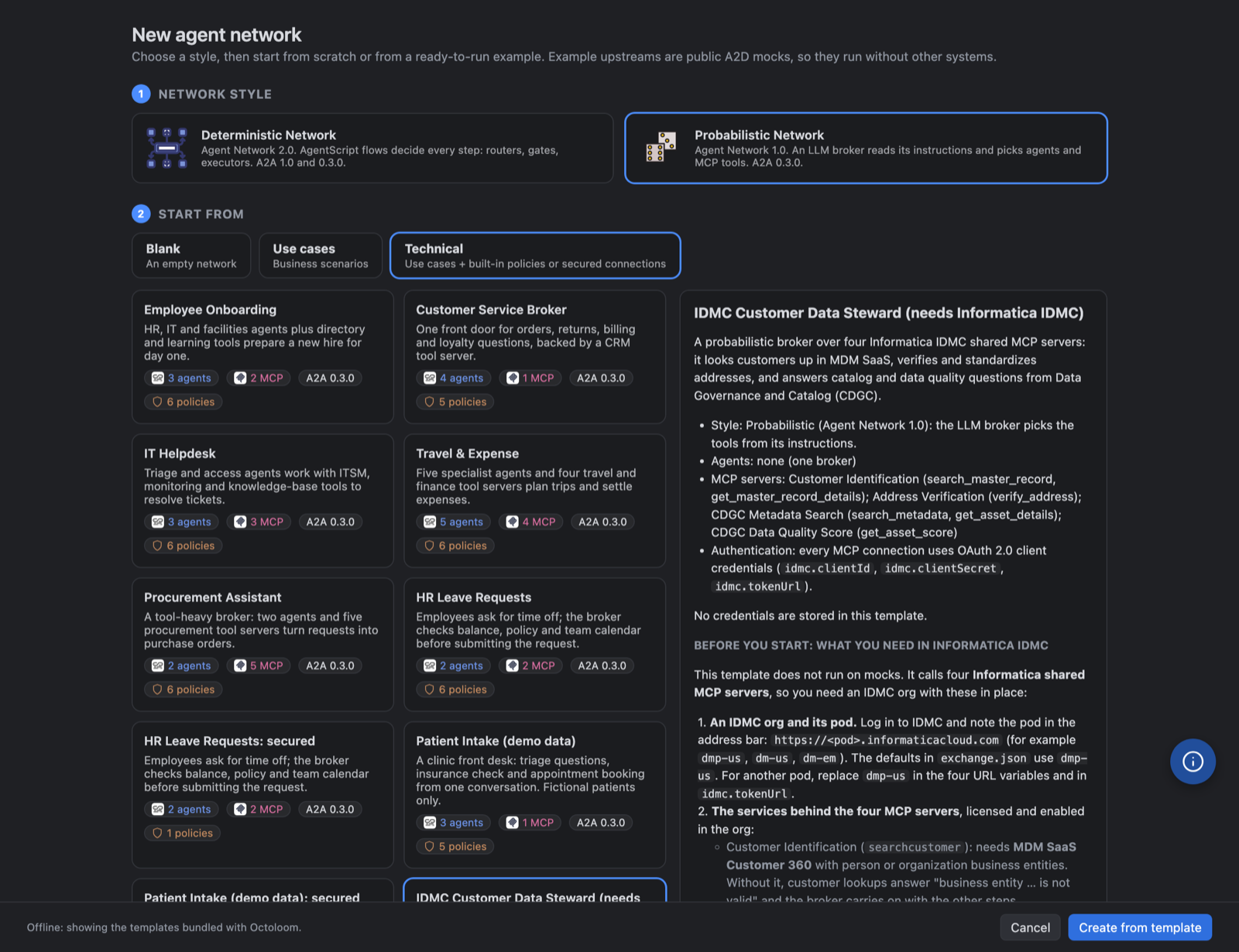
Octoloom writes agent-network.yaml, exchange.json, README.md, and opens the canvas. Every id gets the template prefix octo_iv1_, so several templates can be deployed into one org side by side.
Step 3. Read the network on the canvas
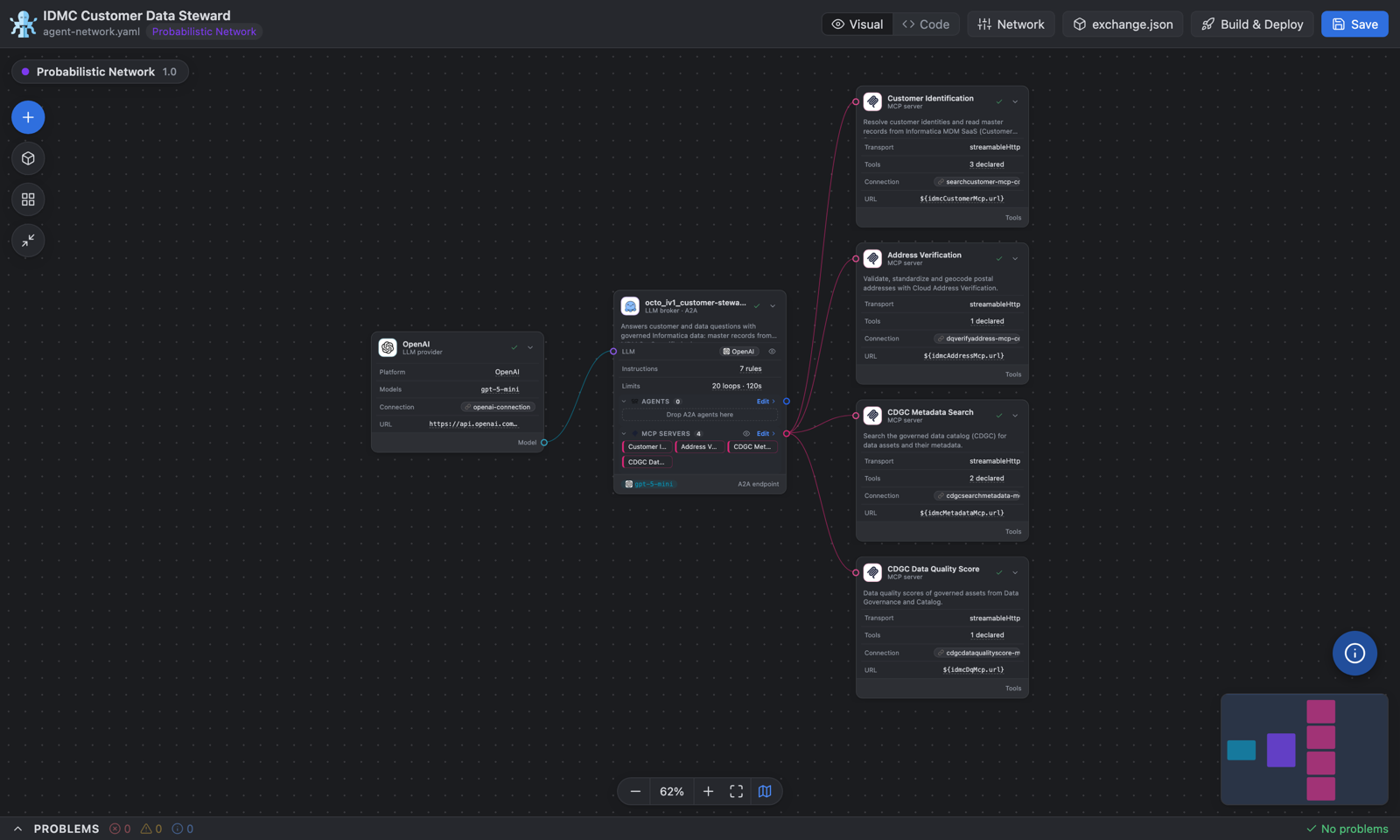
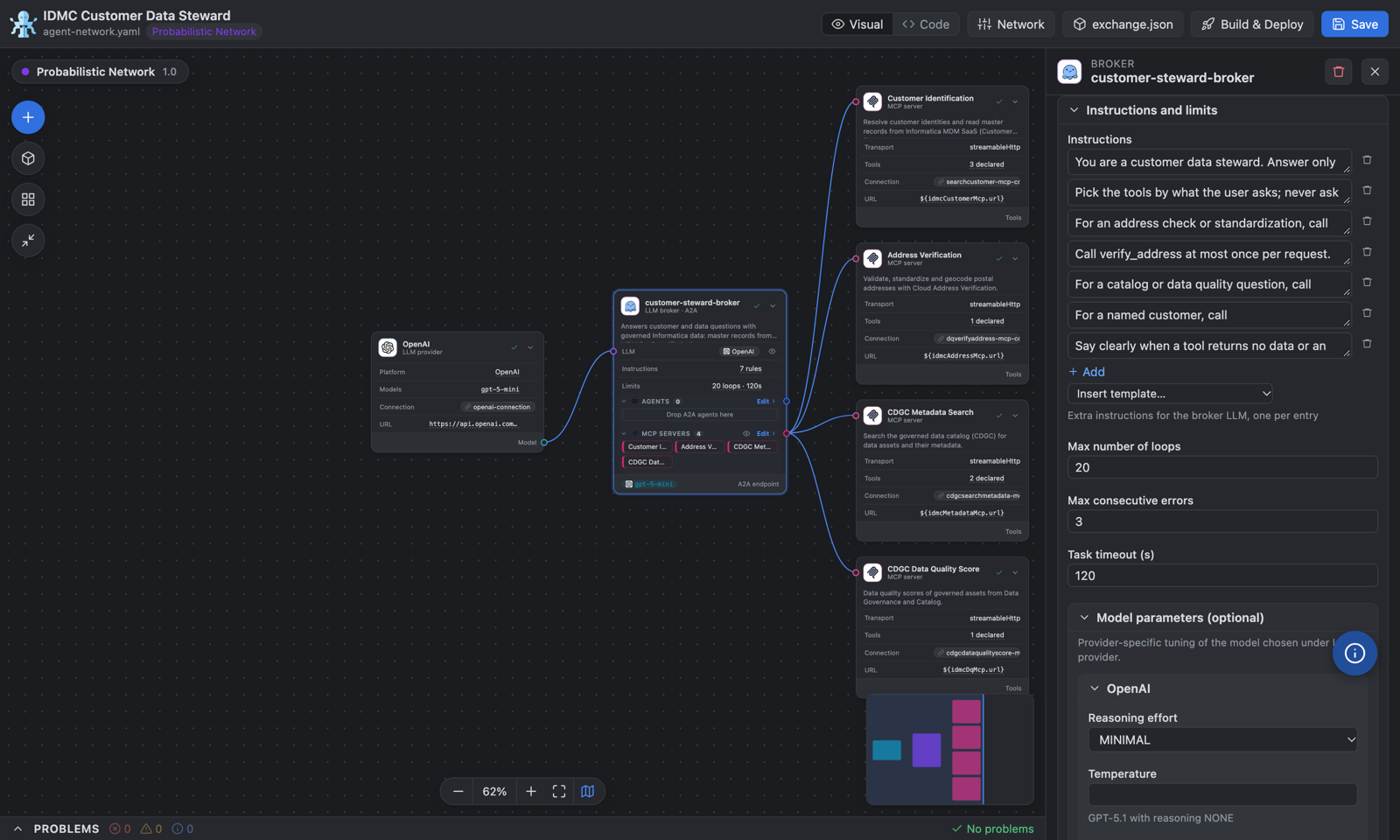
Each card is a part of agent-network.yaml. Click one to open it in the inspector on the right. Each change in the inspector is a change to the text, so the YAML stays the source of truth (Code view shows it).
- Broker octo_iv1_customer-steward-broker (
octo_iv1_customer-steward-broker): the LLM decides which agent or tool to call from its instructions. - Instructions:
- You are a customer data steward. Answer only with data from the Informatica MCP servers.
- Pick the tools by what the user asks; never ask the user to choose a business entity.
- For an address check or standardization, call verify_address directly with Request {IO:{Inputs:[{AddressElements:{Country:"USA",Locality:[{Value:
}],PostalCode:[{Value: }],AdministrativeDivision:[{Value: }]},PreformattedData:{PostalDeliveryAddressLines:[ ]}}]}}. Do not search master records for it. - Call verify_address at most once per request. When it returns an error, report the error in one sentence and continue with the other steps; do not retry it.
- For a catalog or data quality question, call search_metadata with a short knowledgeQuery (for example "customer address"), list the hits with name and type, then call get_asset_score for the best data collection or field.
- For a named customer, call search_master_record once (entityType "c360.person", or "c360.organization" for a company). When it fails (for example "business entity is not valid"), say so in one sentence and continue with the address and catalog steps.
- Say clearly when a tool returns no data or an authentication error (the OAuth client or token may be wrong).
- MCP server Customer Identification: Resolve customer identities and read master records from Informatica MDM SaaS (Customer 360). Tools:
get_master_record_details,get_related_records,search_master_record. - MCP server Address Verification: Validate, standardize and geocode postal addresses with Cloud Address Verification. Tools:
verify_address. - MCP server CDGC Metadata Search: Search the governed data catalog (CDGC) for data assets and their metadata. Tools:
get_asset_details,search_metadata. - MCP server CDGC Data Quality Score: Data quality scores of governed assets from Data Governance and Catalog. Tools:
get_asset_score.
Try this on the canvas: use the zoom bar and the minimap, drag a card, or Auto layout. The layout is saved per file. Minimize all turns the cards into icon tiles. Click a connection line to see which broker uses which agent or tool.
Step 4. Validate and build
In the canvas toolbar, open the CLI menu: Validate does a dry run of build, publish and deploy and lists problems in the Problems panel (click one to jump to the card). Build repairs and packages the project locally with anypoint-cli-v4.
The variables of this template (in exchange.json, open it for the no-code form):
| Variable | What | Default |
|---|---|---|
idmc.tokenUrl |
IDMC MCP client: Token URL | https://dmp-us.informaticacloud.com/authz-service/oauth/token |
idmcCustomerMcp.url |
Customer Identification (Informatica shared MCP server, pod dmp-us) full server URL (the gateway forwards to it as is) | https://mcp.dmp-us.informaticacloud.com/mcp-servers/public/searchcustomer |
idmcAddressMcp.url |
Address Verification (Informatica shared MCP server, pod dmp-us) full server URL (the gateway forwards to it as is) | https://mcp.dmp-us.informaticacloud.com/mcp-servers/public/dqverifyaddress |
idmcMetadataMcp.url |
CDGC Metadata Search (Informatica shared MCP server, pod dmp-us) full server URL (the gateway forwards to it as is) | https://mcp.dmp-us.informaticacloud.com/mcp-servers/public/cdgcsearchmetadata |
idmcDqMcp.url |
CDGC Data Quality Score (Informatica shared MCP server, pod dmp-us) full server URL (the gateway forwards to it as is) | https://mcp.dmp-us.informaticacloud.com/mcp-servers/public/cdgcdataqualityscore |
ingressgw.url |
Ingress gateway base URL (the broker is served under it) | (fill in) |
Step 5. Deploy
Open Projects & Deploy and click Deploy on the project (or Deploy… on the canvas). Pick your gateway (the chips show its status and space), keep Tracing, Wait until the network is ready and Publish before deploy on, then enter the secrets. Nothing you type is stored:
openai.apiKey: OpenAI API key (secret, injected at deploy time)idmc.clientId: IDMC MCP client: Client ID (OAuth 2.0 client credentials)idmc.clientSecret: IDMC MCP client: Client Secret
For a probabilistic network, also fill ingressgw.url in exchange.json (your ingress gateway base URL) before you deploy.
The square status light goes from blue (deploying) to green (Deployed and running). The deployment box lists every broker URL; click one to copy it.
Step 6. Chat with the broker
Click Open chat on the deployment box. On the left is the network (the cards light up as they are called), and on the right is the conversation with its task states. Paste the prompts one at a time:
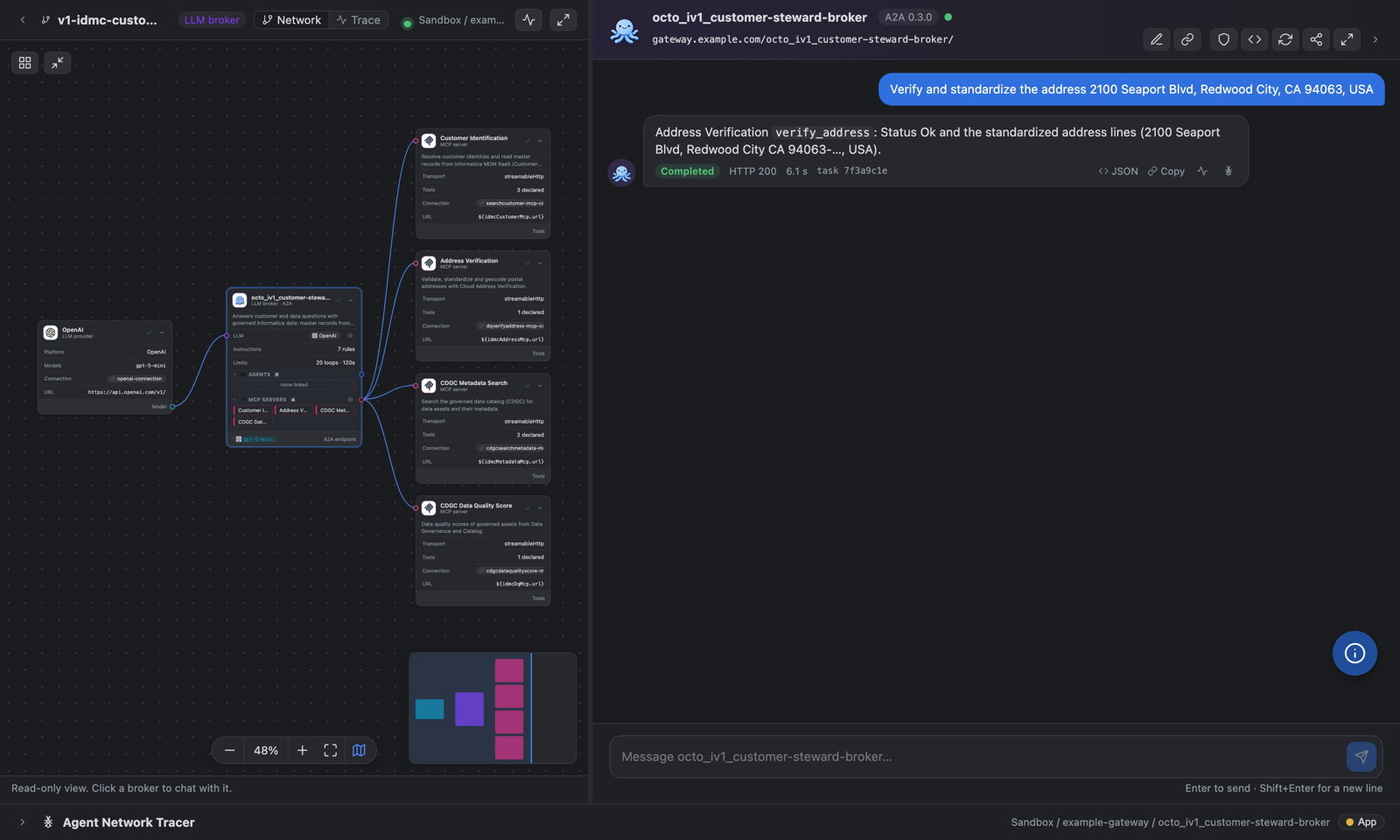
The reply in the screenshot is an illustration: it shows what the broker answers. The real wording changes from run to run.
| Prompt | You should see |
|---|---|
Verify and standardize the address 2100 Seaport Blvd, Redwood City, CA 94063, USA |
Address Verification verify_address: Status Ok and the standardized address lines (2100 Seaport Blvd, Redwood City CA 94063-…, USA). |
Which catalog assets hold customer data, and what is their data quality score? |
CDGC Metadata Search search_metadata: a list of catalog hits (data collections, classifications, protections, fields) with name and type, then CDGC Data Quality Score get_asset_score: the score of the most relevant asset, or that no score is recorded. |
Check the address 2100 Seaport Blvd, Redwood City, CA 94063 and tell me which catalog assets hold customer address or contact data |
verify_address with Status Ok first, then the catalog hits for customer address and contact data from search_metadata. |
Find the customer John Smith, address 2100 Seaport Blvd, Redwood City, CA 94063 |
Customer Identification search_master_record: the master record (business ID, name, address) when MDM SaaS Customer 360 is in place; without it, one sentence with the MDM error ("business entity … is not valid"), then the address check. |
The broker is probabilistic: the LLM picks the tools, so the wording and the order of the calls can change between runs.
Step 7. Trace a reply
Under each reply, the Tracer icon opens the task in the Agent Network Tracer: a waterfall of every call the broker made (gateway, broker, LLM, A2A agents, MCP tools) on one time axis, coloured like the cards. Errors are red. Click a span to see its request and response. The Network view shows the same reply as a sequence of calls.
Step 8. Share it (optional)
The Share icon in the chat header opens the Share dialog. A²D sessions invites people by email to chat with this deployed broker and brings their passed / failed marks and comments back. Local portal generates a small web chat you can run or host anywhere.
Path 3: Build it from scratch
Here you build the same network yourself, starting from a blank project. Every step uses a form, a menu or a button. You never import the template, and you never type YAML. The names below are the template's names without the octo_iv1_ prefix. You can use your own names, but keep them consistent.
The text fields take plain values. Where a value looks like
${group.name}, type it as shown: it is a variable thatexchange.jsondeclares and that deploy fills in.
Step 3.1. Create a blank project with a starter broker
Connect Octoloom first, as in Path 2, Step 1. Then, on Home, click New Probabilistic Network. In 2 Start from, choose Blank and turn on Add a starter broker.
- Broker name:
customer-steward-broker - Name:
idmc-customer-steward-scratch(the Exchange asset id; a different name from the template, so both can live in one org) - Parent folder: pick a folder, then click Create blank project.
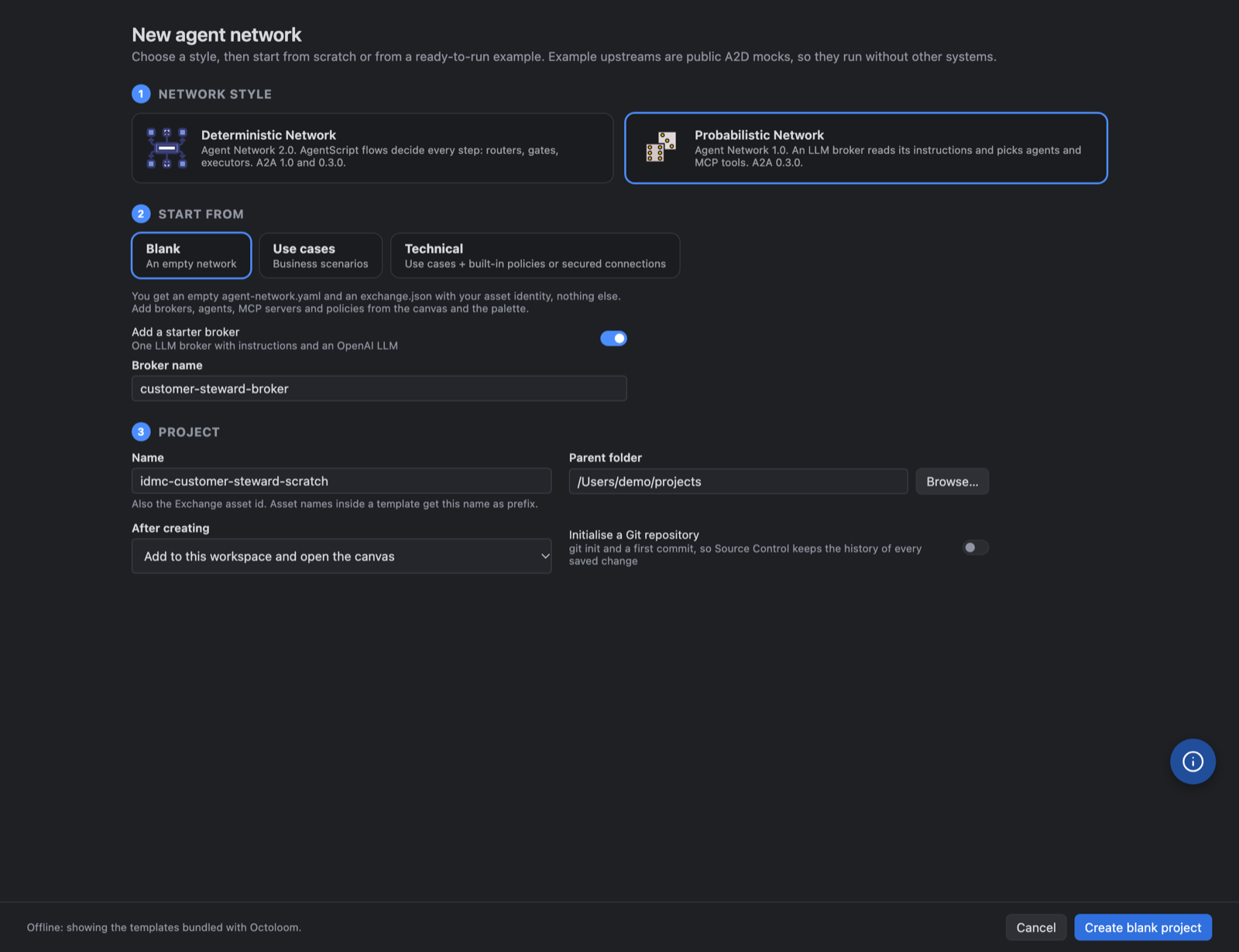
The starter broker is an LLM broker with an OpenAI LLM (openai provider, openai-connection) and default instructions. The LLM is already done.
Step 3.2. Add the MCP servers
Click + → MCP server → Empty, then fill in:
- Customer Identification: Key
searchcustomer-mcp, Label Customer Identification, Description Resolve customer identities and read master records from Informatica MDM SaaS (Customer 360). The transport is already Streamable HTTP on/mcp. - Address Verification: Key
dqverifyaddress-mcp, Label Address Verification, Description Validate, standardize and geocode postal addresses with Cloud Address Verification. The transport is already Streamable HTTP on/mcp. - CDGC Metadata Search: Key
cdgcsearchmetadata-mcp, Label CDGC Metadata Search, Description Search the governed data catalog (CDGC) for data assets and their metadata. The transport is already Streamable HTTP on/mcp. - CDGC Data Quality Score: Key
cdgcdataqualityscore-mcp, Label CDGC Data Quality Score, Description Data quality scores of governed assets from Data Governance and Catalog. The transport is already Streamable HTTP on/mcp.
Step 3.3. Add the connections
A connection is the URL (and authentication) Agent Fabric uses to reach an agent or an MCP server. Click + → Connection → Empty once per MCP server, and fill in:
| Key | Kind | Target → Name | URL |
|---|---|---|---|
searchcustomer-mcp-connection |
mcp |
searchcustomer-mcp |
${idmcCustomerMcp.url} |
dqverifyaddress-mcp-connection |
mcp |
dqverifyaddress-mcp |
${idmcAddressMcp.url} |
cdgcsearchmetadata-mcp-connection |
mcp |
cdgcsearchmetadata-mcp |
${idmcMetadataMcp.url} |
cdgcdataqualityscore-mcp-connection |
mcp |
cdgcdataqualityscore-mcp |
${idmcDqMcp.url} |
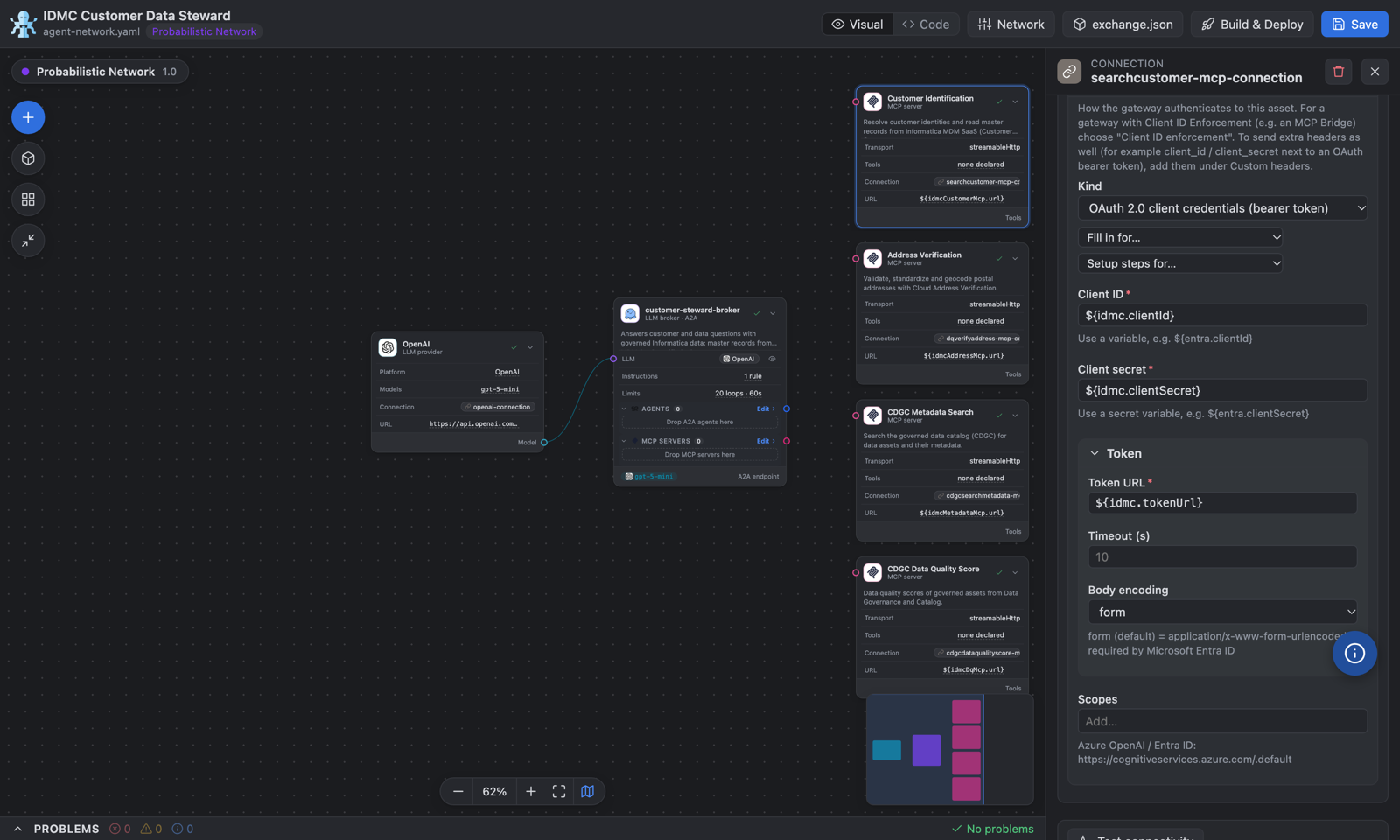
These connections also authenticate. In Authentication, pick the kind and type the values exactly as shown. The values are variables, and the secret ones are asked for at deploy time:
searchcustomer-mcp-connection: OAuth 2.0 client credentials (bearer token), clientId${idmc.clientId}, clientSecret${idmc.clientSecret}, Token → Token URL${idmc.tokenUrl}, Body encodingformdqverifyaddress-mcp-connection: OAuth 2.0 client credentials (bearer token), clientId${idmc.clientId}, clientSecret${idmc.clientSecret}, Token → Token URL${idmc.tokenUrl}, Body encodingformcdgcsearchmetadata-mcp-connection: OAuth 2.0 client credentials (bearer token), clientId${idmc.clientId}, clientSecret${idmc.clientSecret}, Token → Token URL${idmc.tokenUrl}, Body encodingformcdgcdataqualityscore-mcp-connection: OAuth 2.0 client credentials (bearer token), clientId${idmc.clientId}, clientSecret${idmc.clientSecret}, Token → Token URL${idmc.tokenUrl}, Body encodingform
Step 3.4. Declare the variables
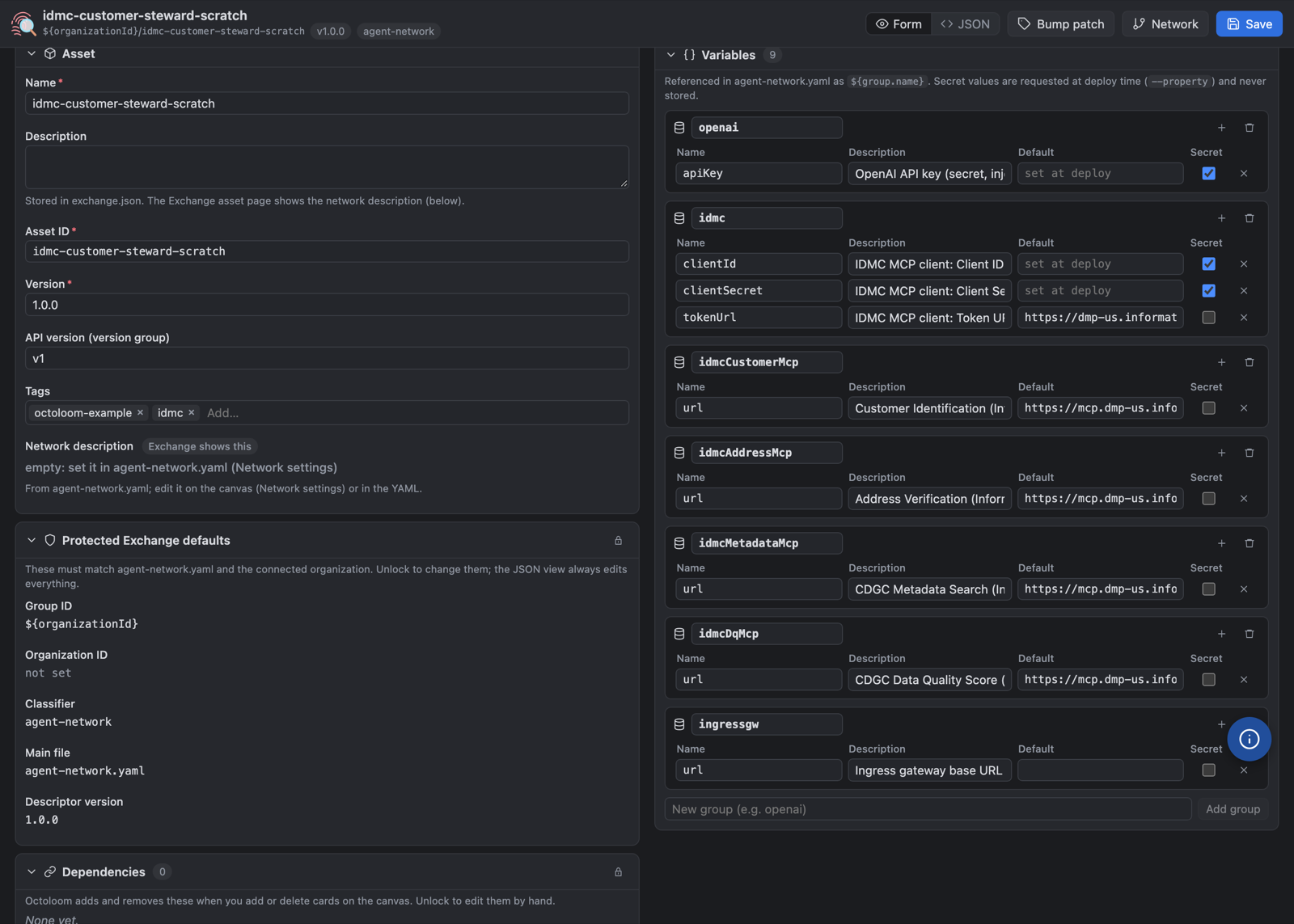
The Problems bar now shows Variable ${…} is not declared in exchange.json for each new variable. Click Add to exchange.json on each one.
Then open exchange.json (it opens as a form) and, under Variables, set the defaults:
| Variable | Default |
|---|---|
idmc.tokenUrl |
https://dmp-us.informaticacloud.com/authz-service/oauth/token |
idmcCustomerMcp.url |
https://mcp.dmp-us.informaticacloud.com/mcp-servers/public/searchcustomer |
idmcAddressMcp.url |
https://mcp.dmp-us.informaticacloud.com/mcp-servers/public/dqverifyaddress |
idmcMetadataMcp.url |
https://mcp.dmp-us.informaticacloud.com/mcp-servers/public/cdgcsearchmetadata |
idmcDqMcp.url |
https://mcp.dmp-us.informaticacloud.com/mcp-servers/public/cdgcdataqualityscore |
ingressgw.url |
(your ingress gateway URL) |
Leave the secret variables (openai.apiKey, idmc.clientId, idmc.clientSecret) empty: deploy asks for them and never stores them.
Step 3.5. Declare the MCP tools
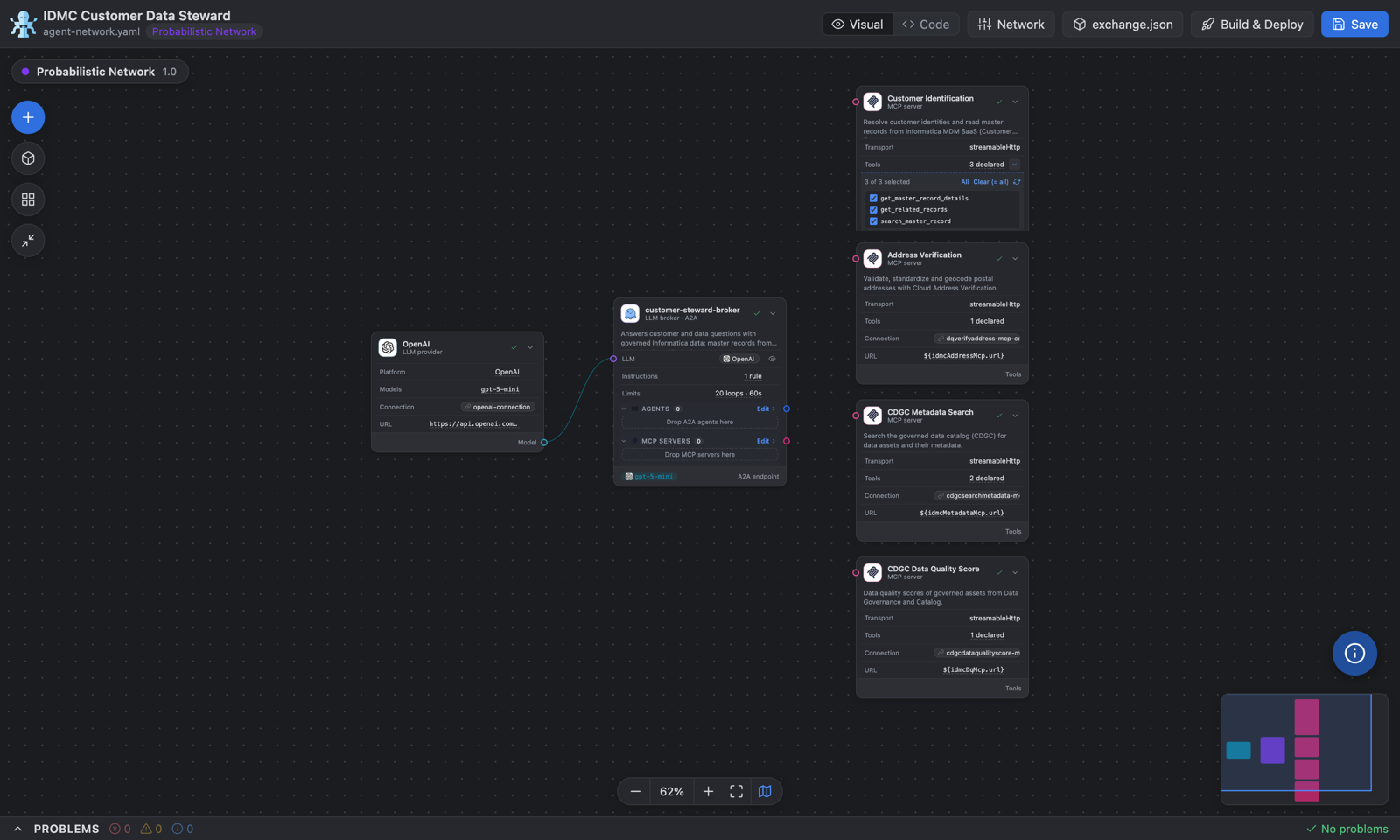
On each MCP server card, click the Tools row (or its pencil). Octoloom reads the tool list from the running server: tick the tools below. You can also type a name in Add a tool by name….
- Customer Identification:
get_master_record_details,get_related_records,search_master_record - Address Verification:
verify_address - CDGC Metadata Search:
get_asset_details,search_metadata - CDGC Data Quality Score:
get_asset_score
Step 3.6. Give the broker its tools
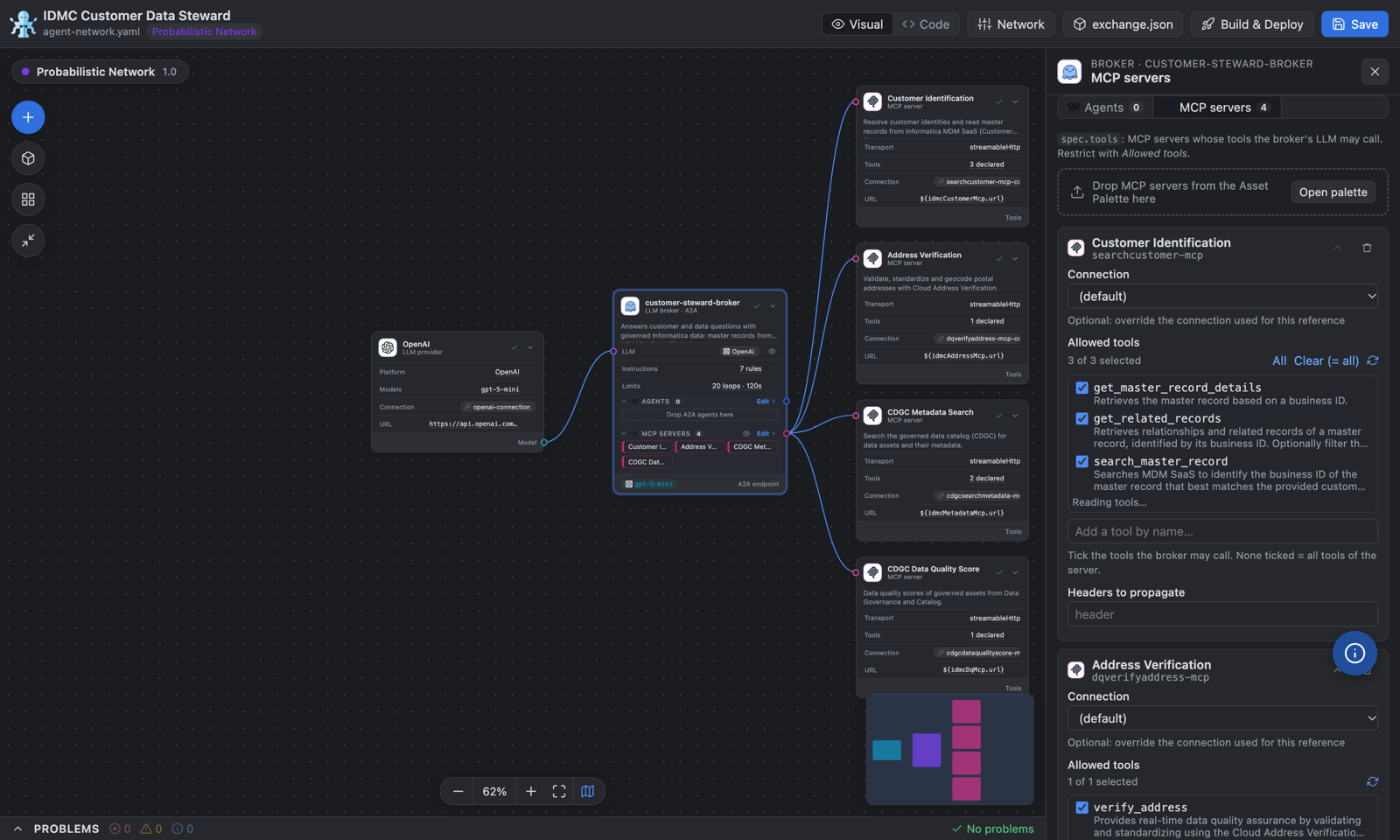
Select the broker customer-steward-broker. In the inspector:
- Click MCP servers (0). Add each server with Add existing MCP server…, then tick its Allowed tools:
searchcustomer-mcp:get_master_record_details,get_related_records,search_master_recorddqverifyaddress-mcp:verify_addresscdgcsearchmetadata-mcp:get_asset_details,search_metadatacdgcdataqualityscore-mcp:get_asset_score
Step 3.7. Write the broker instructions
Back in the broker inspector, open Instructions and limits. Replace the default instruction with these entries, one per line:
- You are a customer data steward. Answer only with data from the Informatica MCP servers.
- Pick the tools by what the user asks; never ask the user to choose a business entity.
- For an address check or standardization, call verify_address directly with Request {IO:{Inputs:[{AddressElements:{Country:"USA",Locality:[{Value:
}],PostalCode:[{Value: }],AdministrativeDivision:[{Value: }]},PreformattedData:{PostalDeliveryAddressLines:[ ]}}]}}. Do not search master records for it. - Call verify_address at most once per request. When it returns an error, report the error in one sentence and continue with the other steps; do not retry it.
- For a catalog or data quality question, call search_metadata with a short knowledgeQuery (for example "customer address"), list the hits with name and type, then call get_asset_score for the best data collection or field.
- For a named customer, call search_master_record once (entityType "c360.person", or "c360.organization" for a company). When it fails (for example "business entity is not valid"), say so in one sentence and continue with the address and catalog steps.
- Say clearly when a tool returns no data or an authentication error (the OAuth client or token may be wrong).
Set Max number of loops 20, Max consecutive errors 3 and Task timeout (s) 120.
Under Model parameters → OpenAI, set Reasoning effort to MINIMAL. The broker then answers within the gateway timeout.
Optionally, fill the broker's Agent card (A2A 0.3.0) description: Answers customer and data questions with governed Informatica data: master records from MDM SaaS, verified addresses, catalog metadata and data quality scores.
Step 3.8. Validate, deploy and chat
Run Validate from the canvas CLI menu and fix anything in the Problems bar. Then follow Path 2 from Validate and build onwards: deploy (enter the secrets), wait for the green light, open the chat and send the same prompts. Your network answers like the template, because it is the same network, built by hand.
What you learned
- How a probabilistic network is built: an LLM broker with instructions picks agents and MCP tools.
- How the canvas, the inspector and the code view edit the same YAML.
- How to build the same network from a blank project with forms and menus only (Path 3).
- How to validate, build, deploy, chat and trace with Octoloom.
Next
Generated from the v1-idmc-customer-steward template (Octoloom media/templates/v1-idmc-customer-steward). Screenshots use fake data.