Welcome page
When VS Code starts, Octoloom opens its Welcome page next to the VS Code one. It doesn't open when you click the Octoloom icon later. You can also open it with the home button in Projects & Deploy or with Octoloom: Welcome.
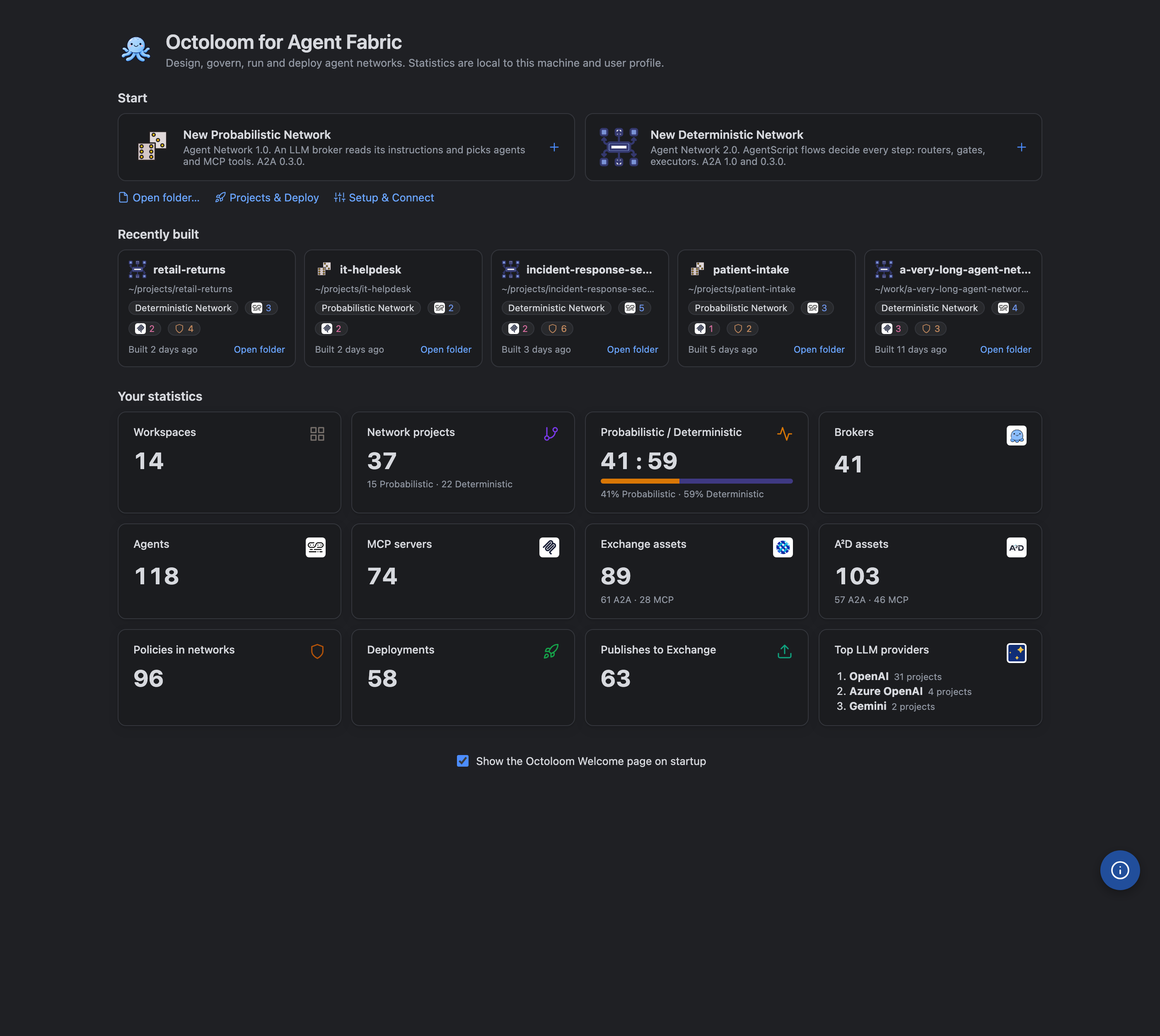
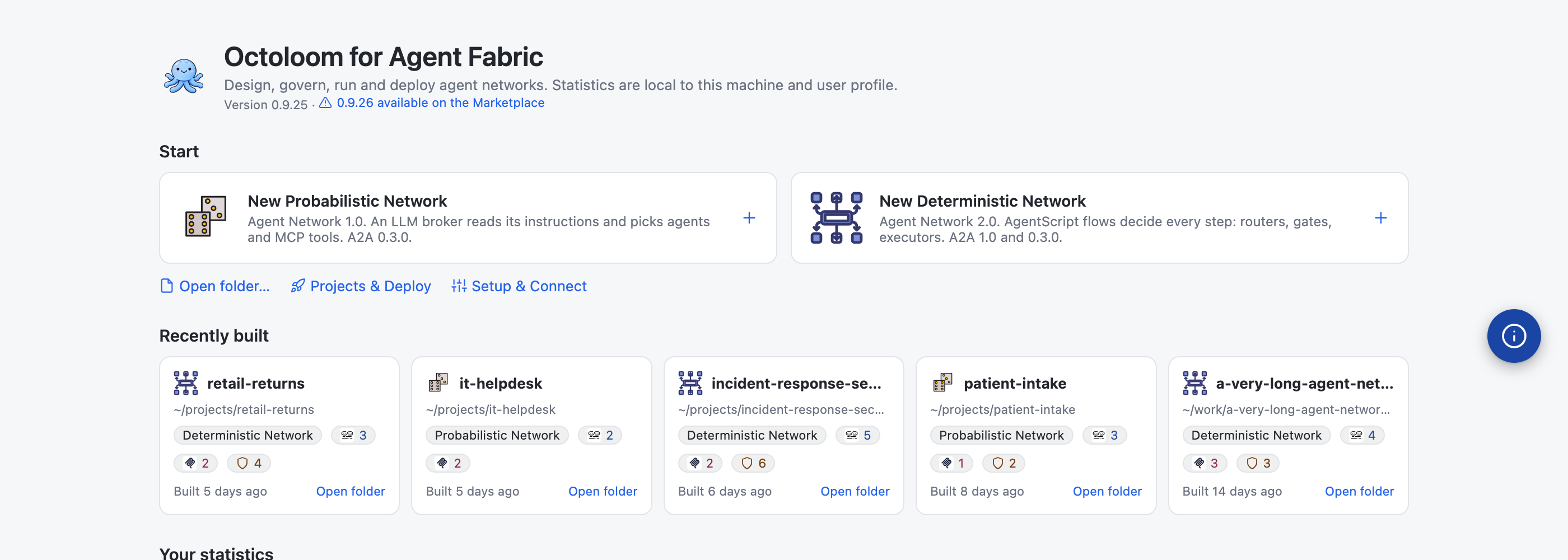
- Start: cards for a new Probabilistic or Deterministic network. Each opens New Project with that style. There are also links to Open folder, Projects & Deploy and Setup & Connect.
- Recently built: the 5 agent network projects built last on this machine, as cards. Each card shows the style, agents, MCP servers, policies and when the project was built. Click a card to open its canvas, or Open folder to open the project in this window.
- Your statistics (this user profile):
- workspaces opened with Octoloom;
- network projects and the Probabilistic / Deterministic ratio;
- brokers, agents and MCP servers;
- Exchange and A²D assets (A2A + MCP);
- policies used in networks;
- deployments and publishes to Exchange;
- the top 3 LLM providers.
- How it is counted: totals come from the projects Octoloom has seen in your workspaces. Builds, deploys and publishes count when they succeed. Projects built before 0.6.7 are picked up from their
target/folder. The numbers stay on your machine (no telemetry). - Version: under the title you see the installed Octoloom version. When the Visual Studio Marketplace has a newer one, a link (0.9.26 available on the Marketplace) opens Octoloom in the Extensions view so you can update. Setup & Connect → Tooling shows the same in its Octoloom row.
- Tutorials: Getting started (a 10-step tour of Octoloom) and All template tutorials: one per template, with Just use it (create, deploy, chat) and Learn step by step (canvas, broker flow, policies, deploy, chat, Tracer, with screenshots) and Build it from scratch (an empty project, then every card, connection and policy added by hand, with screenshots). They live in octoloom-assets/tutorials.
- Turning it off: clear Show on startup or set
agentNetwork.showWelcome.
Buttons and components
The same text as the in-app Explain button (click the floating info button, then the item).
Octoloom Welcome
The start page of Octoloom: create a Probabilistic or Deterministic network, open the tutorials (Getting started and one per template, on GitHub), reopen one of the five agent network projects built last on this machine, and see your totals. The totals count workspaces, network projects (and the Probabilistic / Deterministic ratio), brokers, agents, MCP servers, Exchange, A²D and IDMC assets, governed assets (brokers, agents and MCP servers with at least one policy), policies in networks, deployments, publishes and the top 3 LLM providers. Everything is counted locally on this user profile from the projects Octoloom has seen; nothing is sent anywhere. Under the title you see the installed Octoloom version, and a link when the Marketplace has a newer one.
When to use it: It opens when VS Code starts (turn it off with the checkbox or the agentNetwork.showWelcome setting), not when you click the Octoloom icon. Open it any time with the home button in Projects & Deploy or the Octoloom: Welcome command.
Examples:
- Start a new Deterministic network from its card: the New Project dialog opens with that style
- Click a recently built project to open its canvas; Open folder opens it in this window
- Statistics count projects from every workspace you opened with Octoloom; builds, deploys and publishes are counted when they succeed
- Exchange vs A²D assets use the origin recorded when an asset was added, else the endpoint URL
- IDMC assets are MCP servers whose connection sends the IDS-SESSION-ID header or points at informaticacloud.com
- Governed assets count each broker, agent or MCP server once, however many policies it has
Tutorials
Links to the Octoloom tutorials on GitHub (octoloom-assets/tutorials): Getting started, a tour of Octoloom from Setup & Connect to chat, trace and share, and one tutorial per template project. Each template tutorial has three paths: Just use it (create, deploy, chat in 3 steps), Learn step by step (the canvas, the broker flow, policies, validate, build, deploy, chat and trace, explained with screenshots) and Build it from scratch (start from an empty project and add every broker, agent, MCP server, LLM, connection and policy yourself, with screenshots).
When to use it: You are new to Octoloom, or want to see what a template does before you create it. The links open in your browser.
Examples:
- Getting started: the 10-step tour
- All template tutorials: the list of every template, Probabilistic and Deterministic, with its agents, MCP servers and policies
- Retail Returns is the smallest deterministic template to start with
- Build it from scratch: the same network as the template, built card by card from New Project → Empty
Octoloom version
The Octoloom version installed in this VS Code. Once per session Octoloom reads the latest version from the public Visual Studio Marketplace (a read-only request that sends no project or usage data). When a newer version exists, Octoloom Welcome and Setup & Connect → Tooling say "
When to use it: Check which version you run before you report a problem, or update when a new version is available. Offline or behind a proxy, only the installed version is shown.
Examples:
- Octoloom Welcome: "Version 0.9.25" under the title
- Tooling: the Octoloom row shows the installed version, with a warning and "0.9.26 available" when there is an update
- Click "available" to open the extension page in the Extensions view, where Update installs it